Get Started
Introduction
The ExFlow Get Started Wizard makes the first setup of ExFlow quick and simple. The wizard guides through each step needed to configure ExFlow for the organization.
When the wizard is complete, ExFlow is ready to use. It is possible to:
- Import invoices
- Get approver suggestions based on information on the invoice, such as purchaser code or dimension values
- Use ExFlow's intelligent coding and approver assignment
Follow the sections on this page in order. The page also covers ExFlow Data Capture Accounts, License Provider, ExFlow Feature Management and the Order Matching Wizards.
For an overview of the full invoice flow in ExFlow, see Workflow Process Overview.
Prerequisites
Check the Technical Requirements before installing ExFlow.
Complete these steps before running the ExFlow Get Started Wizard:
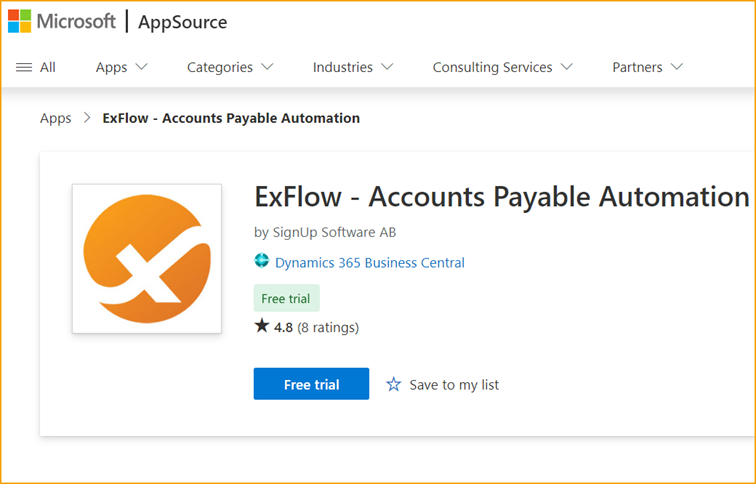
- Go to Microsoft AppSource and find ExFlow as a Free Trial.
- Enter the company details, and select the tenant and language for the installation.
- When the installation is complete, get the ExFlow license key from an authorized ExFlow Partner.
License
The ExFlow extension must be installed and the license key must be available before the Get Started Wizard can be run.
License for new installations
For completely new Business Central Online installations, the license can be handled via License Provider for Pilot Program customers.
Note: From Business Central 29, License Provider needs HTTP requests to be allowed manually. See Allow HTTP Requests for License Provider.
Get Started Wizard
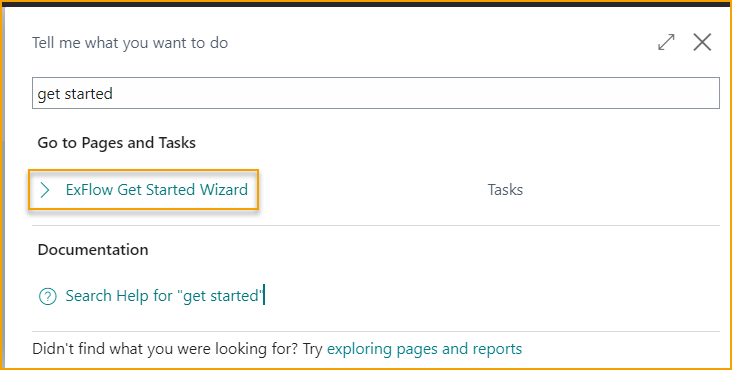
Search for ExFlow Get Started Wizard:
There are two ways to learn the wizard:
- Video: A video tutorial shows each step of the wizard. More videos are available under Video Tutorials.
- Written guide: The sections below describe each step of the wizard.
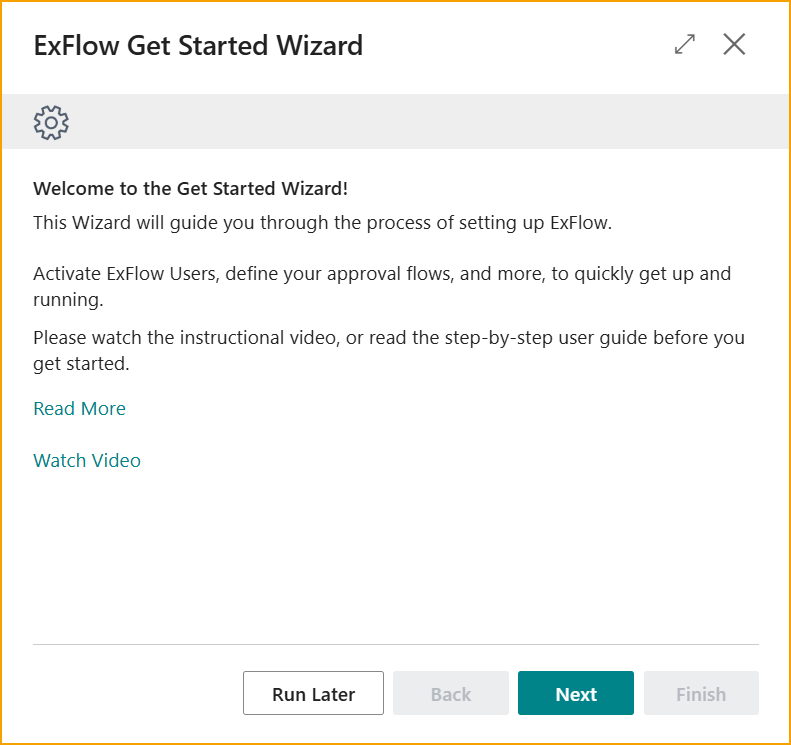
Wizard steps at a glance
| Step | Purpose |
|---|---|
| License Activation | Enter the ExFlow license key |
| Approval Assignment | Define how and in which order approvers are assigned |
| Create Users | Create ExFlow users from Business Central users |
| ExFlow Users | Add purchaser codes, dimension values, email addresses and permission roles |
| Automated Tasks | Schedule jobs and email reminders |
| ExFlow Data Capture | Connect to ExFlow Data Capture (optional) |
| Additional Options | Activate extra features such as Four Eyes Principle |
| Finish | Complete the setup |
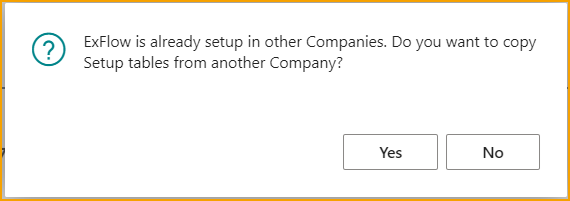
Copy Setup from another company
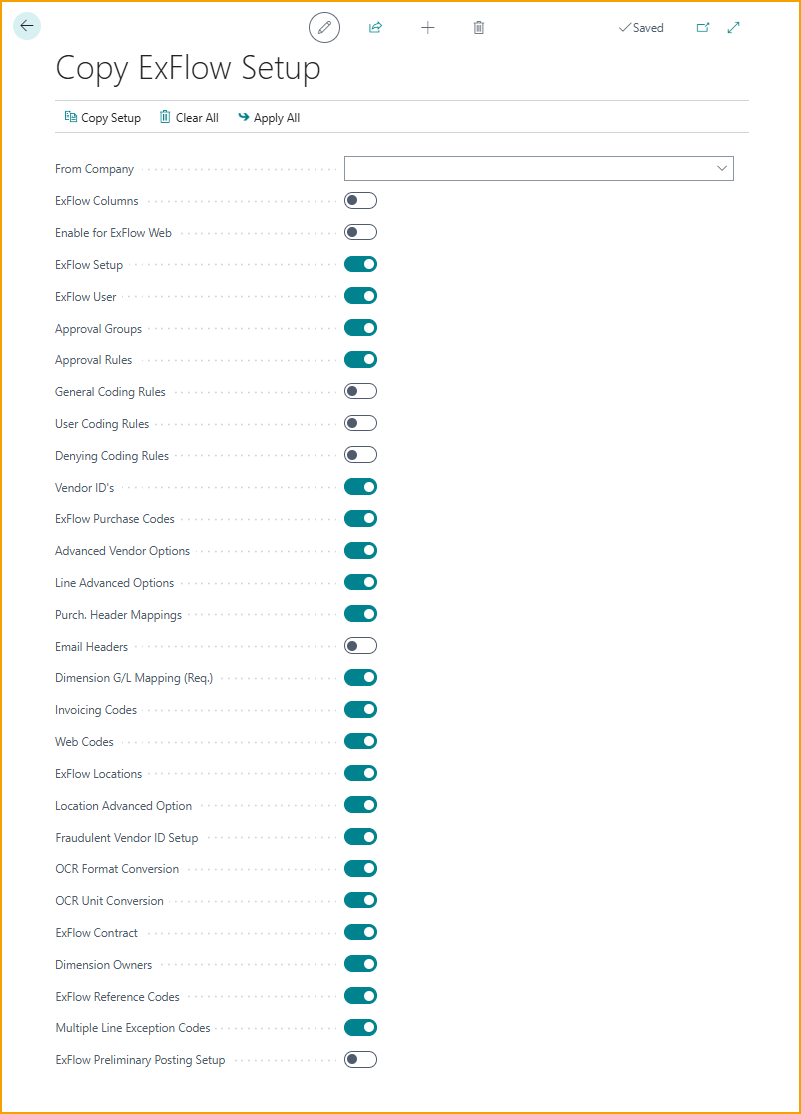
If ExFlow is already installed and configured in another company in the same tenant, it is possible to copy that ExFlow setup.
This is useful when the new company needs the same or similar settings.
To move a setup between environments instead, see Export/Import Setup.
License Activation
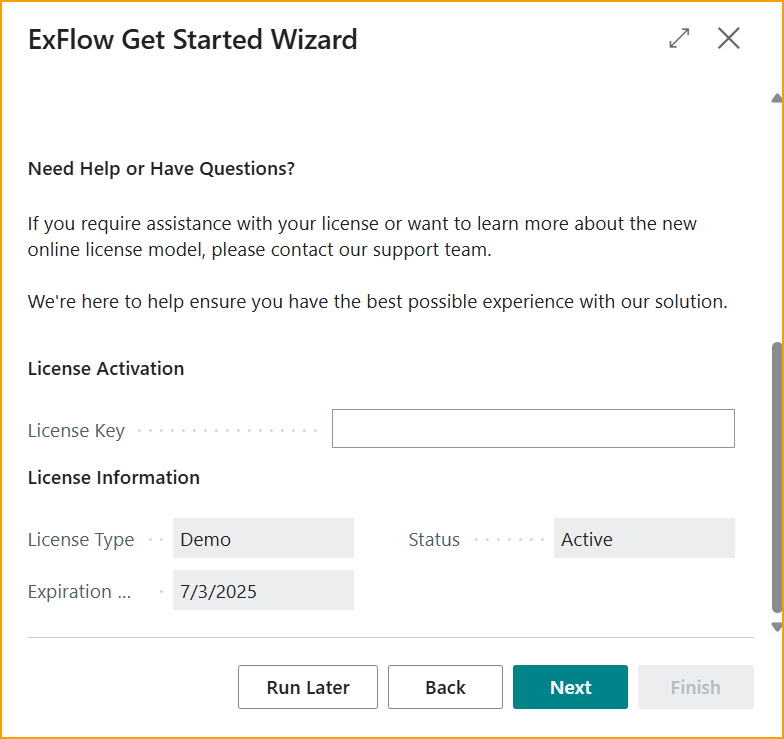
This step shows information about the license model and how it is activated.
Enter the license key and click Next.
Approval Assignment
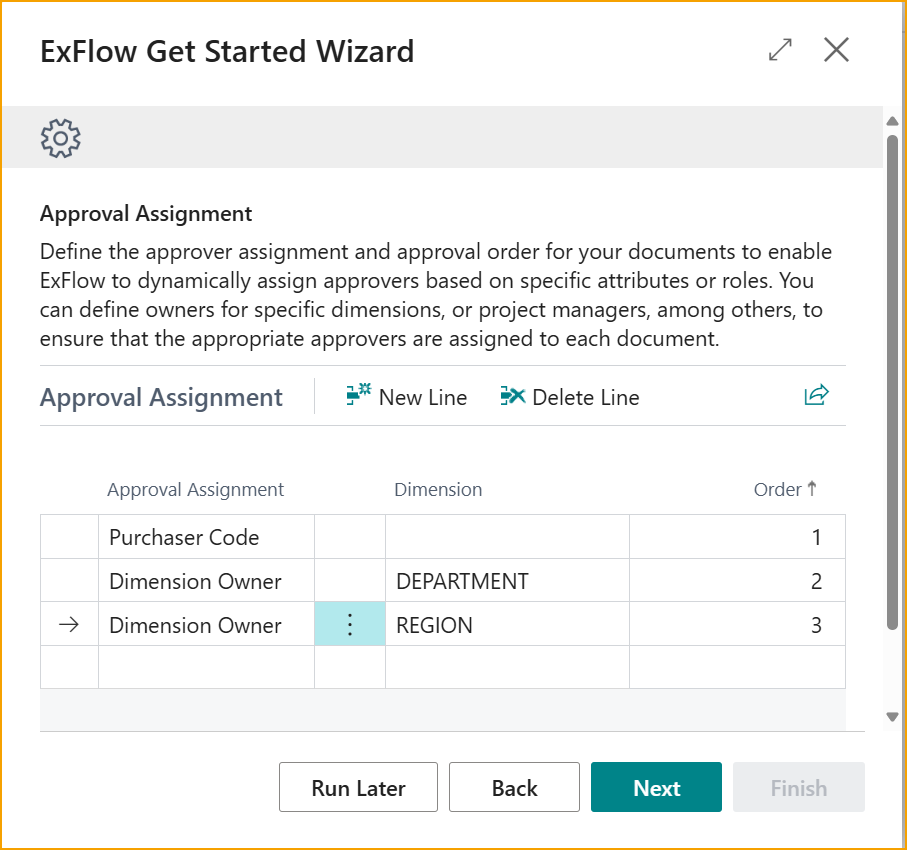
Define how approvers are assigned and in which order. ExFlow uses the approval assignment to add approvers to a document based on information on the document, such as the purchaser code or dimension values.
Example: Approvers are assigned in this order:
- Purchaser
- Dimension owner of the Department dimension
- Dimension owner of the Region dimension
The purchaser approves the document first. Next, the owner of the Department dimension reviews it. Last, the owner of the Region dimension approves it.
Read more in Approval Rules, Dynamic Approval Flow for Dimension Owners and Dynamic Approval Flows Purchasers.
Create Users
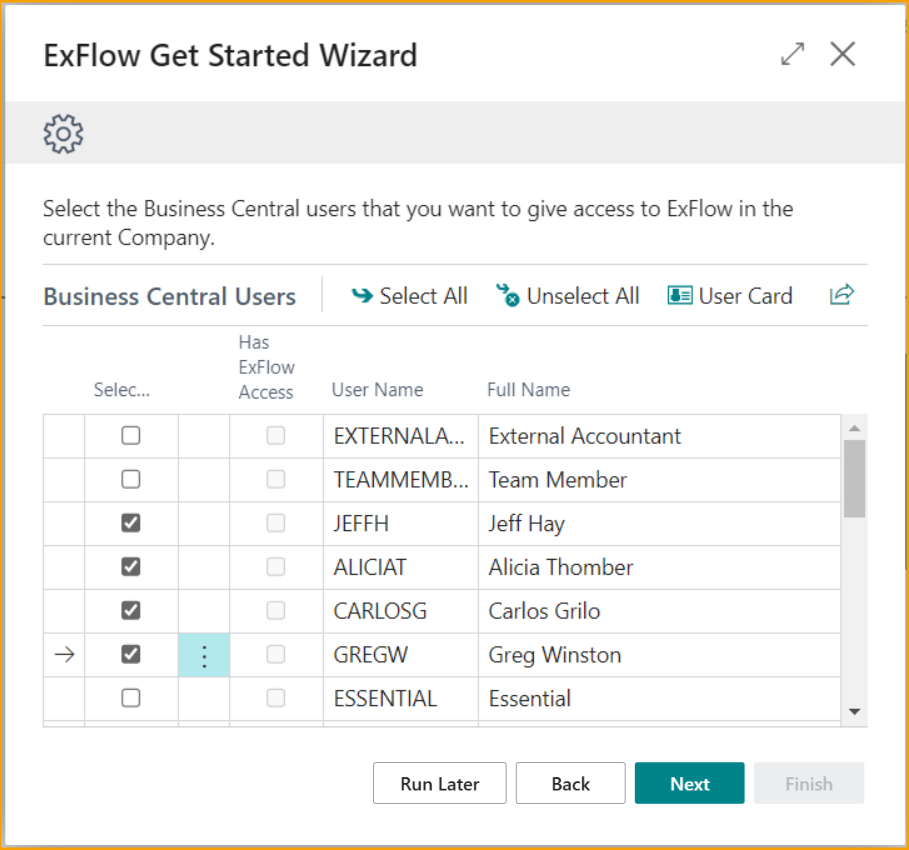
Select users from Business Central to create them as ExFlow users. The wizard fills in information such as User Name, Full Name and Email address.
Make later changes to existing users from ExFlow Users. This keeps user management in one place.
Note: The user running the Get Started Wizard is created as an ExFlow Admin user. This gives ExFlow admin rights in the current company.
ExFlow Users
Complete the ExFlow users by adding purchaser codes, dimension values, email addresses and permission roles.
Assign to each user the purchaser code and dimension values that the user is responsible for. These must match the approval assignment defined earlier. For example, if the Department dimension owner approves invoices, the user who owns the department SALES must have the dimension value SALES.
Permission Roles
Each ExFlow user needs a web permission role. The role decides what the user can do in ExFlow Web. Read more in Web Permission Roles.
| Role | Description |
|---|---|
| Approver | Takes part in the approval process. Cannot change coding. |
| Approver (Power) | Can change coding during approval. |
| Approver (Super) | Can change coding, and search and view all invoices in the company. |
| Admin | For administrators in ExFlow Web. Gives access to setup. |
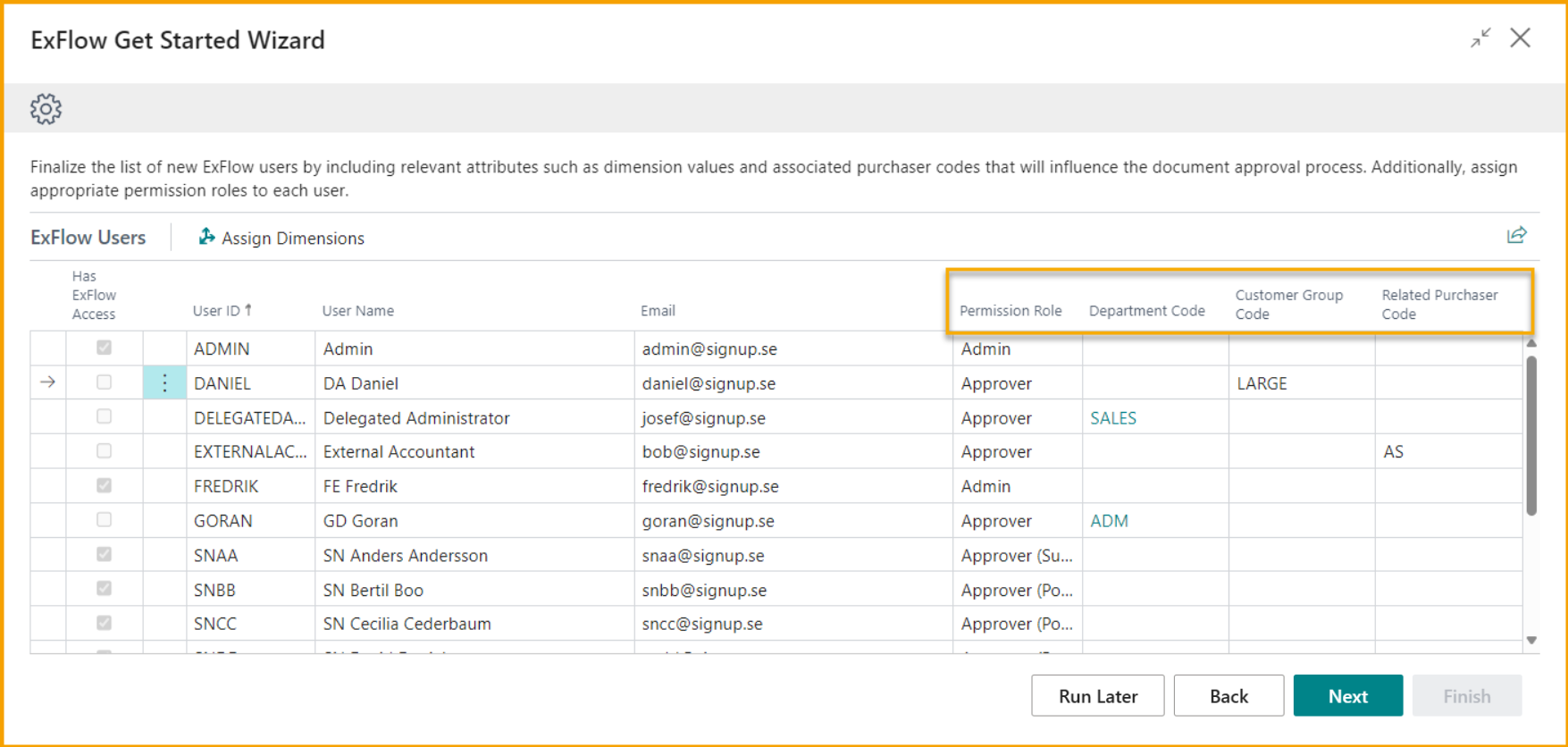
Read more about ExFlow Users, and about how to set up Dimension Owners and other dynamic approval flows in Approval Rules.
Automated Tasks
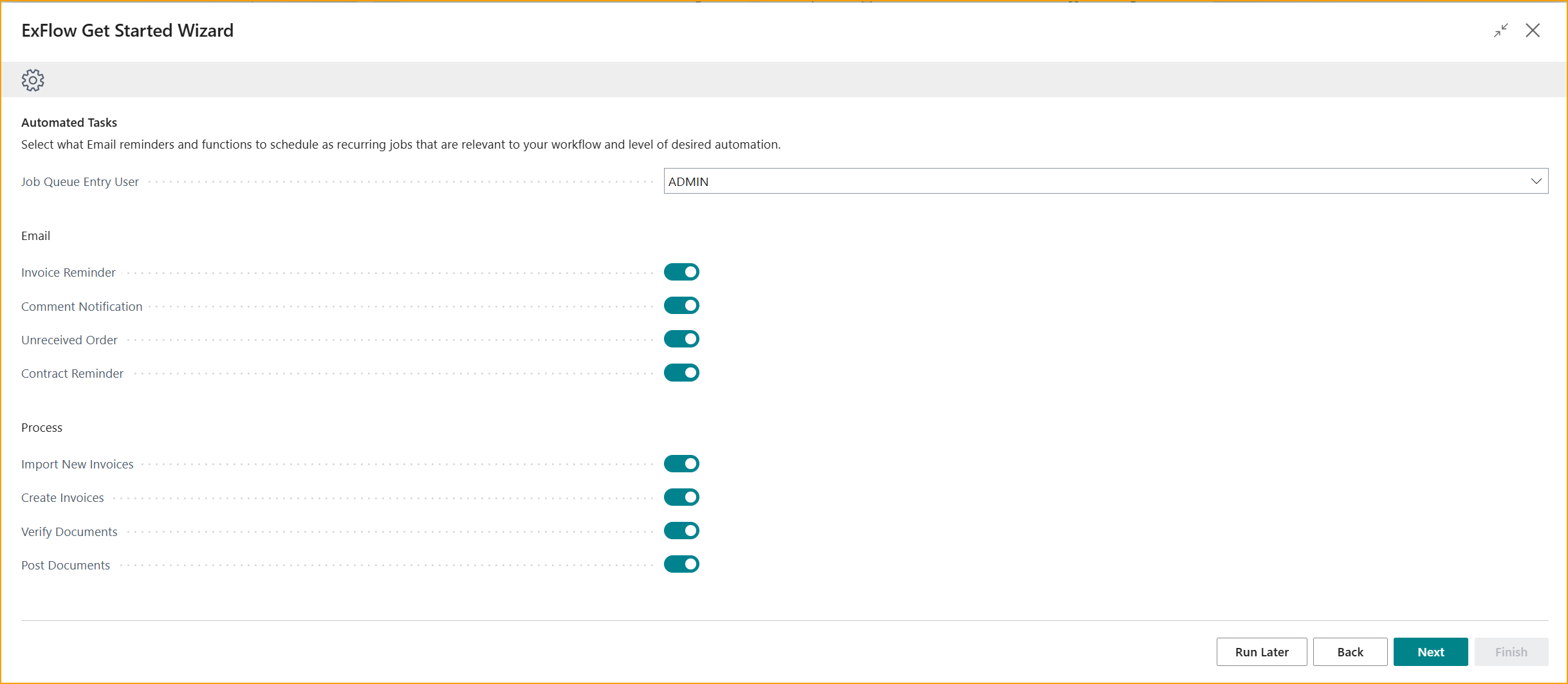
If needed, enter a Job Queue Entry User to run the scheduled jobs. This user must have the permissions needed for the tasks that the jobs run.
Select and schedule the jobs that automate the invoice process, such as importing, creating and posting invoices. The jobs then run automatically at the set intervals. Read more about all ExFlow jobs in Job Queues.
Email reminders can also be set up. These notify users about pending approvals, due dates and other important events in the workflow. Read more in Email Reminders and ExFlow Email Setup.
ExFlow Data Capture
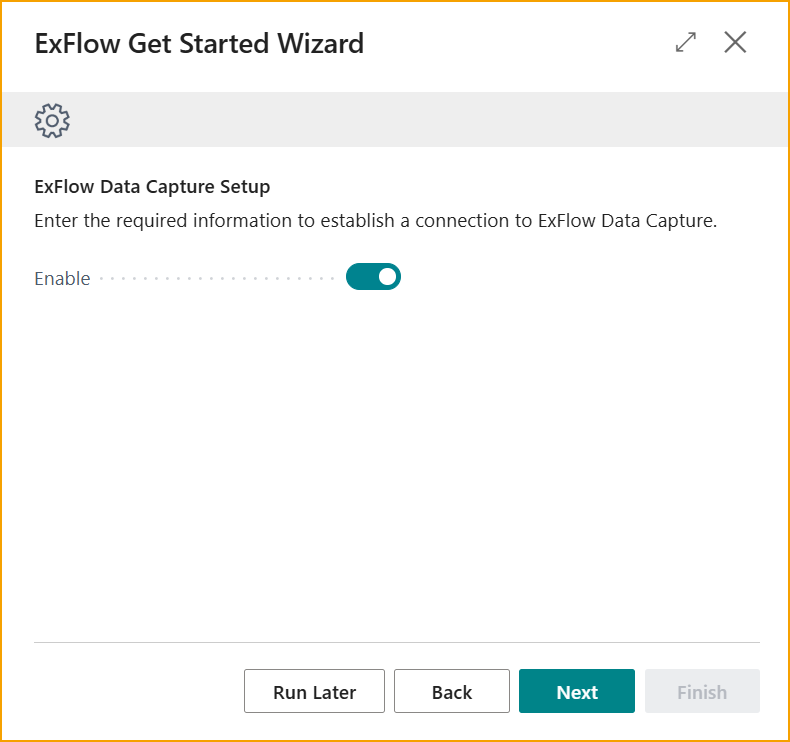
This step is only for customers that use ExFlow Data Capture as their OCR solution. Otherwise, skip this step.
The connection to ExFlow Data Capture lets ExFlow import invoices for the company and upload master data, such as vendors, to ExFlow Data Capture.
Click Enable to open ExFlow Data Capture Account Card.
Enter the following information, provided by Truvio:
| Field | Description |
|---|---|
| User Name | The user name of the ExFlow Data Capture account |
| Password | The password of the ExFlow Data Capture account |
| Authorization Key | A unique key that gives access to the ExFlow Data Capture environment |
| OCR Doc. Template | The template that defines the layout and structure of invoices for extraction |
Click Close to return to the Get Started Wizard.
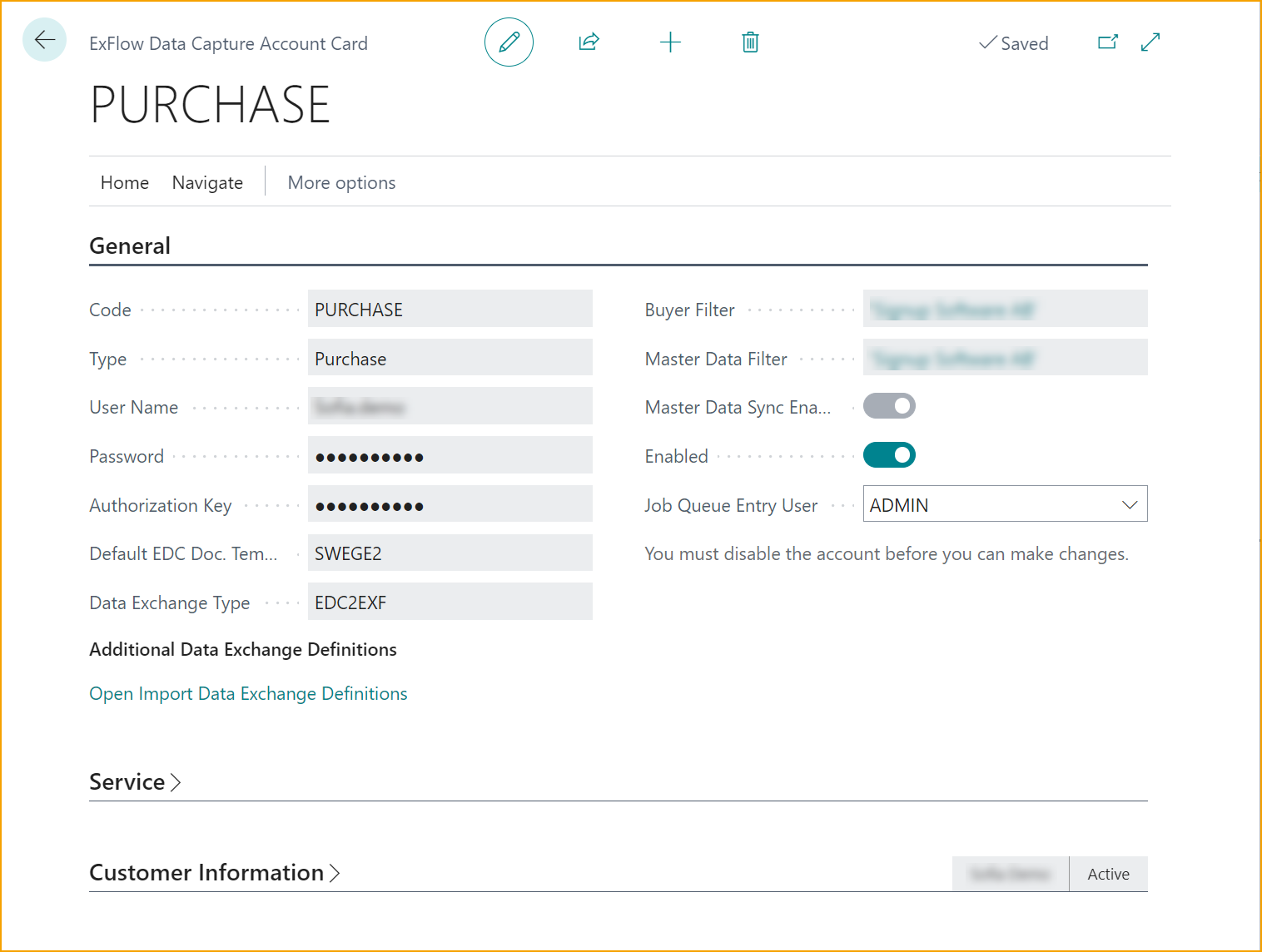
Schedule the master data synchronization and select Enabled to allow synchronization between ExFlow and ExFlow Data Capture.
Vendors are synchronized from Business Central to ExFlow Data Capture every 10 minutes.
The connection can also be set up manually in ExFlow Data Capture Accounts. Read more about OCR in OCR Overview and OCR Import Mapping.
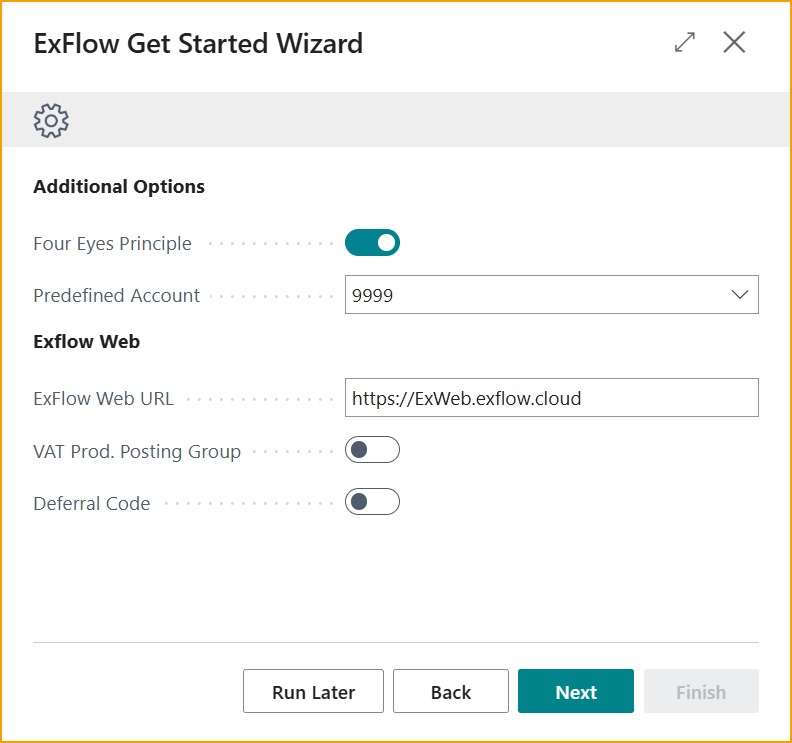
Additional Options
Configure additional options to fit the organization's needs:
| Option | Description |
|---|---|
| Four Eyes Principle | Requires approval from at least two people before a document can be posted. This adds control and reduces errors. Read more in Minimum No. of Approvers. |
| Predefined Account | Makes coding easier for new vendors. ExFlow suggests this account when no account is defined on the vendor. ExFlow also uses the Posted Purchase Invoice history to suggest the most likely coding. Read more in Predefined Account and Auto Coding Suggestion Setup. |
| URL to ExFlow Web | The URL to ExFlow Web, where approvers review and approve invoices. Read more in ExFlow Web. |
| Activate Additional Columns for ExFlow Web | Shows more columns in ExFlow Web, such as VAT Prod. Posting Group and Deferral Code. Read more in Edit Web Columns. |
Finish
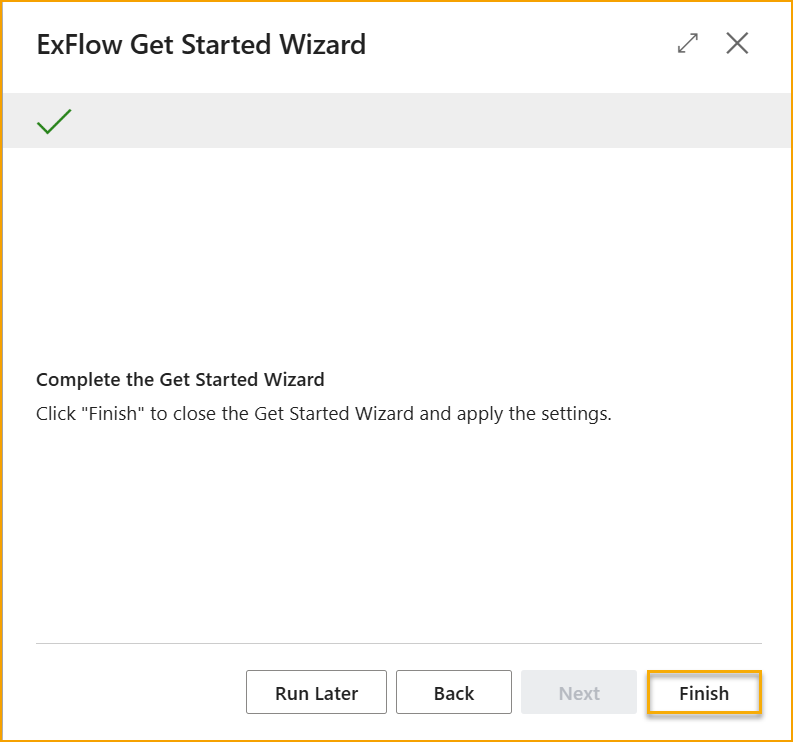
All information needed for the setup is now entered.
Click Finish to complete the configuration. ExFlow is set up based on the selections in the wizard.
All settings made in the wizard can be changed later in ExFlow Setup.
Exit and continue later
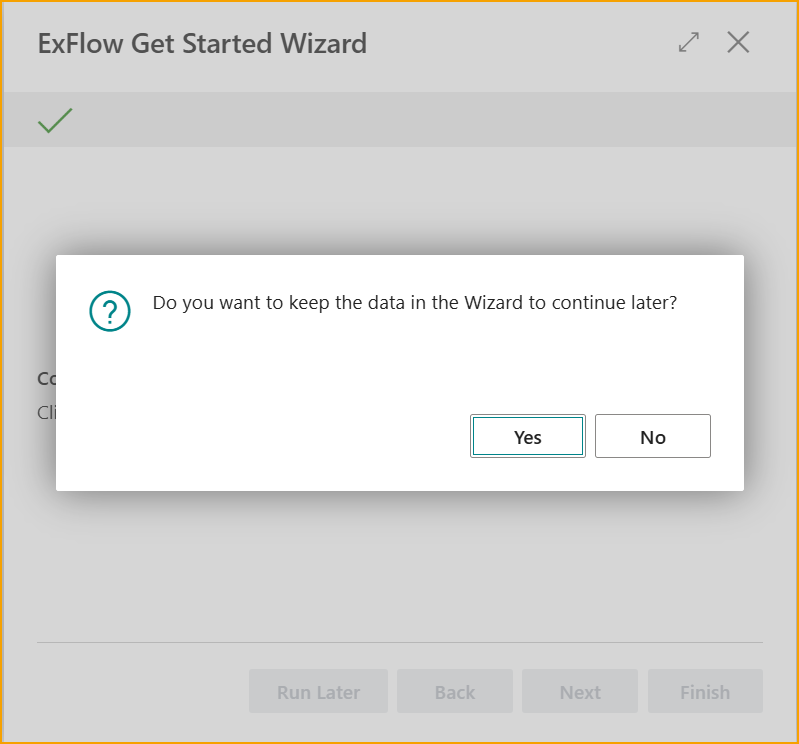
If the wizard is closed before it is finished, the option Run Later is shown. This saves the entered data, so the setup can continue from the same step later without starting over.
Next steps
When the setup is complete, these sections describe the daily work in ExFlow:
| Section | Description |
|---|---|
| ExFlow Import Journals | Import, check and create invoices |
| ExFlow Approval Status | Follow invoices during approval |
| Expense Invoice Process | The full process for expense invoices |
| ExFlow Web | Approve invoices on the web |
| Troubleshooting | Solutions to common problems |
ExFlow Data Capture Accounts
ExFlow Data Capture Accounts connects Business Central to ExFlow Data Capture (EDC). The connection is used to import interpreted invoices and to upload vendor master data from Business Central, when OCR Service Setup is not in use.
This can be set up in the Get Started Wizard or manually.
Configuration Steps
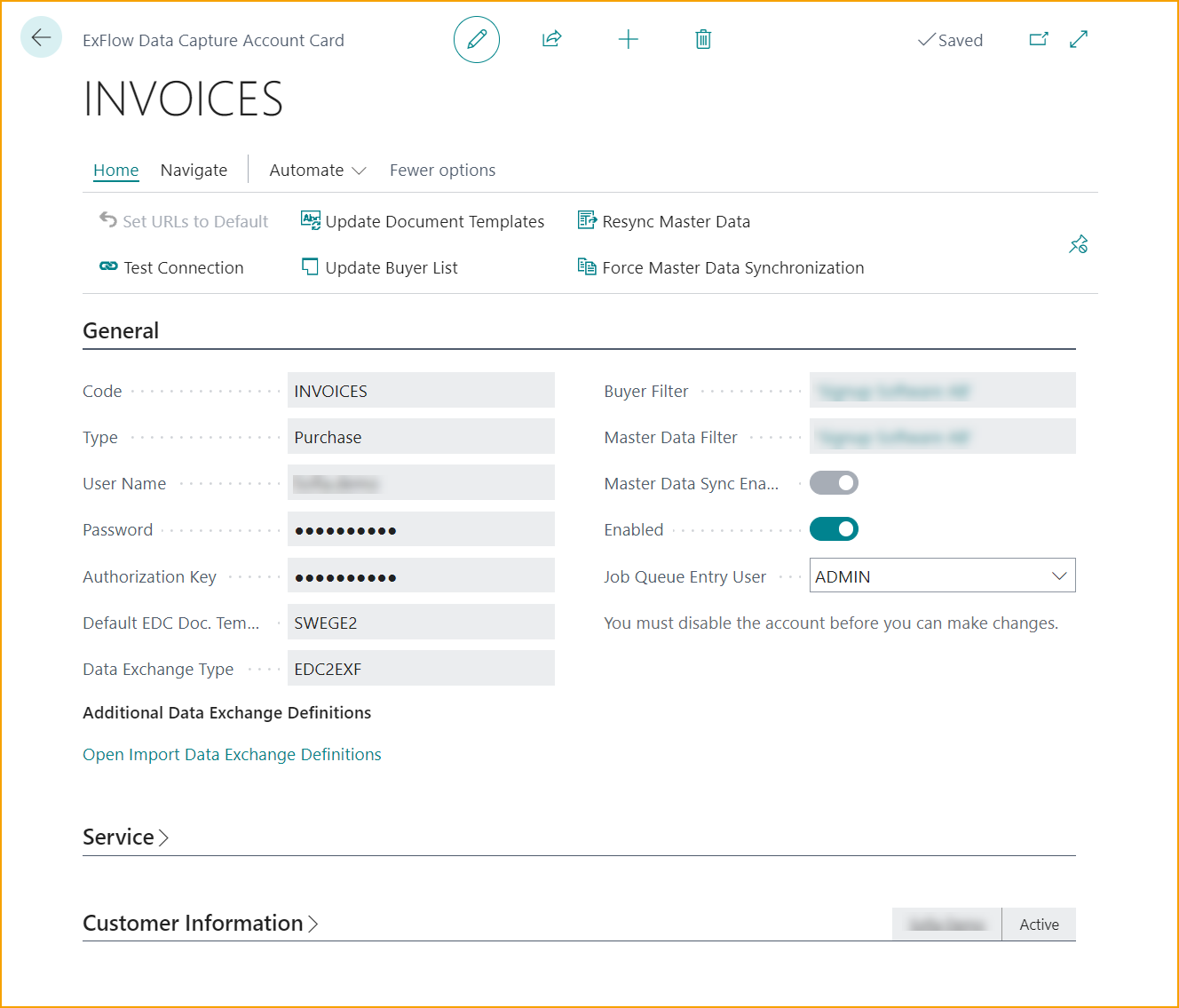
- Go to: ExFlow Data Capture Accounts
- Click New to create a new connection.
- Enter a Code and select the connection Type:
- Purchase is for Purchase Invoices
- Sales is for Sales Orders
Connection Details
The following connection details are provided by Truvio or the Business Central Partner:
- User Name
- Password
- Authorization Key
| Field | EDC Description |
|---|---|
| Default EDC Doc. Templates | The document template used by EDC for interpretation |
| Data Exchange Type | Select EDC2EXF, the default exchange type for EDC |
Company Selection: Unlike OCR Service Setup, ExFlow Data Capture Accounts can use the same credentials for all companies in Business Central. This is because the user account has access to all companies in EDC.
Important: Select the correct company as Buyer and in the Master Data filter, so that the connection is made to the right company.
Finalizing Configuration
- Check the entered details.
- Activate Master Data Sync to upload vendor master data.
- Activate Enable and accept any messages.
- Test the connection between Business Central and ExFlow Data Capture.
License Provider
Go to: ExFlow License Provider
New customers and installations can use ExFlow License Provider.
License Provider gives more detailed control over Truvio applications and their features. It also shows which products are licensed and makes it easier to track document volumes in applications such as ExFlow AP.
When a license is activated, the licensed products are shown:
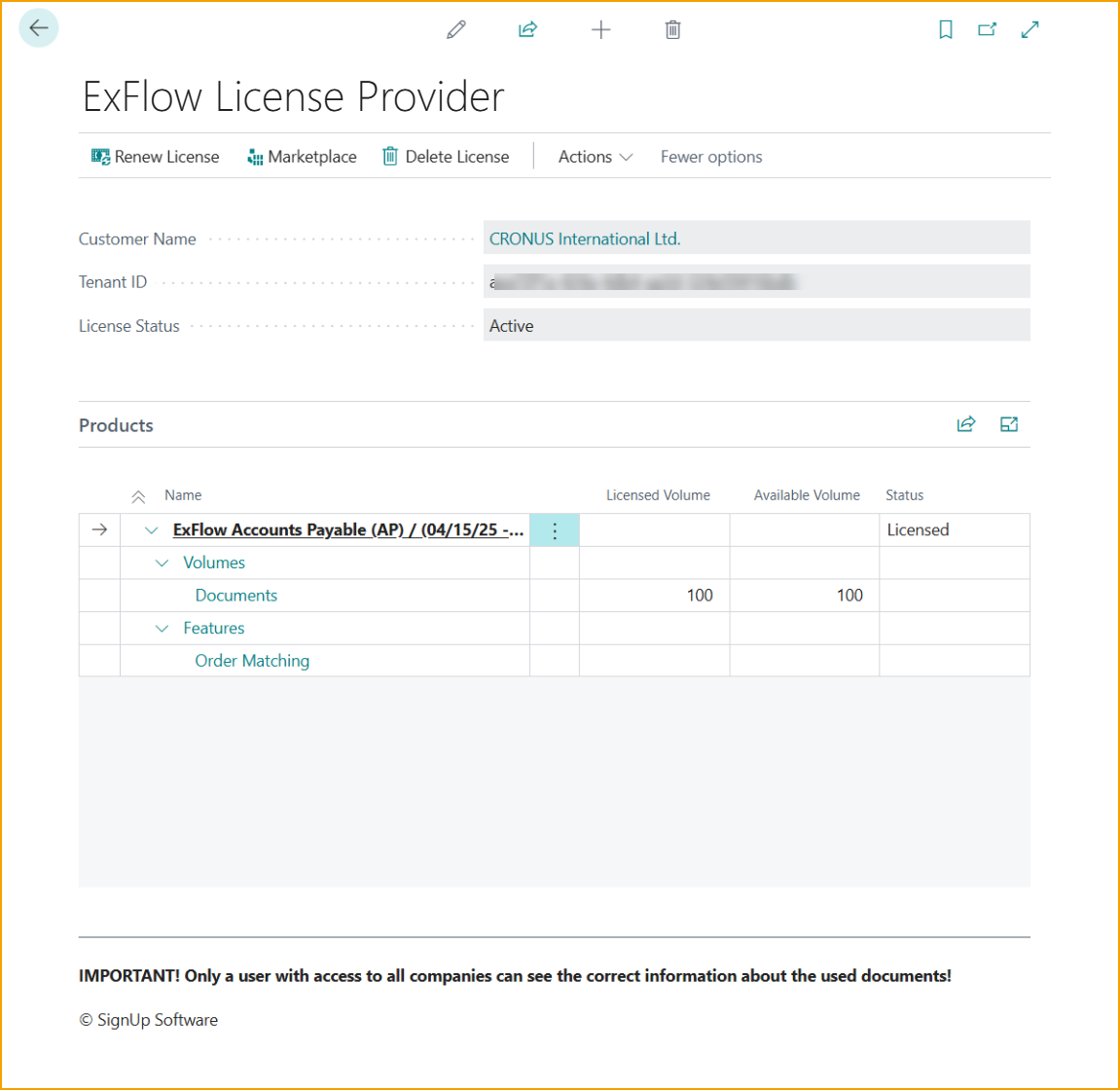
| License Provider menu | Description |
|---|---|
| SignUp | Create a new customer registration. Hidden when the license is activated. |
| Activate License | Create a new instance activation. Hidden when the license is activated. |
| Renew License | Renew the license manually when needed. Otherwise, the license is renewed automatically. |
| Marketplace | Link to the Marketplace |
| Delete License | Remove the license |
Allow HTTP Requests for License Provider
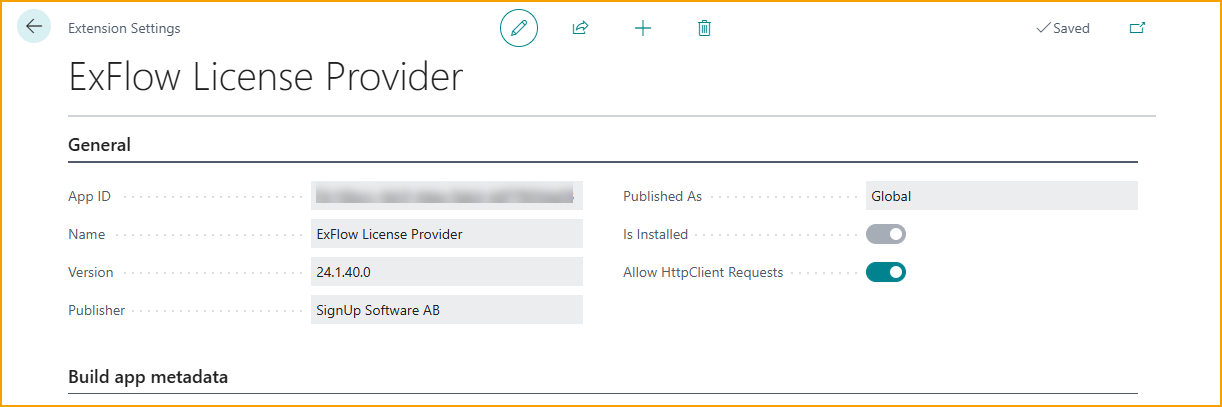
Important: From Business Central 29, HTTP requests are no longer activated automatically when License Provider is installed. This applies to both Business Central online and on-premises.
This is a temporary solution. Activate the setting manually after installation:
- Go to: Extension Management
- Select the ExFlow License Provider extension.
- Edit the card and activate Allow HttpClient Requests.
ExFlow Feature Management
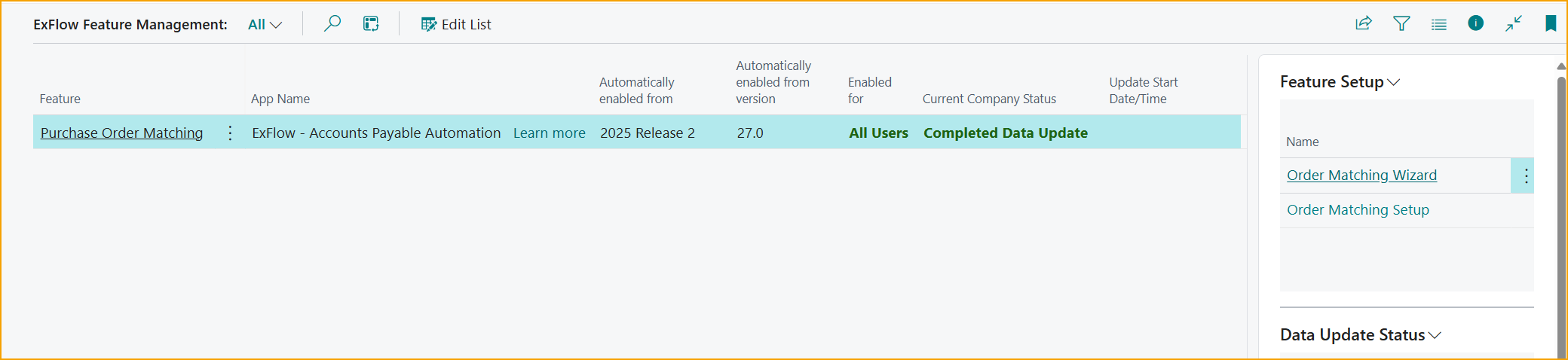
Go to: ExFlow Feature Management
ExFlow Feature Management controls when new and larger features are enabled.
Feature Management works together with License Provider. A feature can only be enabled when a valid license exists for the app or feature.
Order Matching Wizards
Use the Order Matching Wizards to set up the handling of order matched documents.
Which wizard is shown depends on how the license is activated: via License Activation or via License Provider.
Purchase Order Matching Wizard
This wizard is for current customers that use the original order matching functionality. It is shown when the license key is activated via ExFlow License Activation.
Read more in Purchase Order Matching Process.
New Order Matching Wizard
This wizard is shown when License Provider is used and New Order Matching is enabled in ExFlow Feature Management.
Note: The feature is enabled for all companies. When it is disabled, it is disabled for all companies.
Read more in New Order Matching Experience.