ExFlow Setup
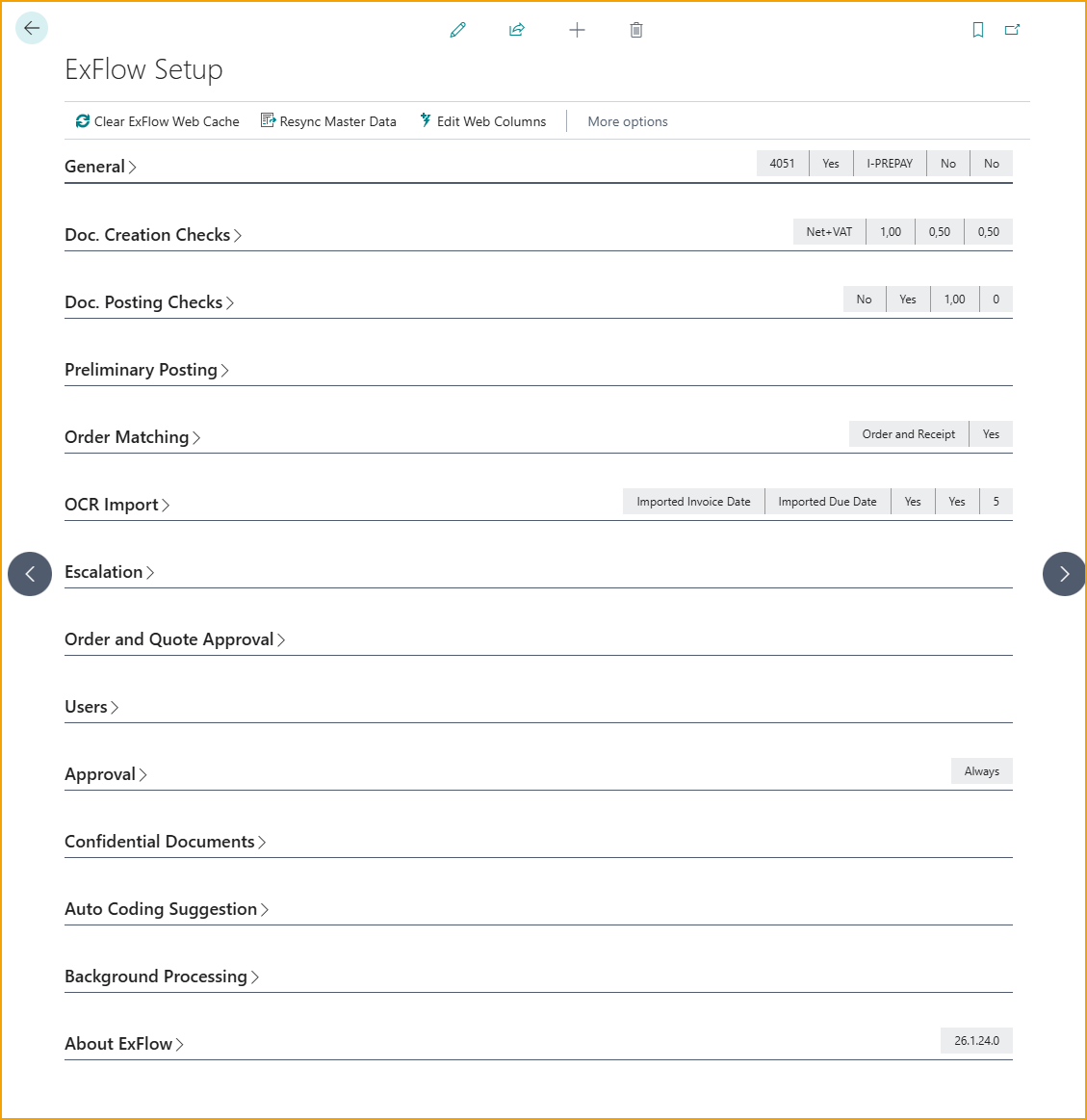
ExFlow Setup is organized into various sections to simplify the process of creating the most optimal workflow for the company's requirements.
Go to: ExFlow Setup

| ExFlow Setup | |
|---|---|
| Clear ExFlow Web Cache | Utilize this function to clear the ExFlow Web Cache |
| Resync Master Data | Resync master data and vendor bank accounts with ExFlow Data Capture/ OCR Service |
| Edit Web Columns | Make changes on current ExFlow web columns. From ExFlow version 26.0, ExFlow web settings have an own dedicated ExFlow Web Setup page. Read more about this under section ExFlow Web Setup |
Go to: ExFlow Setup --> Actions --> Functions
| Actions --> Functions | |
|---|---|
| Apply/ Update Default ExFlow Security Roles | Creates default Web User Permissions if none exist or are changed. Read more about this under section Web User Permissions |
| Copy Setups | Copy setup from another company within same tenant by selecting tables (for example Approval Rules) to be copied from an already ExFlow configured company. Read more about this under section Copy Setup from another company and Copy Setup |
| Blob Storage Mgmt | Opens the ExFlow Storage Management Setup. Read more about this under section Generic Blob Storage and OAuth 2.0 Applications and Storage Setup |
| Power BI | Create Power BI Web Services: Creates Web Services for Power BI Delete Power BI Web Services: Deletes all Web Services for Power BI Get BC DataSource: This function creates a URL string (DataSource) for the BC client. Use this link and paste it into Power BI when running the template Get Power BI template: Opens a website for downloading template Read more about this under section Power BI |
| Export/Import Setups | Export and Import ExFlow Setup (.json file) between environments. Read more about this under section Export/Import ExFlow data |
| Upgrade ExFlow Data from CAL | Run an ExFlow migration for a current company or all companies. Read more about this under section Upgrade and migrate ExFlow data |
| Migrate Documents | Open the Document Migration tool. Read more about this under section Upgrade and migrate ExFlow data |
| OAuth2 Applications | Opens the OAuth 2.0 Applications page. Read more about this under section OAuth 2.0 Applications and Storage Setup |
| OCR | Update Vendor ID for all vendors: Syncs all Vendor IDs. Advanced Mapping: Opens ExFlow Advanced Mappings. Import Data Exchange Definitions: Displays all Import Data Exchange Definition codes and its blob name etc. Other --> Resync Master Data: Resync master data and vendor bank accounts with ExFlow Data Capture/ OCR Service |
Go to: ExFlow Setup --> Related --> Advanced
| Related --> Advanced | |
|---|---|
| ExFlow Global Setup | Opens ExFlow Global Setup page where all global environment settings can be found. This pahe currently containing an enable/disable setting for automatic permission set assignment of EX BASE on users. |
| Columns | Opens ExFlow Columns to view all visible columns in ExFlow web Read more about this under section ExFlow Web Setup |
| ExFlow Vendor Setup | Opens Vendor Setup to set vendor specific settings Read more about this under section Vendor Setup |
| Vendor ID Setup | Displays Vendor ID fields and the ExFlow Data Capture export order. Read moe about this under Vendor ID Fields |
| FactBox Default Sizes | Edit/restore FactBox Sizes for different ExFlow pages Read more about this under section Set FactBox Default Size |
| Payment Validation Setup | Enter fields to check in Payment Validation during the import and data interpretation process. Read more about this under section Payment Validation Setup |
| Preliminary Posting Setup | Opens the Preliminary Posting Setup. Note: This setting must be activated under the ‘‘Preliminary Posting’’ section to be viewed. Read more about this under section Preliminary Posting |
| Copy Header Values on Invoice/Credit Memo Setup | Copy Header Values on Invoice/Credit Memo Setup. Note: This setting must be activated under the ‘’Order Matching’’ section to be viewed. Read more about this under section Copy Purchase Order Header Values |
| Auto Receive Line Type Setup | Show or edit Line Types that should be automatically received. Read more about this under section Match Invoice with Receipt-, Order- or both Receipt and Order lines |
| Re-Invoicing Setup | Opens the setup page for Re-Invoicing. Read more about this under section Re-Invoicing |
| Item No. Matching Priority | This function will give the opportunity to setup priority list in the Item No. matching process by Matching Type such as OCR Mapping or Item Reference etc. Read more about this under section Item No. Matching Priority |
| Bypass Verify Changes Setup | Opens the settings window for bypassing verify changes. Read more about this under section Bypass Verify Changes |
ExFlow Setup Sections
Find all ExFlow Setup sections described according to below.
General
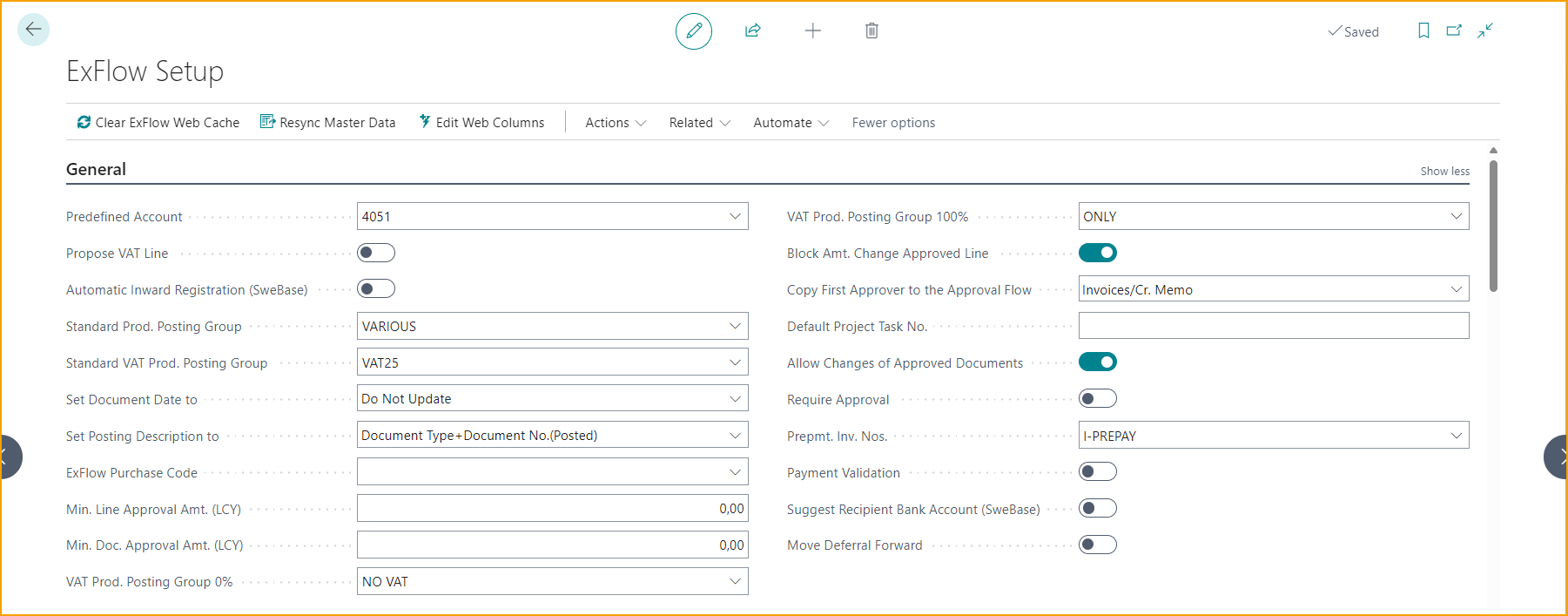
| General | |
|---|---|
| Predefined Account | Specifies the default G/L account that is used by ExFlow when creating a default invoice/credit memo line on newly imported (expense) invoices/credit memos. Can be overridden on a per-vendor basis. Cannot be used in combination with ExFlow Purchase Code. When a predefined account is specified, enable Do Not Post Predefined Account under Doc. Posting Checks to prevent final posting to this account. Example: Set it to a "to be coded" account such as 9999, and every new invoice starts with one line on that account until someone codes it properly. |
| Propose VAT Line | Specifies if a separate VAT line should be created automatically (when importing invoices) or if Business Central standard VAT handling should be used. Make sure to fill in the fields VAT Prod. Posting Group 0% and VAT Prod. Posting Group 100%. Example: An invoice of 1,250 that includes 250 VAT gets one cost line of 1,000 and a separate VAT line of 250. Read more about this function under Propose VAT Lines |
| Automatic Inward Registration (SweBase) | Specifies if the Inward Registration should be generated and posted from Purchase Lines (Suggest from Lines function in SweBase) Example: Turn it on and the inward registration is created and posted automatically from the invoice lines, so nobody has to do it by hand. |
| Standard Prod. Posting Group | Specifies the default Product Posting Group to be used by ExFlow if the Product Posting Group is missing on the document line when the line is created in the import journal Example: If an imported line has no product posting group, ExFlow fills in the one selected here (for example MISC) so the line can still be created. |
| Standard VAT Prod. Posting Group | Specifies the default Product Posting Group to be used by ExFlow if the Product Posting Group is missing on the document line when the line is created in the import journal Example: If an imported line has no VAT group, ExFlow fills in the one selected here (for example VAT25) so the line can still be created. |
| Set Document Date to | Specifies if the Document Date on the imported invoice should be set to the posting date if/when the posting date is changed Example: Choose Posting Date and moving the posting date to 1 March also moves the document date to 1 March; Do Not Update (the default) leaves the document date alone. |
| Set Posting Description to | Specifies which posting description BC will use when posting the invoice. Only applies to postings using the accounts payable g/l account(s) Example: Choose Vendor Name+Vendor Document No. and the vendor entry shows "Office Supplies Ltd INV-1234" instead of "Invoice PPI-1001". Choose Document Type+Document No.(Posted) (default), and the vendor entry shows "Invoice PPI-1001", using the posted invoice number. Choose Order No. or Document Type+Document No.(Posted), and an invoice matched to order 106001 shows "Order 106001". Other invoices show "Invoice PPI-1001". Choose Order No. or Vendor Name+Vendor Document No., and an invoice matched to order 106001 shows "Order 106001". Other invoices show "Office Supplies Ltd INV-1234". Choose Document Type+Document No., and the vendor entry shows the unposted invoice number, for example "Invoice PI-1005". Choose Order No. or Document Type+Document No., and an invoice matched to order 106001 shows "Order 106001". Other invoices show the unposted invoice number, for example "Invoice PI-1005". |
| ExFlow Purchase Code | Specifies the default ExFlow Purchase Code to use when creating a default invoice/credit memo line(s) on newly imported (expense) invoices/credit memos. Selecting this will replace existing import lines (if any). Can be overridden on a per-vendor basis. Cannot be used in combination with Predefined Account. Example: Set it to a code such as TRAVEL, and every new invoice starts with the lines that the TRAVEL code holds. Read more about this under section Purchase Codes |
| Min. Line Approval Amt. (LCY) | Specifies the min. approval amount incl VAT for an invoice line i.e. lines with a smaller amount are not sent on approval by ExFlow. Zero means that all invoice lines are sent on approval Example: Set it to 50, and a 30 postage line skips approval while a 200 line still goes to an approver. |
| Min. Doc. Approval Amt. (LCY) | Specifies the min. approval amount incl VAT for a document i.e. invoices with a total that is lower than this amount are not sent on approval by ExFlow. Zero means that all invoices are sent on approval Example: Set it to 100, and an invoice of 80 skips approval while an invoice of 500 goes to an approver. |
| VAT Prod. Posting Group 0% | Specifies the VAT Prod. Posting Group for "No VAT" when the setting "Propose VAT line" is selected Example: Select the group used for "no VAT", so the cost line carries no VAT and the VAT sits on its own VAT line. |
| VAT Prod. Posting Group 100% | Specifies the VAT Prod. Posting Group for "Only VAT" when the setting "Propose VAT line" is selected Example: Select the group used for "only VAT", so the separate VAT line holds just the VAT. |
| Block Amt. Change Approved Line | Specifies if amount changes should be blocked in approved invoice lines. Example: Turn it on, and nobody can change a line from 1,000 to 1,200 after the approver has approved. |
| Copy First Approver to the Approval Flow | Specifies if the "First Approver filter" from the approval rule for a specific invoice line also should be added (as first approver) to the approval proposal. Example: Choose Invoices/Cr. Memo to put the first approver from the rule at the top of the flow on invoices and credit memos, but not on orders. Choose All Documents to put the first approver from the rule at the top of the flow on all documents, including orders and quotes. Choose Never, and the first approver from the rule is not added to the approval flow. Read more about this function under Copy First Approver to the Approval Flow |
| Default Project Task No. | Default Project Task No. will be added on lines with Project No. if no Project Task is selected. Example: Set it to 1000, and a line with a project but no task gets task 1000 automatically, as long as that project has a posting task 1000. |
| Allow Changes of Approved Documents | Specifies if it is allowed to modify a purchase document header and/or lines with status Approved. Example: Turn it on so a wrong dimension or vendor invoice number can still be corrected on an invoice that is already approved. |
| Require Approval | When this is activated, the user will be required to have the ExFlow Approval flag ticked on the Invoice/Credit Memo before it can be posted. (If it is an Order/Quote before it can be released.) Example: Turn it on, and a purchase invoice entered directly in Business Central, without the ExFlow Approval flag, cannot be posted. Read more about this under section Require Approval |
| Prepmt. Inv. Nos. | Add a Prepayment Invoice No Series. Should not be the same as Posted Invoice Nos. in Purchases & Payables Setup since this will cause a gap and create an empty posted invoice to fill this gap in the number series. Example: Use its own number series, such as PREPINV-0001, so the normal posted invoice numbers never get gaps. Read more about this under section Prepayment Invoices |
| Payment Validation | Specifies if the payment validation process will be applied during the import and data interpretation process. Example: Turn it on to get a warning when, for example, the bank account on an invoice does not match the one saved for the vendor. Read more about this under section Payment Validation Setup |
| Suggest Recipient Bank Account (SweBase) | Specifies if the Suggestion of Recipient Bank Account is activated. Example: Turn it on, and ExFlow fills in the vendor bank account that matches the invoice, so it does not have to be selected manually. Read more about this under section Suggest Recipient Bank Account |
| Move Deferral Forward | When posting date in Deferral Schedule is before allowed posting date for the user, that period will be posted on first allowed posting date in General Ledger Setup or User Setup. ExFlow will only move deferrals forward for closed periods. Example: If January is already closed, the January part of a deferral is posted on the first open date instead, for example 1 February. Read more about this under section Move Deferral Forward |
| Vendor Doc No. 2 to Payment Reference (hidden per default) | Specifies if Vendor Document No. 2 in the Import Journal should populate the field Payment Reference on the purchase invoice card when the invoice is created. Eventual country specific localizations for the handling of Vendor Document No. 2 will not be affected by this setup. Use personalisation to make this setting visable. Example: Turn it on, and a payment reference read from the invoice (like 123456789) lands in Payment Reference by itself. |
Doc. Creation Checks
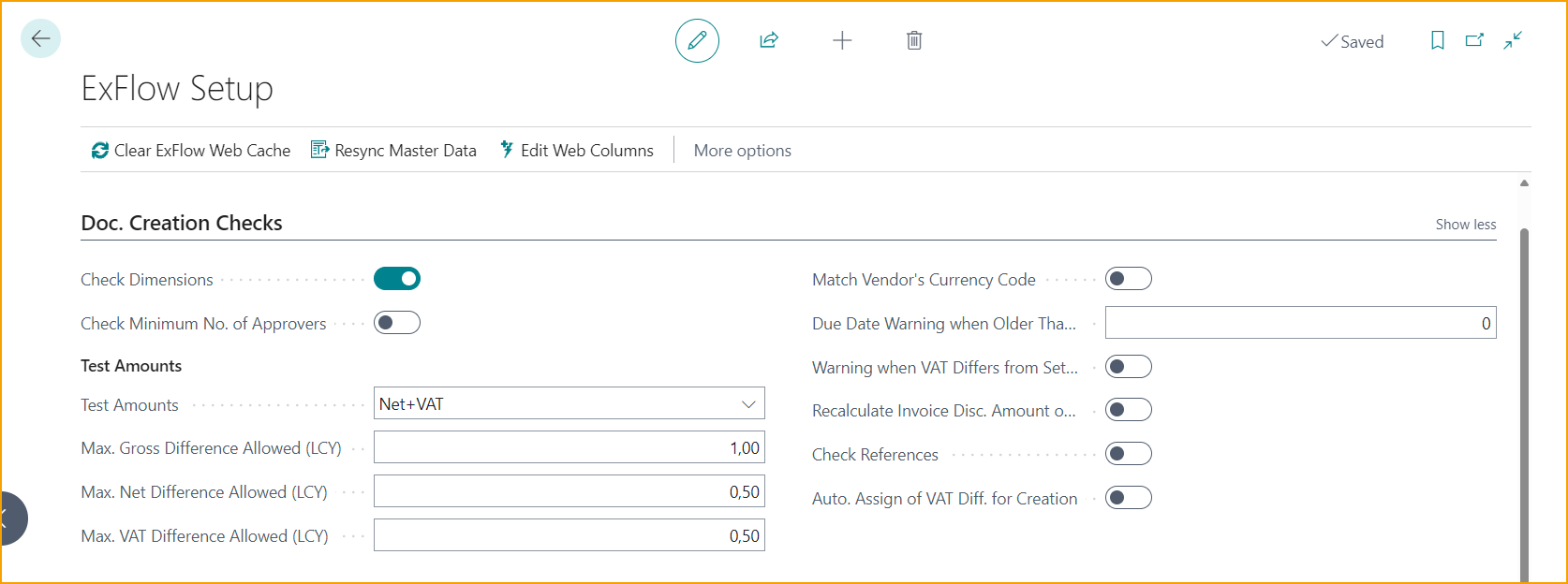
| Doc. Creation Checks | |
|---|---|
| Check Dimensions | Specifies if the standard dimension settings in Business Central should be checked when the invoice is created Example: Turn it on, and an invoice cannot be created if a required dimension, such as Department, is missing. |
| Check Minimum No. of Approvers | Specifies if there should be a check of minimum number of approvers when creating purchase document. Example: If at least 2 approvers are needed and only 1 is found, ExFlow stops the invoice from being created. Read more about this under section Check Minimum No. of Approvers |
| Test Amounts | Specifies if the Gross/Net/Vat amounts on the document should checked for variances (difference between sum of document lines and the corresponding amount in the document header) before the invoice is created Example: Choose Gross, and the invoice cannot be created if the lines add up to 990 but the invoice total says 1,000. Choose Net+VAT, and the invoice cannot be created if the net amount of the lines is 950 but the invoice says 1,000, or if the VAT on the lines differs from the invoice VAT by more than the allowed difference. Leave it blank to skip the amount check, unless the vendor setup or the ExFlow Purchase Code has its own setting. |
| Max. Gross Difference Allowed (LCY) | Specifies the max document gross amount variance (in LCY) allowed when "Test Amounts" is active Example: Set it to 1, and a rounding difference of 0.50 is accepted, but a difference of 5 is not. |
| Max. Net Difference Allowed (LCY) | Specifies the max document net amount variance (in LCY) allowed when "Test Amounts" is active Example: Set it to 1, and a net difference of 0.40 is accepted, but a difference of 3 is not. |
| Max. VAT Difference Allowed (LCY) | Specifies the max document vat amount variance (in LCY) allowed when "Test Amounts" is active Example: Set it to 0.50, and a VAT difference of 0.20 is accepted, but a difference of 2 is not. |
| Match Vendor's Currency Code | Specifies if the currency code on the imported document must match the currency code on the vendor card. Example: Turn it on to get a warning when a vendor set up in EUR sends an invoice in USD. Read more about this under section Match Vendor's Currency Code |
| Due Date Warning when Older Than X Days | Specifies the max # of days that the document due date may deviate from today's date. 0 = disables this check Example: Set it to 60, and a warning is shown when the due date is 60 days or more before or after today. |
| Warning when VAT Differs from Setup | Specifies if the calculated vat percentage on the document must exist as a setting in the VAT Posting Setup Example: A warning is shown if an invoice has 12% VAT but the VAT setup only has 25% and 6%. |
| Recalculate Invoice Disc. Amount on Verify Document | Specifies if the Invoice Discount Amount should be recalculated on lines during Verify Document process. Example: Turn it on, and an invoice discount of 20 on the invoice header is spread again over the lines that allow invoice discount when the document is verified. |
| Check References | When enabled it is required that the document contains an ExFlow Reference. Example: Turn it on, and a warning is shown when an invoice arrives without a reference code, such as the initials of the person who ordered. |
| Auto. Assign of VAT Diff. for Creation | Specifies if automatic assignment of VAT Difference should be done if the difference of VAT on lines and header is within Max. Allowed VAT Difference Example: If the lines add up to 249.98 VAT but the header says 250.00, ExFlow places the 0.02 on the lines automatically, as long as it is within Max. VAT Difference Allowed in General Ledger Setup. |
Doc. Posting Checks
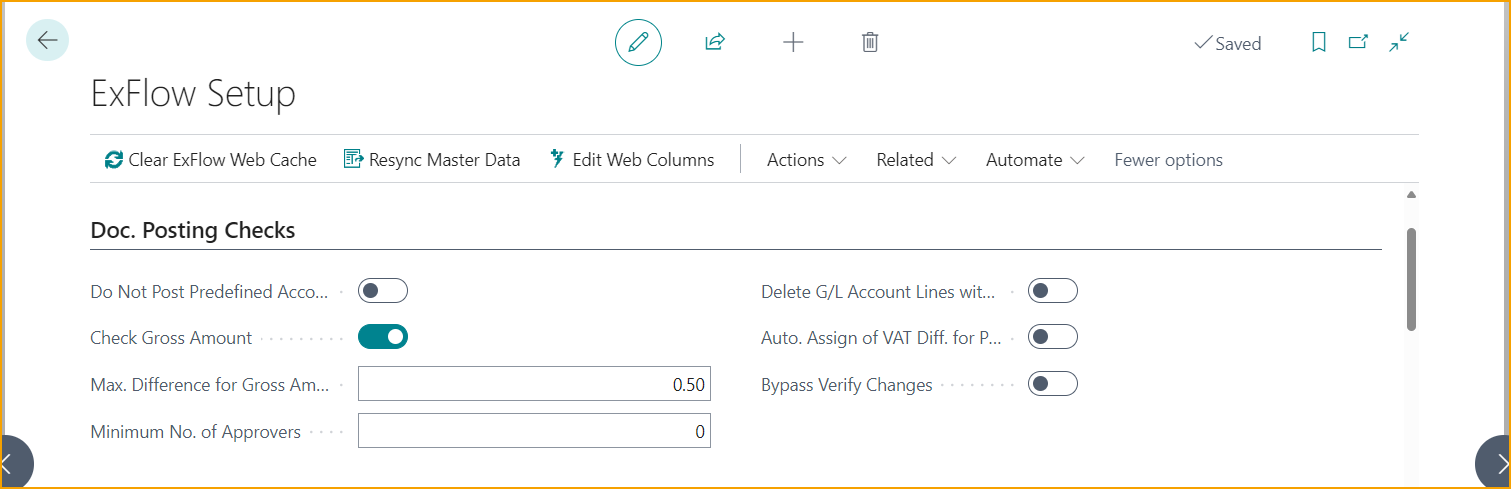
| Doc. Posting Checks | |
|---|---|
| Do Not Post Predefined Account | Specifies if final posting to the specified predefined G/L account (if any) should be allowed Example: Turn it on, and an invoice that still has a line on the "to be coded" account cannot be posted. |
| Check Gross Amount | Specifies if the "Max. Diff. Gross Amount" setting should be used Example: Turn it on, and ExFlow compares the invoice total with the lines before posting, using the limit in the next field. |
| Max. Difference for Gross Amount (LCY) | Specifies the max gross amount difference allowed then posting an invoice Example: Set it to 1, and an invoice whose lines are 0.30 off the total can be posted, but one that is 10 off cannot. |
| Minimum No. of Approvers | Specifies the minimum numbers of approvers on an invoice line. If the actual numbers of approvers are less, then posting of the invoice is not allowed. 0 = disabled. Example: Set it to 2, and an invoice approved by only one person cannot be posted. Read more about this under section Minimum No. of Approvers |
| Delete G/L Account Lines with Line Amount = Zero | Specifies if the G/L Account Lines with Line Amount = Zero should be deleted during Update Document in Verify Changes from Approval Status. Example: Turn it on, and an empty G/L line with amount 0 is removed by itself when the approved invoice is updated. Read more about this under section Delete G/L Account Lines with Line Amount = Zero |
| Auto. Assign of VAT Diff. for Posting | Specifies if automatic assignment of VAT Difference should be done if the difference of VAT on lines and header is within Max. Allowed VAT Difference Example: If the VAT on an approved invoice is 0.02 off, ExFlow places the difference on the lines automatically during Verify Changes, as long as it is within Max. VAT Difference Allowed in General Ledger Setup. |
| Bypass Verify Changes | Specifies if the Verify Changes from Approval Status should be bypassed after document has been approved. Opens the settings window for bypassing verify changes. Example: Allow changes to the Department dimension in the settings window, and an approved invoice where the approver only changed the department goes straight to Ready for Posting without a manual Verify Changes. Read more about this under section Bypass Verify Changes |
Preliminary Posting
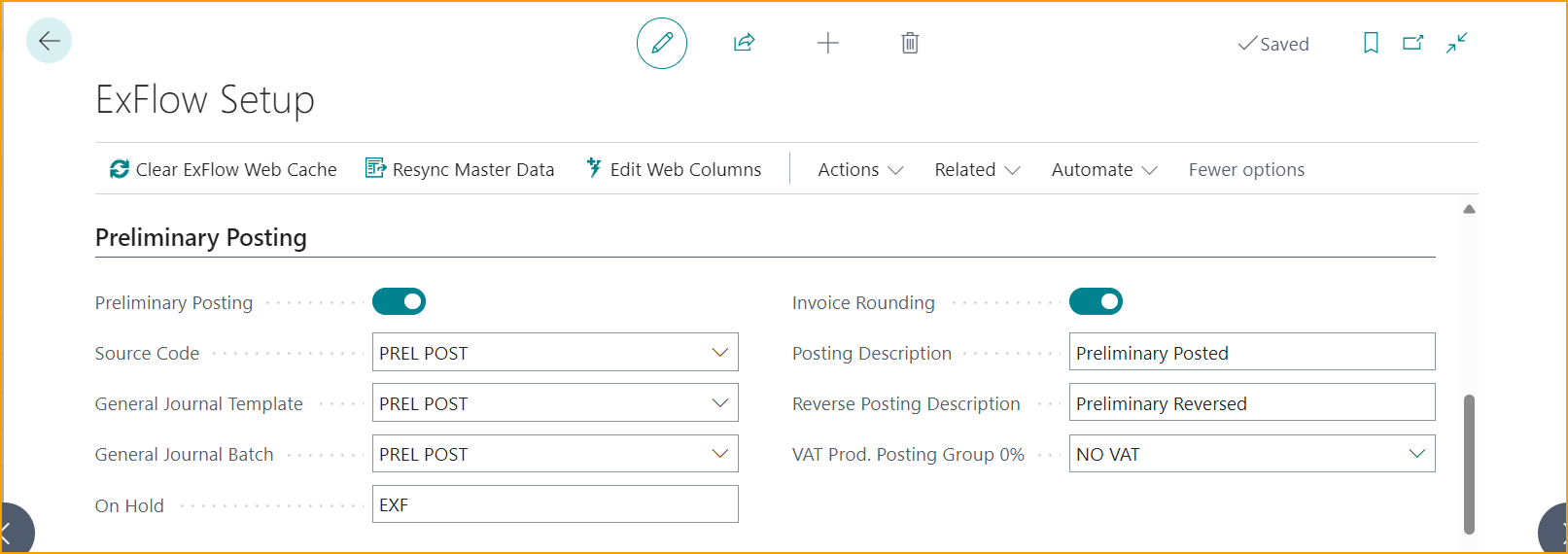
| Preliminary Posting | |
|---|---|
| Preliminary Posting | Activate Preliminary Posting when creating a document from Import Journal. After approving and posting this posting will be reversed on same posting date as final posting. Example: Turn it on, and a 1,000 invoice is booked in the general ledger as soon as it is created from the Import Journal, before anyone has approved it. The Preliminary Posting Setup decides if it goes to an interim account or to the purchase account. |
| Enable Posting with Deferrals: | Specifies if deferral schedules should be included when creating preliminary postings. When disabled, lines with Deferral Codes are posted without deferral processing. Enabled by default. Example: Leave it on, and a 12,000 yearly license is already spread over 12 months in the preliminary posting. |
| Enable Prel. Include Auto Acc.: | Specifies if Automatic Account Groups should be included when creating preliminary postings. Enabled by default. Example: Leave it on, and any extra entries from an automatic account group are also part of the preliminary posting. |
| Source Code | Specifies the Source Code that will be used for Preliminary Posting lines. Example: Use a code such as PRELIM, so every preliminary posting is easy to find in the general ledger. |
| General Journal Template | Selected General Journal Template will be used when posting Preliminary Document. Example: Pick the GENERAL template. |
| General Journal Batch | Selected General Journal Batch together with General Journal Template will be used when posting Preliminary Document. Example: Pick a batch called PRELIM, so these postings stay apart from the daily journal. |
| On Hold | Will be added on Vendor Ledger Entry when Preliminary Postings. Specifies that the related entry represents an unpaid invoice for which either a payment suggestion, a reminder, or a finance charge memo exists. Example: Use a code such as PRE, so the invoice is not picked up in a payment suggestion before it is approved. |
| Invoice Rounding | Check if Gross Amount depending on Max. Diff. Gross Amount difference with Line amount, add a rounded line when posting an invoice Example: If the lines add up to 999.98 and the invoice total is 1,000.00, a 0.02 rounding line is added so it balances. |
| Posting Description | Specifies the posting description for all preliminary posting lines in G/L Entry. Example: "Preliminary - waiting for approval", so everyone knows what the entry is. |
| Reverse Posting Description | Specifies the posting description for all reversed preliminary posting lines in G/L Entry. Example: "Reversed preliminary posting", so the reversal is easy to spot. |
| VAT Prod. Posting Group 0%: | Add VAT Prod. Posting Group with 0% to preliminary post without VAT instead of VAT Prod. Posting Group added on document line. This posting will be reversed and VAT posting gets posted with VAT Prod. Posting Group added to invoice only on final posting. Example: Pick a 0% group, so no VAT is booked until the invoice is approved and finally posted. Read more about this under section Preliminary Posting |
Arrival Preliminary Posting
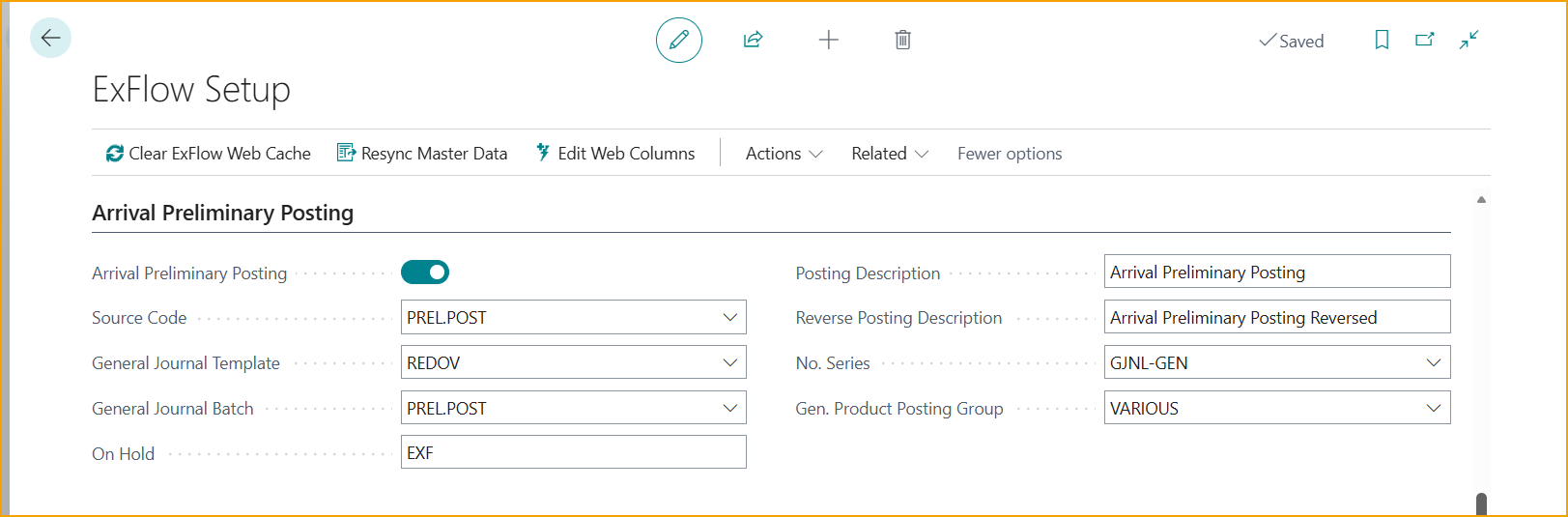
| Arrival Preliminary Posting | |
|---|---|
| Arrival Preliminary Posting | Activates the APP functionality. Example: Turn it on to post a received invoice from the Import Journal with Arrival Preliminary Posting --> Posting, before it is matched or sent for approval. |
| Source Code | Use an existing source code or create a new one for tracking purposes. Example: APP, so all arrival postings can be filtered out in the general ledger. |
| General Journal Template | Use an existing template or create a new one. Example: Pick the GENERAL template. |
| General Journal Batch | Use an existing batch or create a new one. Example: A batch called APP, so these postings stay separate. |
| On Hold | A 1-3 character code added to Vendor Ledger Entries to exclude APP transactions from payment suggestions. Example: APP, so these entries never end up in a payment suggestion. |
| Posting Description | The description applied when posting APP entries. Example: "Invoice received - not yet processed". |
| Reverse Description | The description applied when reversing APP entries. Example: "Reversal of received invoice". |
| No. Series | A dedicated number series for APP postings. Required because the invoice number is not yet assigned at the Import Journal stage. Example: APP-0001, APP-0002, so each arrival posting gets its own number. |
| Gen. Product Posting Group | The posting group used for all APP postings. Example: A group called APP. Its General Posting Setup holds the interim account used for all APP postings. Read more about this under Arrival Preliminary Posting |
Order Matching
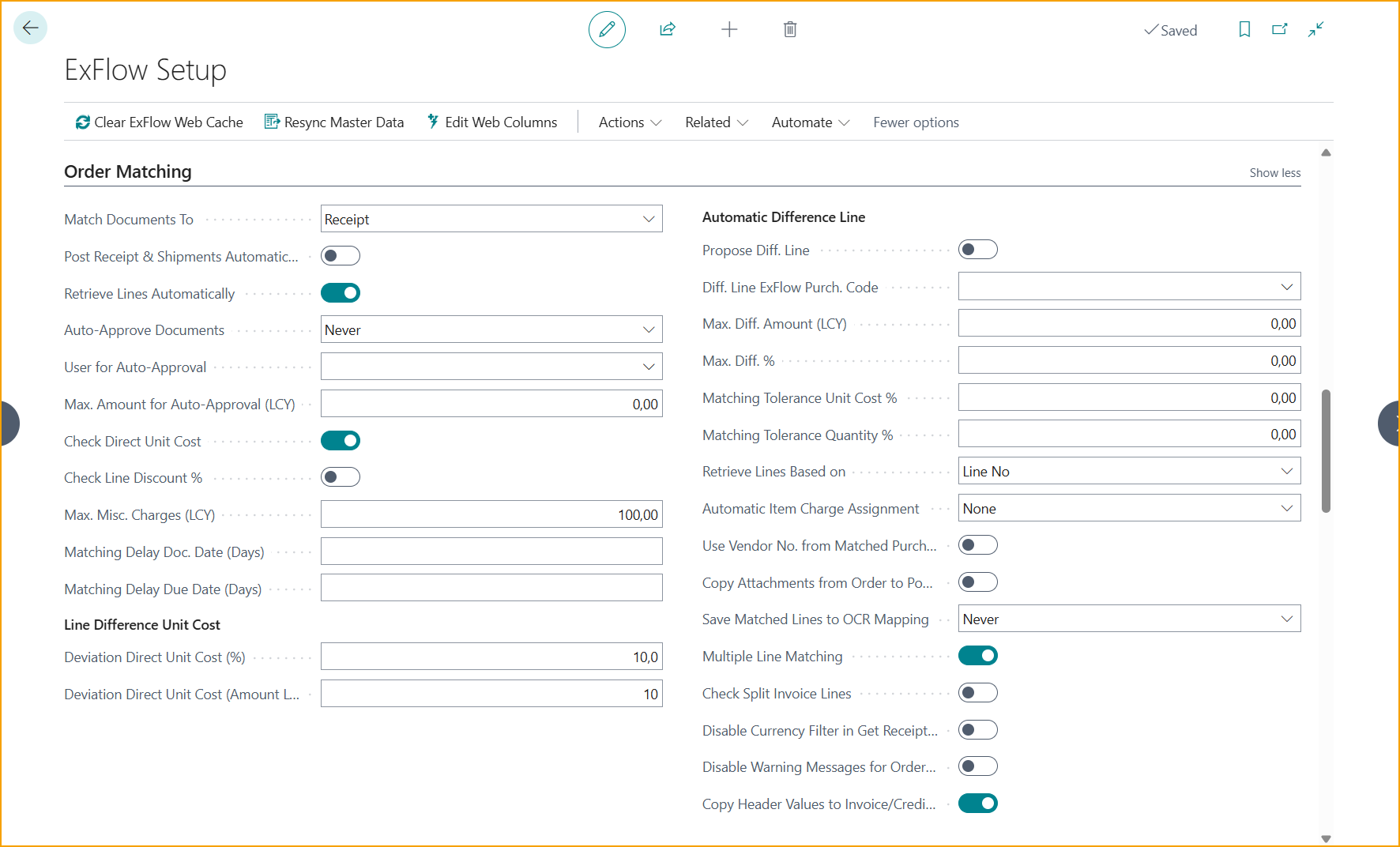
| Order Matching | |
|---|---|
| Match Documents To | Specifies if ExFlow should match and retrieve lines from Purchase Orders or from Posted Receipts, or from both Orders and Receipts. Example: Choose Receipt to only pay for goods that have actually been received. Choose Order to match the invoice against the purchase order lines, even if the goods are not received yet. Choose Order and Receipt to match the invoice against both posted receipt lines and open purchase order lines, for example when part of the delivery is received and the rest is still on the order. If it is left blank, an invoice matched to an order cannot be created until a value is selected. Read more about this under section Match Invoice with Receipt-, Order- or both Receipt and Order lines |
| Post Receipt & Shipments Automatically | Specifies if Purchase Order Lines of each line type should be automatically received when the matched invoice is set to "Ready for posting". This option is only applicable if "Match Documents To" setting is configured as "Order" or "Order and Receipt". When running Verify Changes in Approval Status, the purchase order matched lines receipt will be posted on Invoice Document Date. VAT Date on purchase order header and Deferral Posting Dates on purchase order lines will automatically be updated if purchase order Posting date is different than Invoice Posting Date. If both purchase order and Invoice have the same posting date when running Verify Changes, there will be no updates on the purchase order. Purchase order´s Posting Date will also be updated if blank. (Purchase and Payable Setup - Default Posting Date = No Date) Example: Turn it on, and the receipt does not have to be posted manually; it is posted when the matched invoice is ready for posting. |
| Retrieve Lines Automatically | Automatically retrieve all available lines from the Purchase Order or Posted Purchase Receipt when matching on header level. Example: If an imported invoice carries order number PO-1001 and has no invoice lines of its own, ExFlow fetches all available lines from that order automatically. |
| Auto-Approve Documents | Specifies if the invoice should be auto approved if the related order is approved. Example: Choose If Matched Order is Approved, so an invoice for an order that is already approved does not need a second approval. Choose If The Difference is Within Tolerance, and an invoice whose prices match the order within the allowed deviation is approved automatically. Choose Never, and every matched invoice goes through the normal approval flow. Read more about this under section Auto Approve Documents |
| User for Auto-Approval | Specifies the ExFlow user that should be used for auto approved invoices. If this setting is empty, then the id of the logged in BC user is used Example: A user called SYSTEM, so the history shows that nobody approved it by hand. |
| Max. Amount for Auto-Approval (LCY) | Specifies the max invoice amount allowed for automatic approvals. 0 = disabled Example: Set it to 10,000, and an invoice of 12,000 still goes to a person, even if it matches the order. |
| Check Direct Unit Cost | Specifies that ExFlow should check the Unit Cost on the invoice line when matching invoices against purchase orders. The imported invoice needs to be line interpreted for this to work Example: Turn it on to get a warning if the order says 10 per item but the invoice says 12. |
| Check Line Discount % | Specifies that ExFlow should check the Line Discount % on the invoice line when matching invoices against purchase orders. The imported invoice needs to be line interpreted for this to work Example: Turn it on to get a warning if the order gives 5% discount but the invoice only gives 2%. |
| Max. Misc. Charges (LCY) | Tolerance for field "Auto Approve Invoices". The total amount of invoice lines not matched against PO lines. (For example, freight). When an invoice is generated, lines will not be automatically approved if the maximum misc. amount is exceeded. Example: Set it to 200, and an invoice with 150 in freight on top of the order can still be auto-approved. |
| Matching Delay Doc. Date (Days) | Specifies that ExFlow should delay the matching against purchase orders until a set number of days after the invoice document date. The value is a date formula, for example 5D. Example: Set it to 5D, and ExFlow waits until 5 days after the invoice document date before matching. This gives the warehouse time to post the receipt. |
| Matching Delay Due Date (Days) | Specifies that ExFlow should delay the matching against purchase orders until a set number of days before the invoice due date. The value is a date formula; use a negative value, for example -3D, for days before the due date. Example: Set it to -3D, and ExFlow waits to match until 3 days before the invoice due date. Read more about this under section PO Matching Delay Doc. Date and Due Date |
| Line Difference Unit Cost | |
| Deviation Direct Unit Cost (%) | Specifies the maximum allowed price difference between the invoice unit cost and the purchase order unit cost as a percentage. Checked together with Deviation Direct Unit Cost (Amount LCY); the line fails if it is over either limit. Example: Set it to 5%, and an invoice line with unit cost 105 is within the limit when matched against a PO line with unit cost 100, as long as the Amount LCY limit is also 5 or more. |
| Deviation Direct Unit Cost (Amount LCY) | Specifies the maximum allowed price difference between the invoice unit cost and the purchase order unit cost in local currency (LCY). Checked together with Deviation Direct Unit Cost (%); the line fails if it is over either limit. Example: Set it to 10, and an invoice line with unit cost 110 is within the limit when matched against a PO line with unit cost 100, as long as the % limit is also 10 or more. Read more about this under section Deviation Direct Unit Cost (%) and Deviation Direct Unit Cost (Amount LCY) |
| Automatic Difference Line | |
| Propose Diff. Line | Specifies that ExFlow should create a new line containing the diff. amount, when there is a price difference between the purchase order total and the invoice total. Example: If the order totals 1,000 and the invoice says 1,020, ExFlow adds a line of 20 for the difference. Read more about this under section Automatic Difference Line |
| Diff. Line ExFlow Purch. Code | Specifies which purchase code ExFlow should use when creating the diff. line Example: A code called PRICEDIFF, so all price differences end up on the same account. |
| Max. Diff. Amount (LCY) | Specifies the max amount allowed on the diff. line. If the diff. amount exceeds this setting, the diff. line is flagged with an error. Both Max. Diff. Amount (LCY) and Max. Diff. % must be met. With 0, any difference is flagged. Example: Set it to 50. A difference of 20 is accepted on the difference line, but a difference of 300 is flagged as over the tolerance and must be handled before the invoice can be created. |
| Max. Diff. % | Specifies the max diff % allowed on the diff. line, compared with the document amount. If the diff. % exceeds this setting, the diff. line is flagged with an error. With 0, any difference is flagged. Example: Set it to 2. A 1% difference is accepted on the difference line, but a 5% difference is flagged as over the tolerance. |
| Matching Tolerance Unit Cost % | Specifies the matching tolerance (in %) when matching an invoice against a purchase order using the line unit cost. 0 = disabled i.e. exact match is needed Example: Set it to 2, and an invoice price of 10.15 still matches an order price of 10.00. |
| Matching Tolerance Quantity % | Specifies the matching tolerance (in %) when matching an invoice against a purchase order using the line quantity. 0 = disabled i.e. exact match is needed Example: Set it to 5, and an invoice for 102 pieces still matches an order for 100. |
| Retrieve Lines Based on | Specifies how (in what order) receipt lines should be retrieved when matching an invoice against a purchase order. Retrieve lines based on Line No, Item No or Item No with variants. Example: Choose Item No, and an invoice line for item 1000 is matched to the order line for item 1000, whatever its line number. Choose Line No, and an invoice line linked to order line 20000 is matched only to order line 20000. Choose Item No with Variants, and an invoice line for item 1000 is matched only to order lines for item 1000 that have a variant code, for example a size or a color. |
| Automatic Item Charge Assignment | Specifies what type of item charge assignment that should be used when posting invoices. It can be done equally, by amount, by weight or by volume automatically. None = no automatic assignment is done. Example: Choose By Weight, and 100 in freight is split so a 30 kg item carries three times more than a 10 kg item. Choose Equally, and 100 in freight on an invoice with four item lines is split as 25 per line. Choose By Amount, and 100 in freight is split so an item line of 3,000 carries three times more than an item line of 1,000. Choose By Volume, and 100 in freight is split so an item of 3 m³ carries three times more than an item of 1 m³. Choose None, and the item charge must be assigned manually before posting. No automatic item charge assignment will be made. Read more about this under section Item Charge Assignment |
| Use Vendor No. from Matched Purchase Order | Specifies that the vendor number on the matched purchase order should be used instead of the imported invoice vendor information Example: If the invoice comes from a vendor's head office but the order was placed with their local branch, the branch from the order is used. |
| Copy Attachments from Order to Posted Receipt | Copies all attachments from the purchase order to posted purchase receipt and shows them on related documents. Example: A signed quote attached to the order also shows up on the posted receipt. |
| Save Matched Lines to OCR Mapping | This option can be used to automatically save manually matched invoice lines from "Matching View" based on vendor, interpreted Item No. These lines will be saved in the ExFlow OCR Import Mapping table and can be re-used to suggest matching for future PO-invoices with same criteria Example: Choose Always, and once the vendor's code ABC-1 is matched to item 1000, ExFlow remembers it next time. Choose Ask, and ExFlow asks whether to save the link between ABC-1 and item 1000 after a manual match. Choose Never, and manual matches are not saved, so the same line must be matched manually again on the next invoice. |
| Multiple Line Matching | This setting enables ExFlow to match one invoice line to multiple order lines or receipt lines. If the quantity of the invoice line is greater than the quantity of the order line, ExFlow will split the invoice line and proceed to partially match with other available order lines or receipt lines. Example: An invoice line for 10 pieces can be matched to two order lines of 6 and 4 pieces. |
| Check Split Invoice Lines | If “Multiple Line Matching” is true, ExFlow will give action messages for each line that has been split which gives the user an option to manually confirm the suggested matching before creating the document. Turning this setting to false means that no action message will be displayed for matched split lines. Example: Leave it on to double-check that splitting 10 pieces into 6 and 4 was right before the invoice is created. |
| Disable Currency Filter in Get Receipt Lines | This can be set to improve performance when using Get Receipt Lines in Import Journal. No filter will then be set on Currency Code when opening the selection page (A check that correct Currency is selected is instead done on the insert of the Invoice line) Example: Turn it on if Get Receipt Lines feels slow; the currency is then checked when a line is selected instead. |
| Disable Warning Messages for Order Matching | When disabled, no warning messages will be presented in the Import Journal regarding order matching (singel line only). Example: Turn it on if the order matching warnings in the Import Journal are more noisy than helpful. |
| Copy Header Values to Invoice/Credit Memo | Activate fields to transfer from Purchase Order to Invoice (Or Return Purchase Order to Credit Memo) in Import Journal when using order matching on header level. Selected values can be found and updated under Related --> Advanced --> Copy Header values on Invoice/Credit Setup. Example: Copy the order's Payment Terms and Location, so they do not have to be entered again on the invoice. Read more about this under section Copy Purchase Order Header Values |
OCR Import
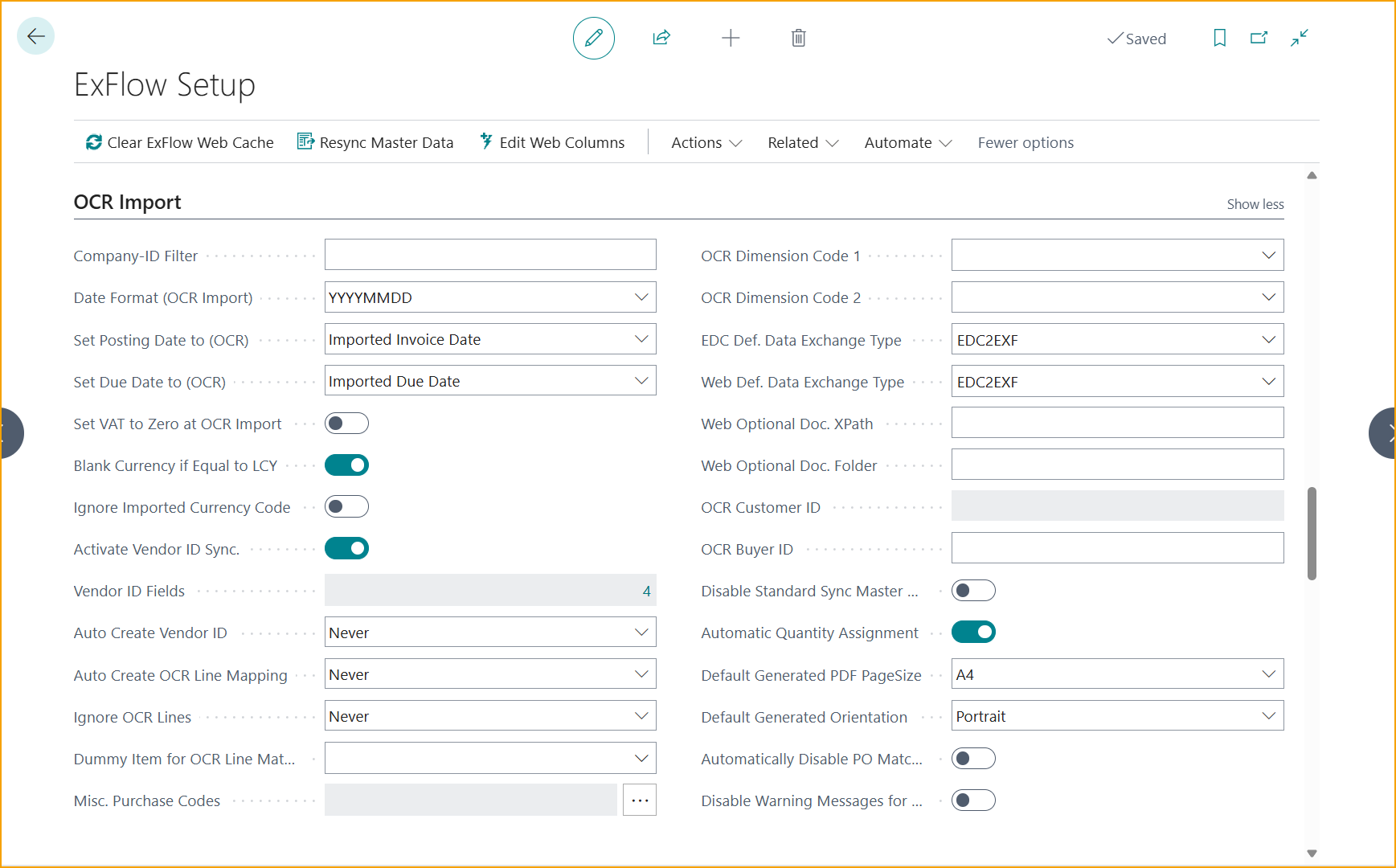
| OCR Import | |
|---|---|
| Company-ID Filter | Specifies the company id that will be used when importing invoices. This id must match the id in the Company ID xml tag exactly Example: If the invoice file says CompanyID "ACME-SE", type exactly ACME-SE here so the invoice lands in this company. |
| Date Format (OCR Import) | Specifies the date format that ExFlow uses when decoding imported invoice dates Example: Choose DDMMYYYY, and 03042026 is read as 3 April 2026, not 4 March 2026. Choose YYYYMMDD, and 20260403 is read as 3 April 2026. Choose MMDDYYYY, and 04032026 is read as 3 April 2026. |
| Set Posting Date to (OCR) | Specifies how the default invoice posting date should be set when importing an invoice Example: Choose Work Date to post every imported invoice on today's work date instead of the date printed on the invoice. Choose Imported Invoice Date, and an invoice dated 28 April gets posting date 28 April. Choose Work Date when OCR date missing to use the invoice date, and only use the work date when no invoice date is found on the invoice. |
| Set Due Date to (OCR) | Specifies how the default due date should be set when importing an invoice Example: Choose From Payment Term, and an invoice dated 1 May from a vendor with 30 days' terms gets due date 31 May, whatever the invoice says. Choose Imported Due Date, and an invoice that says "due 15 June" gets due date 15 June. |
| Set VAT to Zero at OCR Import | Specifies that the VAT amount should be set to 0 on all imported invoices Example: Turn it on if the company never books VAT on purchase invoices. |
| Blank Currency if Equal to LCY | Specifies that the currency code should be cleared (i.e. no code used) if the imported currency code matches the local currency in the company settings Example: If the company uses SEK and an invoice says SEK, the currency field is left empty, which is how Business Central shows the local currency. |
| Ignore Imported Currency Code | Specifies that ExFlow should always clear the imported currency code i.e. no currency is used when importing invoices Example: Turn it on if all vendors invoice in the local currency, so a wrongly read currency never causes trouble. |
| Activate Vendor ID Sync. | Specifies if the vendor id table synchronization should be updated or not. Example: Turn it on, and ExFlow keeps its list of vendor details, such as VAT number, up to date when a vendor changes. Read more about this under Vendor ID Fields |
| Vendor ID Fields | Specifies which vendor fields that should be in the vendor ID table (when first matching a vendor during document import). Example: Choose VAT Registration No. and Bank Account, so ExFlow recognizes the vendor by those details. Read more about this under Vendor ID Fields |
| Auto Create Vendor ID | Specifies how data should be updated if ''Activate Vendor ID Sync.'' is enabled. If set to Always then vendor id links will be auto created by ExFlow. Option: ''Ask''= ExFlow will ask to create Vendor ID. Option ''Never''= ExFlow will never automatically create vendor id fields. Example: Choose Ask, and ExFlow asks before it saves new vendor details it has found. Choose Always, and ExFlow saves new vendor details, such as a new bank account, without asking. Choose Never, and new vendor details are not saved automatically. Read more about this under Vendor ID Fields |
| Auto Create OCR Line Mapping | Specifies if OCR mapping links should be created automatically by ExFlow Example: Choose Always, and once the vendor's item code P-55 is linked to item 1000, ExFlow remembers it. Choose Ask, and ExFlow asks before it saves the link between P-55 and item 1000. Choose Never, and no links are saved, so the same line must be coded manually on the next invoice. Read more about this under Vendor ID Fields |
| Ignore OCR Lines | Specifies that ExFlow should always ignore imported invoice lines i.e. only invoice header information is ever used Example: Choose Always if only the invoice total is needed and the lines are filled in manually. Choose When PO has fewer lines than Invoice, and an invoice with 12 lines matched to an order with 10 lines gets its imported lines removed, so the lines can be retrieved from the order instead. Choose Never to always keep the imported invoice lines. |
| Dummy Item for OCR Line Matching | Specifies a "dummy" item no that will be used when ExFlow cannot find the imported item no. Only applies to line interpreted invoices. Example: An item called DUMMY is used when the vendor's item X-99 cannot be found, so the line can be fixed later. Read more about this here |
| Misc. Purchase Codes | Specifies the default purchase code when using the Misc code mapping in the ExFlow import specification. Example: Freight on an invoice can become its own line with the purchase code FREIGHT. Read more about this under Additional Misc. Purchase Codes mapping |
| OCR Dimension Code 1 | Specifies the default dimension code when using the Dim 1 code mapping in the ExFlow import specification Example: DEPARTMENT, so a department code read from the invoice is put on the line. |
| OCR Dimension Code 2 | Specifies the default dimension code when using the Dim 2 code mapping in the ExFlow import specification Example: PROJECT, so a project code read from the invoice is put on the line. |
| EDC Def. Data Exchange Type | Specifies the ExFlow Data Capture default data exchange type Example: This is normally chosen once during setup and then left alone. |
| Web Def. Data Exchange Type | Specifies the default data exchange type for ExFlow web. Example: This is the file format used for invoices that arrive through the ExFlow web service, normally chosen once during setup. Read more about this under section Web Services - EXFID |
| Web Optional Doc. XPath | Specifies the XPath to optional Web Service attachments. Must be uploaded first using AddAttachment. Example: Point it to the attachment tag in the invoice file, so an extra delivery note PDF is linked to the invoice. |
| Web Optional Doc. Folder | Specifies the optional folder where Azure Share attachments are stored. Only used with Azure File Import Example: A folder called Attachments, where extra PDFs for the invoices are stored. |
| OCR Customer ID (hidden per default) | Specifies the organization id in ExFlow Data Capture where ExFlow should fetch interpreted invoices Example: This is filled in automatically when ExFlow Data Capture is connected, and is normally not changed. |
| OCR Buyer ID (hidden per default) | Specifies the company id in ExFlow Data Capture where ExFlow should fetch interpreted invoices Example: This is filled in automatically when ExFlow Data Capture is connected, and is normally not changed. |
| Disable Standard Sync Master Data Job (hidden per default) | This is for the setting: When enabled the standard job 882 OCR - Sync Master Data will not be created automatically. Example: Turn it on only to plan the master data sync job manually, for example to run at night. |
| Automatic Quantity Assignment | Specifies if quantity should be converted to 1 if imported quantity is 0. Example: Leave it on (the default), and a line read with quantity 0 and amount 500 becomes quantity 1 at 500. |
| Default Generated PDF PageSize | Select the size a generated PDF should have when importing for Peppol, UBL and others where XSL Stylesheet is used instead of imported PDF. Example: Choose Letter in the US, or A4 in most other countries. Choose A3 for invoices with many columns or wide tables. Choose Legal when longer US pages are needed. |
| Default Generated Orientation | Select the orientation a generated Pdf should have when importing for Peppol, UBL and others where Xsl Stylesheet is used instead of imported Pdf. Example: Choose Landscape if wide invoice tables get cut off in Portrait. |
| Automatically Disable PO Matching For Misc. Charges | Specifies when mapping is done towards a G/L account or Charge (Item) the field "No Purchase Order Matching" will automatically be enabled or not. Example: When freight is mapped to a G/L account, that line skips order matching, so it does not wait for an order line that doesn't exist. Read more about this under section Automatically Disable PO Matching For Misc. Charges |
| Disable Warning Messages for VAT Mapping | When disabled, no warning messages will be presented in the Import Journal regarding mapping VAT Prod. Posting Group. Example: Turn it on to hide the Import Journal warning that appears when ExFlow cannot find a VAT Prod. Posting Group for the imported VAT value. Read more about this under section VAT Mapping |
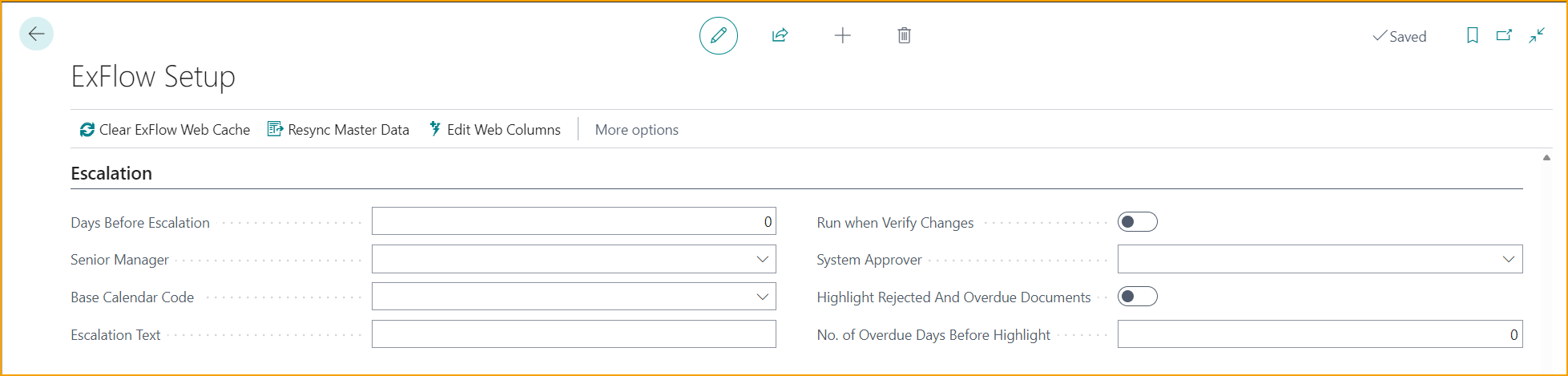
Escalation
| Escalation | |
|---|---|
| Days Before Escalation | Specifies the number of days that an approver can have a invoice (without approving it) before the invoice is escalated. This setting can be overridden per approver. Example: Set it to 5, and an invoice that is still waiting after 5 workdays is passed on. Read more about this under section Escalation |
| Senior Manager | Specifies the senior manager that should receive the invoice when it is auto approved and then escalated. This setting can be overridden per approver. Example: If an approver has no manager set up and does not react in time, the invoice goes to the Senior Manager, for example the CFO. Read more about this under section Escalation Job |
| Base Calendar Code | Specifies the base calendar code that should be used for calculating workdays when escalating. If blank, then all weekdays (Mon-Fri) are treated as work days Example: Select the company calendar, so public holidays such as Christmas Day do not count as waiting days. |
| Escalation Text | Specifies the text that should be used for escalated approver lines Example: "Escalated - no response", shown on the approver line. |
| Run when Verify Changes | Specifies if open invoices should be checked for escalation each time the change journal is run Example: Turn it on, and overdue invoices are escalated each time someone runs Verify Changes, not only by the scheduled job. |
| System Approver | Specifies the approver id for the system approver that is used when auto approving escalated invoices. Must be filled in, otherwise the escalation stops with an error. Example: A user called SYSTEM, so the approval history shows that the system, not a person, passed the invoice on from the approver who did not react. |
| Highlight Rejected And Overdue Documents | Activate this setting to turn the text of rejected and/or overdue documents in Approval Status to red. Making them easier to spot. Example: Turn it on, and a rejected invoice shows in red in Approval Status, so it does not get missed. |
| No. of Overdue Days Before Highlight | Set a no. of days when the document should be presented with red text in Approval Status. The no. of days operates in relation with the due date of the document. "0" will highlight the document on the due date. Example: Set it to 3, and an invoice turns red 3 days before its due date; set it to -3 to turn red 3 days after. |
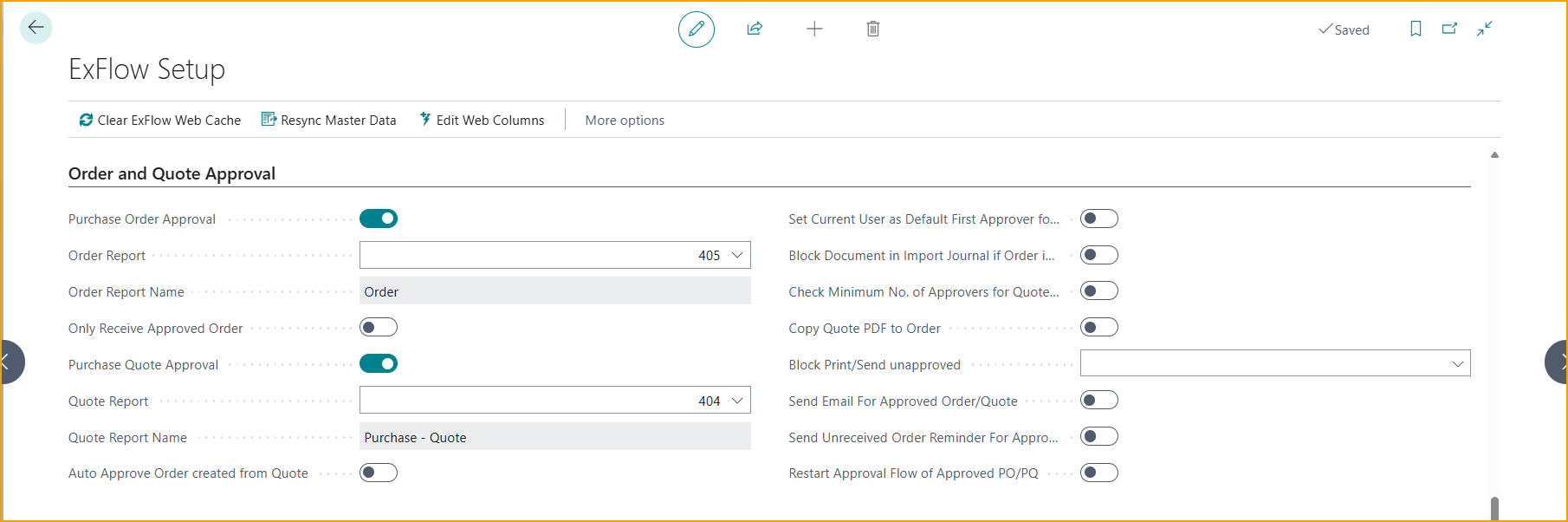
Order and Quote Approval
| Order and Quote Approval | |
|---|---|
| Purchase Order Approval | Specifies if purchase order approval should used Example: Turn it on, and when a purchase order is released it is sent into the ExFlow approval flow, where the approvers must approve it. |
| Order Report | Specifies the report id for the report that is used when creating order documents Example: Report 405, the standard Order report from Business Central. |
| Order Report Name | Specifies the report name for the report that is used when creating order documents Example: This is filled in automatically when the Order Report is selected, for example "Order". |
| Only Receive Approved Order | Setting this will only allow to post receipts on Orders that are Approved Example: Turn it on, and the warehouse cannot receive goods on an order that is not approved yet. |
| Purchase Quote Approval | Specifies if purchase quote approval should be used Example: Turn it on, and a purchase quote must be approved before it can become an order. |
| Quote Report | Specifies the report id for the report that is used when creating quote documents Example: Report 404, the standard Purchase Quote report from Business Central. |
| Quote Report Name | Specifies the report name for the report that is used when creating quote documents Example: This is filled in automatically when the Quote Report is selected, for example "Purchase - Quote". |
| Auto Approve Order created from Quote | Select if the Order created from the Approved Quote should be Automatically set to Approved. All Approvers from the Quote will be copied to the order. Example: If a quote of 5,000 was approved, the order made from it is approved right away, with the same approvers. |
| Set Current User as Default First Approver for Order/Quote | Specifies if default first approver should be added when creating invoice from quote or order. Example: If Anna creates an order, Anna is added as the first approver automatically. |
| Block Invoice in Import Journal if Order is Not Approved | Specifies if invoice should be blocked if the relate order is not approved. Example: Turn it on, and an invoice for order PO-1001 waits in the Import Journal until that order is approved. |
| Check Minimum No. of Approvers for Quotes and Orders | Specifies if there should be a check of minimum number of approvers when verifying purchase Quote or Order. Example: If 2 approvers are required but only 1 person has approved the order, Verify Changes keeps the order active and shows the message "Condition for minimum number of approvers is not met." |
| Copy Quote PDF to Order | Adds a PDF of the Quote on the Order when it is created. Example: The approved quote PDF is attached to the new order, so it is always possible to see what was agreed. |
| Block Print/Send unapproved | Specifies if Printing or Sending from an Order or Quote should be blocked if the Order or Quote is sent out on approval and not fully approved. For users that are not Ex Admin. Example: Choose Order, and nobody except an ExFlow admin can send an order to the vendor until it is fully approved. Choose Quote to block printing and sending of quotes that are not fully approved. Choose Order and Quote to block both orders and quotes. Leave it blank to allow printing and sending of orders and quotes at any time. |
| Send Email For Approved Order/Quote | When enabled it will send Approved Order or Quote Notification to the Order- or Quote creator when the document is approved. Example: The person who created the order gets an email saying the order is approved. Read more about this under section Approved Order/Quote |
| Send Unreceived Order Reminder For Approved Order | An Unreceived Order Reminder is sent when the document is approved and not all the Order Lines are fully received. For this to work "Match Documents To" should be set to "Order" or "Order and Receipt". Example: If an approved invoice is matched to order PO-1001 but 2 of the 10 ordered items have not been received yet, the purchaser on PO-1001 gets a reminder email. Read more about this under section Unreceived Order - Approved |
| Restart Approval Flow of Approved PO/PQ | Specifies the default action when reopening approved purchase orders and quotes. For background processes without user interface, this setting is automatically applied and the question 'Do you want to restart the Approval Flow' will not be shown. When enabled, the approval flow will restart. When disabled, the approval flow will not restart. Example: Turn it on, and when an approved order is reopened, the question "Do you want to restart the Approval Flow?" suggests Yes. In background processes, the approval flow restarts without the question. |
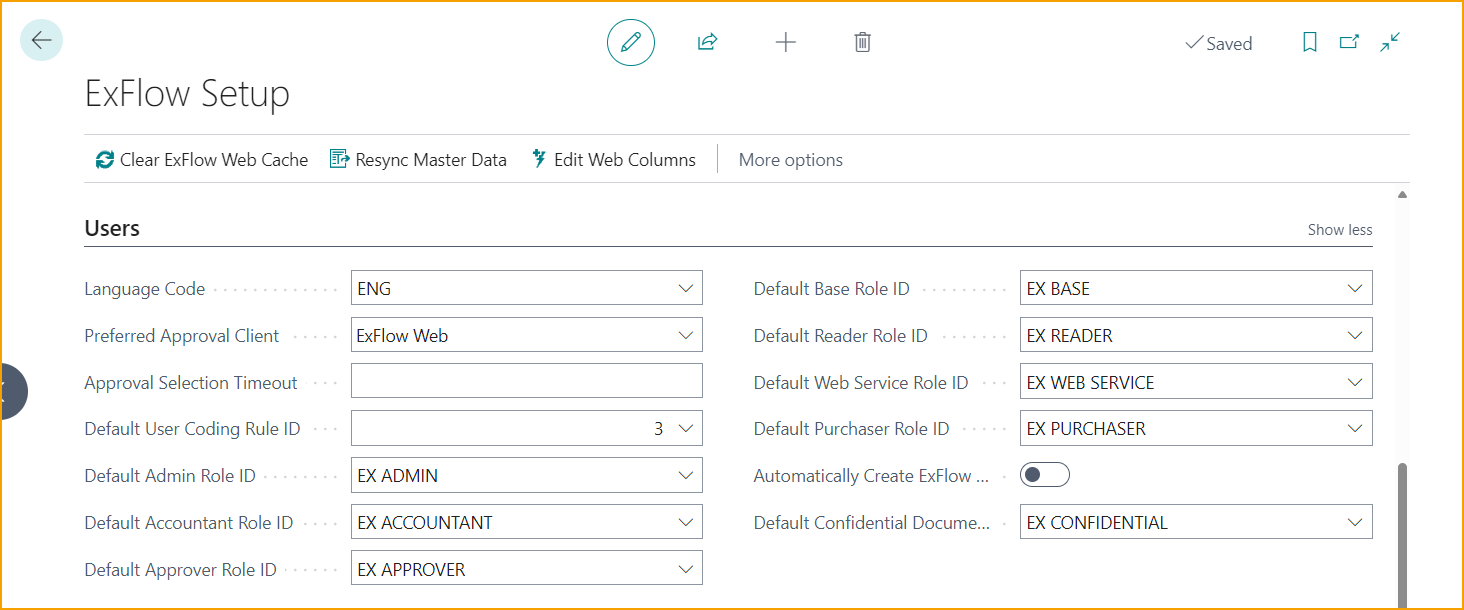
Users
| Users | |
|---|---|
| Language Code | Specifies the default language code for the current company Example: SVE, so emails and messages are in Swedish by default. |
| Preferred Approval Client | Specifies the default approval client. Can be either ExFlow web or the BC client Example: Choose ExFlow Web if most approvers approve in a browser or on their phone instead of in Business Central. Choose Business Central if most approvers work in Business Central every day. |
| Approval Selection Timeout | Specifies the timeout used for approval selection Example: Set it to 15 minutes, and a line one approver has selected stays locked for others for 15 minutes. |
| Default User Coding Rule ID | Specifies the default User Coding Rule ID that is used when creating a new Permission Line on a ExFlow User Example: Select user coding rule 1, so every new permission line starts with the same user coding rule. |
| Default Admin Role ID | Specifies the default permission role ID to be used when creating new admin-type users Example: EX ADMIN, given to every new admin user. |
| Default Accountant Role ID | Specifies the default permission role ID to be used when creating new users Example: EX ACCOUNTANT, the permission set ExFlow treats as accountant access. |
| Default Approver Role ID | SSpecifies the default permission role ID to be used when creating new users Example: EX APPROVER, given to every new approver. |
| Default Base Role ID | Specifies the default permission role ID to be used when creating new users Example: EX BASE, the basic access that every new user gets. |
| Default Reader Role ID | Specifies the default permission role ID to be used when creating new users Example: EX READER, for users who can only look at invoices. |
| Default Web Service Role ID | Specifies the default security role ID to be used when creating new AAD apps Example: EX WEB SERVICE, given to new apps that connect to ExFlow. |
| Default Purchaser Role ID | Specifies the default permission role ID to be used when creating new users Example: EX PURCHASER, the permission set ExFlow treats as access for users who create purchase orders. |
| Automatically Create ExFlow Reference | Specifies if an ExFlow Reference will be created when a new ExFlow User is created Example: Turn it on, and when the user with the name Anna Berg gets access to the company, ExFlow also creates the reference Anna Berg with Anna as first approver. Vendors can then put this reference on their invoices. |
| Default Confidential Documents Role ID | Specifies the default permission role ID to be used when creating new users. Example: EX CONFIDENTIAL, for users who may see confidential invoices such as salary-related ones. Read more about this under section ExFlow User |
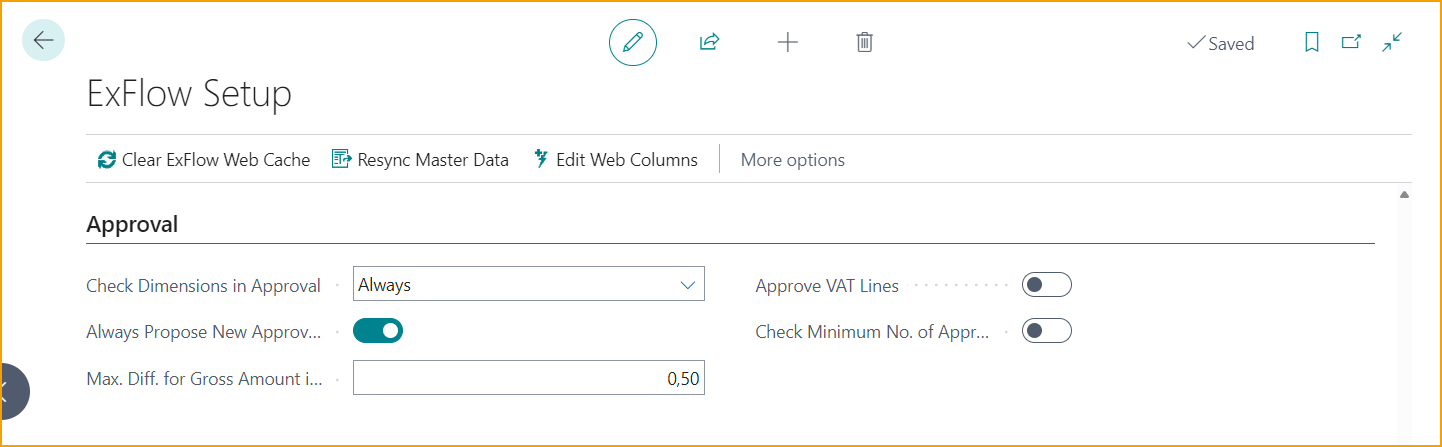
Approval
| Approval | |
|---|---|
| Check Dimensions in Approval | Specifies if ExFlow should check the dimension setup in BC before allowing approval of an invoice line Example: Choose Final Approver Only, and only the last approver is stopped if a required dimension, such as Department, is missing. Choose Always, and every approver is stopped if a required dimension, such as Department, is missing. Leave it blank to approve without checking dimensions. |
| Always Propose New Approvers | Specifies if ExFlow should evaluate the approval rules and try to find new (if any) approval flow based on new coding. Example: If an approver changes the department on a line from Sales to IT and then approves it, the remaining Sales approvers are replaced by the IT approvers. Read more about this under section Always Propose New Approvers |
| Max. Diff. for Gross Amount in Approval (LCY) | Max gross amount difference allowed when approving in Business Central Example: Set it to 1, and an invoice whose lines are 0.50 off the total can still be approved. |
| Approve VAT Lines | Specifies if the VAT lines should be included in the approval flow. In case of usage of ExFlow Purchase Code on the header, this setting is ignored. Example: Turn it on, and the approver sees and approves the VAT line too, not just the cost lines. Read more about this under section Approve VAT Lines |
| Check Minimum No. of Approvers before approving | Specifies if a check will be made that minimum no. of approvers will be fulfilled, before the last approver approves the invoice. Example: If 2 approvers are needed and only 1 is in the flow, the last approver is stopped before approving. Read more about Approval in Business Central under section Approval in Business Central |
Confidential Documents
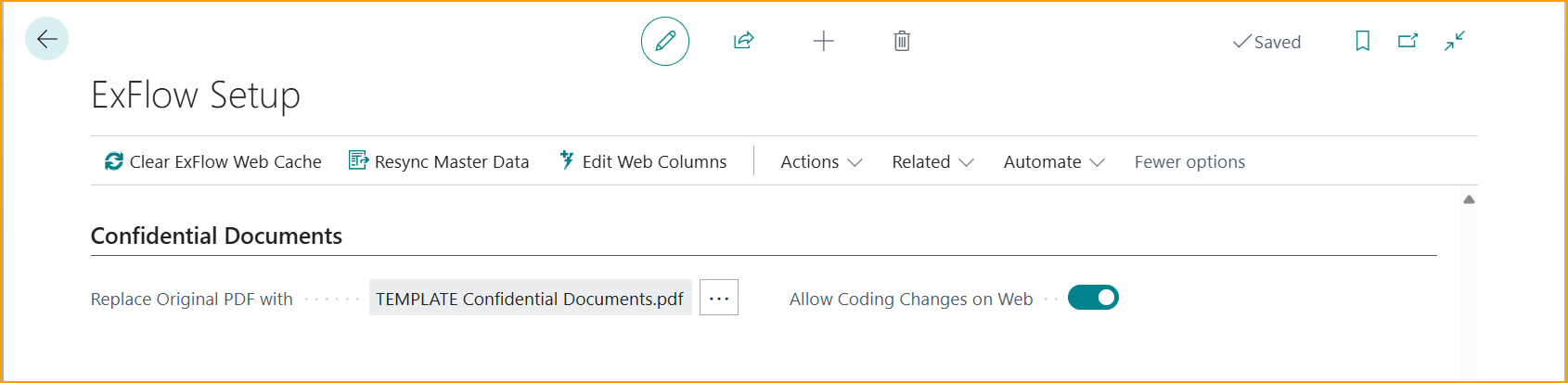
| Confidential Documents | |
|---|---|
| Replace Original PDF with | Upload a PDF that replaces Confidential marked documents in order to hide the specific document image for other users with no access to Confidential Documents. Example: Upload a page that says "Confidential - no access" to show instead of the real invoice. Read more about this under section Confidential Documents |
| Allow Coding Changes on Web | Specifies if coding changes are allowed on ExFlow Web for confidential documents. Example: Turn it on, and approvers who have access can still change the account on a confidential invoice in ExFlow Web. Read more about this under section Allow Coding Changes on ExFlow Web |
Auto Coding Suggestion
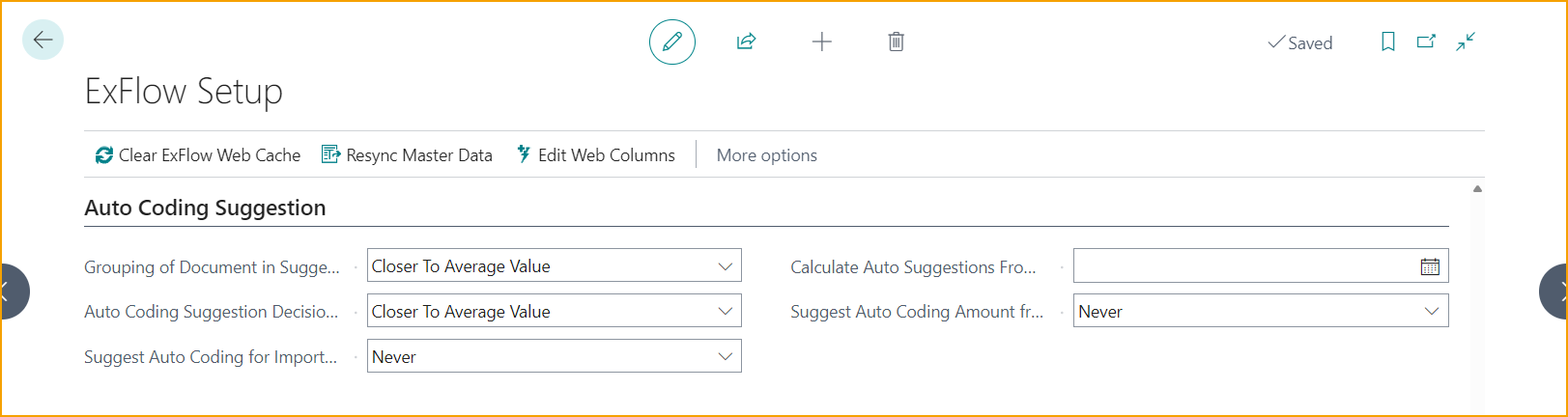
| Auto Coding Suggestion | |
|---|---|
| Grouping of Document in Suggestion Lines with Amount | Specifies how the documents will be grouped based on the amount of the document. Example: Choose Closer To Average Value, and a past invoice of 1,050 is grouped with the amount range whose middle is closest to 1,050. Choose Closer To Lower Value, and a past invoice of 1,050 is grouped with the amount range whose lowest amount is closest to 1,050. Choose Closer To Higher Value, and a past invoice of 1,050 is grouped with the amount range whose highest amount is closest to 1,050. |
| Auto Coding Suggestion Decision Based on the Amount | Specifies how the suggestion line will be chosen based on the amount of the document. Example: Choose Closer To Lower Value, and a new invoice of 1,050 uses the suggestion whose lowest amount is closest to 1,050. Choose Closer To Average Value, and a new invoice of 1,050 uses the suggestion whose middle amount is closest to 1,050. Choose Closer To Higher Value, and a new invoice of 1,050 uses the suggestion whose highest amount is closest to 1,050. |
| Suggest Auto Coding for Imported Document | Specifies how the auto coding suggestion will be used. Example: Choose Selected Vendors to get coding suggestions only for selected vendors, such as the phone company. Choose Always to get coding suggestions for all imported documents. Choose Never to turn off coding suggestions for imported documents. |
| Calculate Auto Suggestions From Date | Specifies the starting date of the document to be used in the auto coding suggestions. Example: Set it to 1 January 2025, and only invoices from that date on are used to learn how to code new ones. |
| Suggest Auto Coding Amount from Coding Set ID | Specifies if the amounts will be automatically suggested in the created lines from the Coding Set ID. Example: Choose Always, and if last month's invoice was split 60/40 between two departments, this month's is split the same way. Choose Selected Vendors to split the amount this way only for vendors that have Auto Suggest Amount set in their vendor options. Choose Never, and the suggested lines get the coding but no amounts, so the amounts are filled in manually. Read more under section Auto Coding Suggestion Setup |
Background Processing
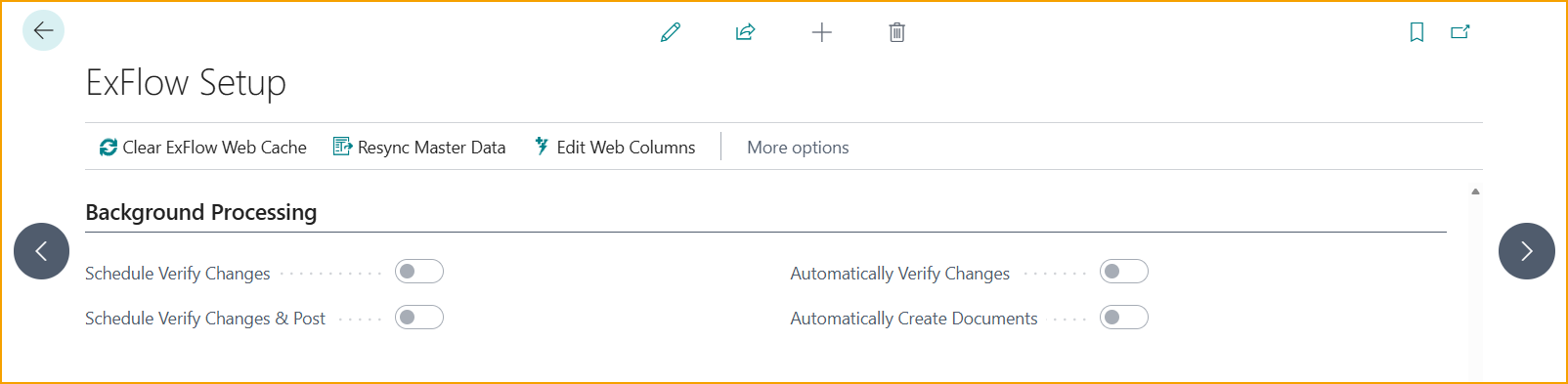
| Background Processing | |
|---|---|
| Schedule Verify Changes | Specifies if verification of approved documents should be scheduled to run in the background. Will by default be configured to run once every hour. Example: Turn it on, and approved invoices are checked in the background every hour on weekdays between 08:00 and 17:00, without anyone pressing a button. |
| Schedule Verify Changes & Post | Specifies if documents with status Ready for Posting should be posted after verification. Example: Turn it on, and an invoice that is ready for posting is also posted automatically. |
| Automatically Verify Changes | If a document is approved, verify changes will then be run automatically. If there are no changes on the document that status will then be Ready for Posting. Example: As soon as the last approver approves, the invoice moves to Ready for Posting if nothing has changed. |
| Automatically Create Documents | If this is activated it will set the field Automatically Create Documents on all Import Journals. Example: Turn it on, and imported invoices without errors become purchase invoices by themselves, without anyone pressing Create Documents. Invoices with errors still need to be created manually. Read more about this under section Background Processing |
About ExFlow
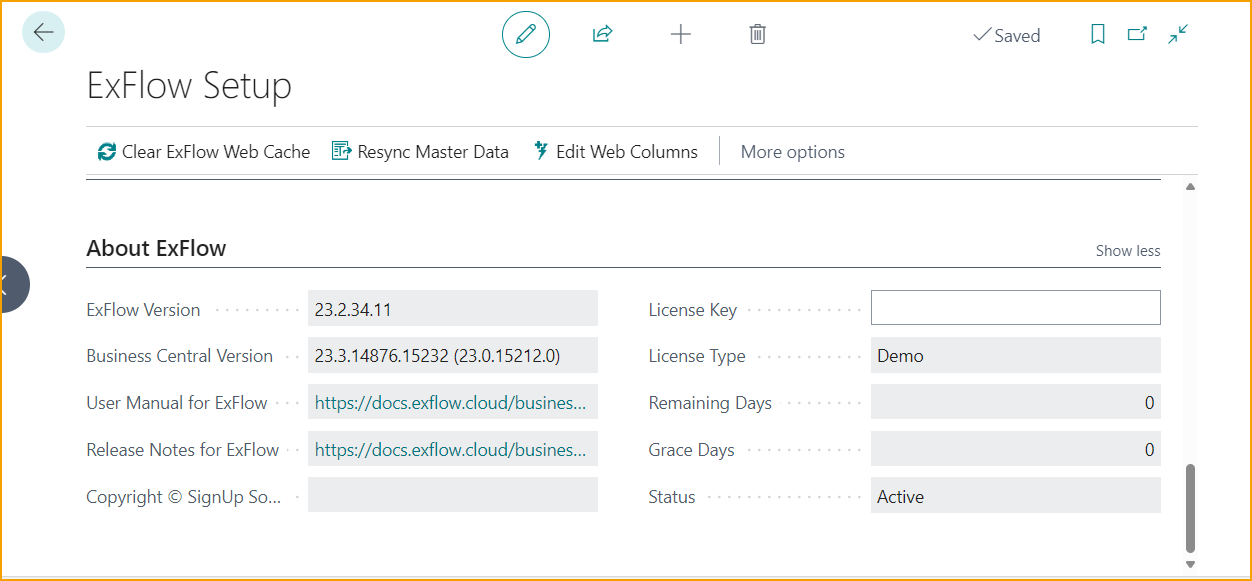
| About ExFlow | |
|---|---|
| ExFlow Version | Currently installed version of ExFlow |
| Business Central Version | Currently installed version of Business Central |
| User Manual for ExFlow | Find how-to articles, setup instruction, videos, and general assistance on using ExFlow |
| Release Notes for ExFlow | Find details about releases of ExFlow and what is fixed, added or changed |
| Copyright © Truvio | Specifies the copyright notice for the app |
| License Key | Specifies the license key for the app |
| License Type | Specifies the license type for the app |
| Remaining Days | Specifies the number of days remaining in the license period |
| Grace Days | Specifies the number of grace days for the license |
| Status Active | Specifies the license status |