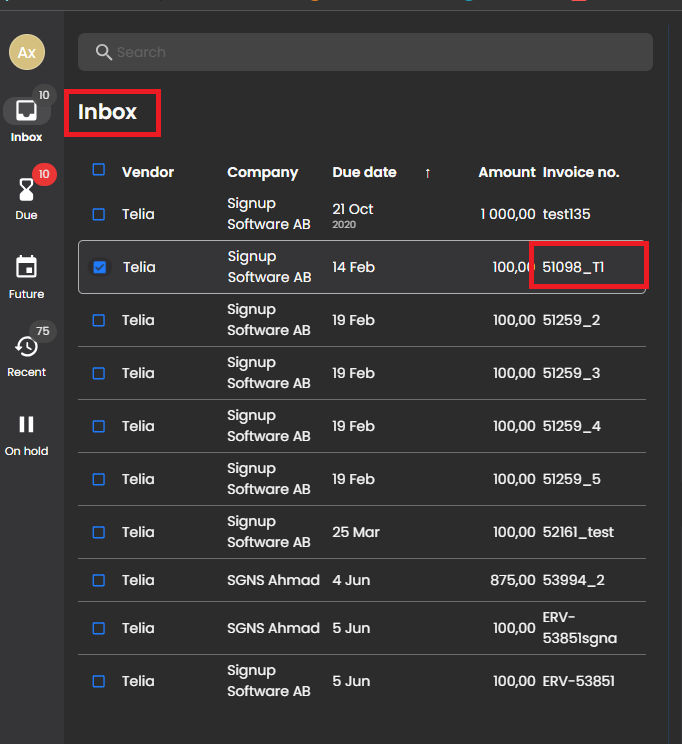
Configuration and setup for Mass Approval
Security configuration
The service object Document tag set and get is required to add.
- Navigate to Security configuration -> ExFlow web user role -> Privileges -> ExFlow web user privilege -> Service operations
- Add references -> Select
- EXF_Documenttagservice.Getdocumenttags
- EXF_Documenttagservice.Setdocumenttags
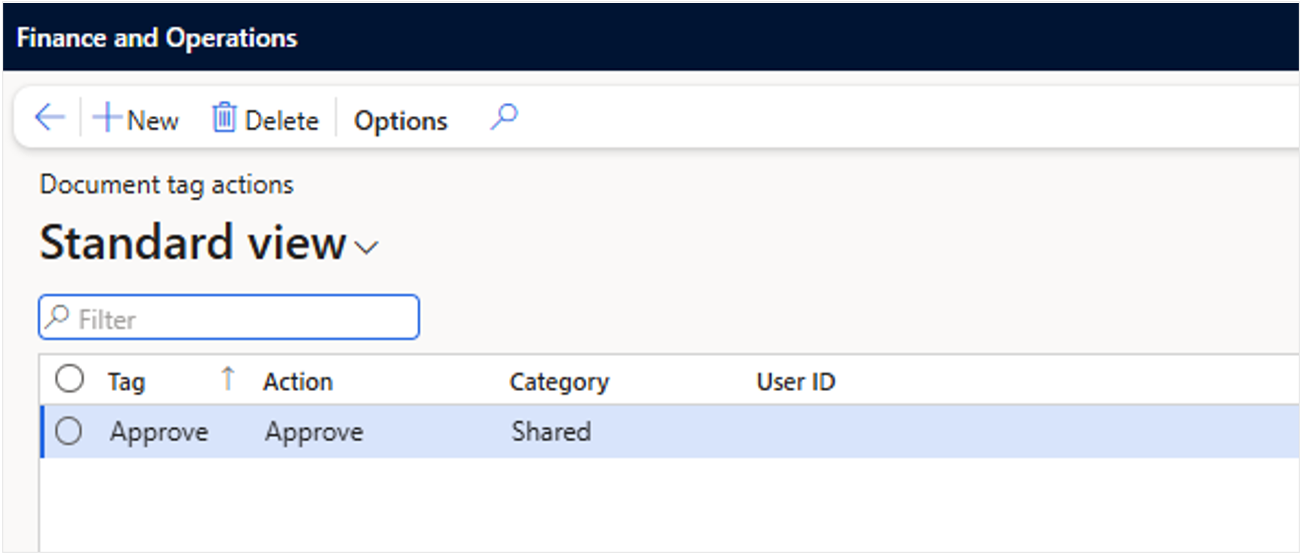
Document tag action
To be able to trigger an action the tag sent from web needs to be setup.
ExFlow AP -> Setup -> Classification -> Document tag actions
| Enable Tags | |
|---|---|
| Tag | The text that web will send. |
| Action | The appropriate action to set for the invoice. |
| Category | Is either shared or private. |
| UserId | is a single user if category is set to private. |
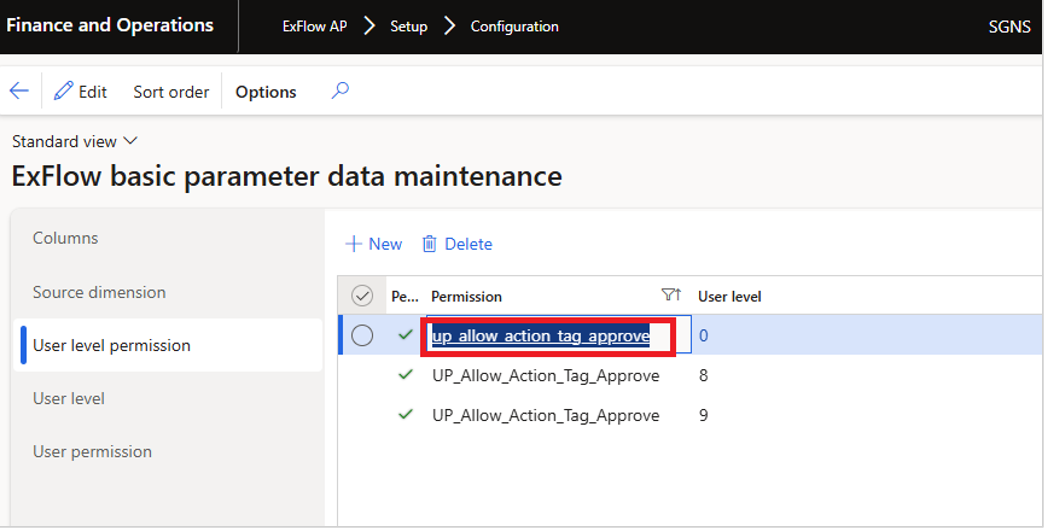
ExFlow user level permission
ExFlow AP -> Setup > Configuration > User level permission
- Add: up_allow_action_tag_approve to the desired user levels.
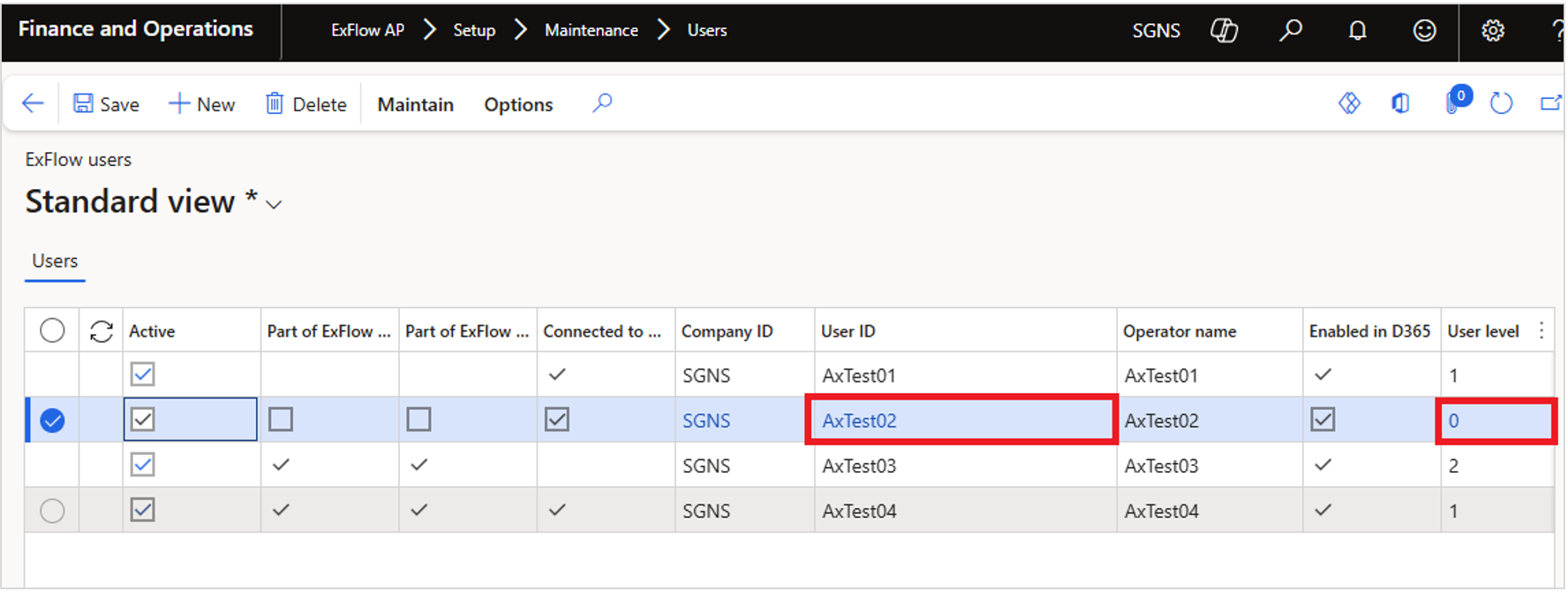
ExFlow users
ExFlow AP > Setup > Maintenance > Users
- Assign user level to the user which should be allowed for mass approval.
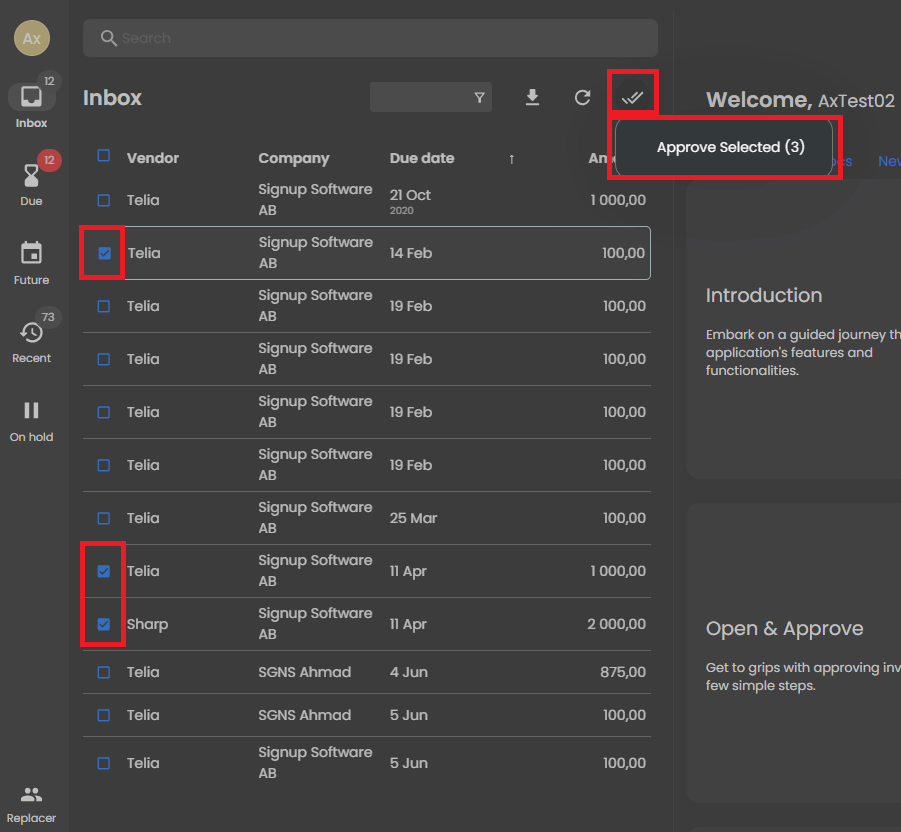
- Login to WEB as same user, and the invoices are shown in the grid form where user can select and approve multiple invoices at once.
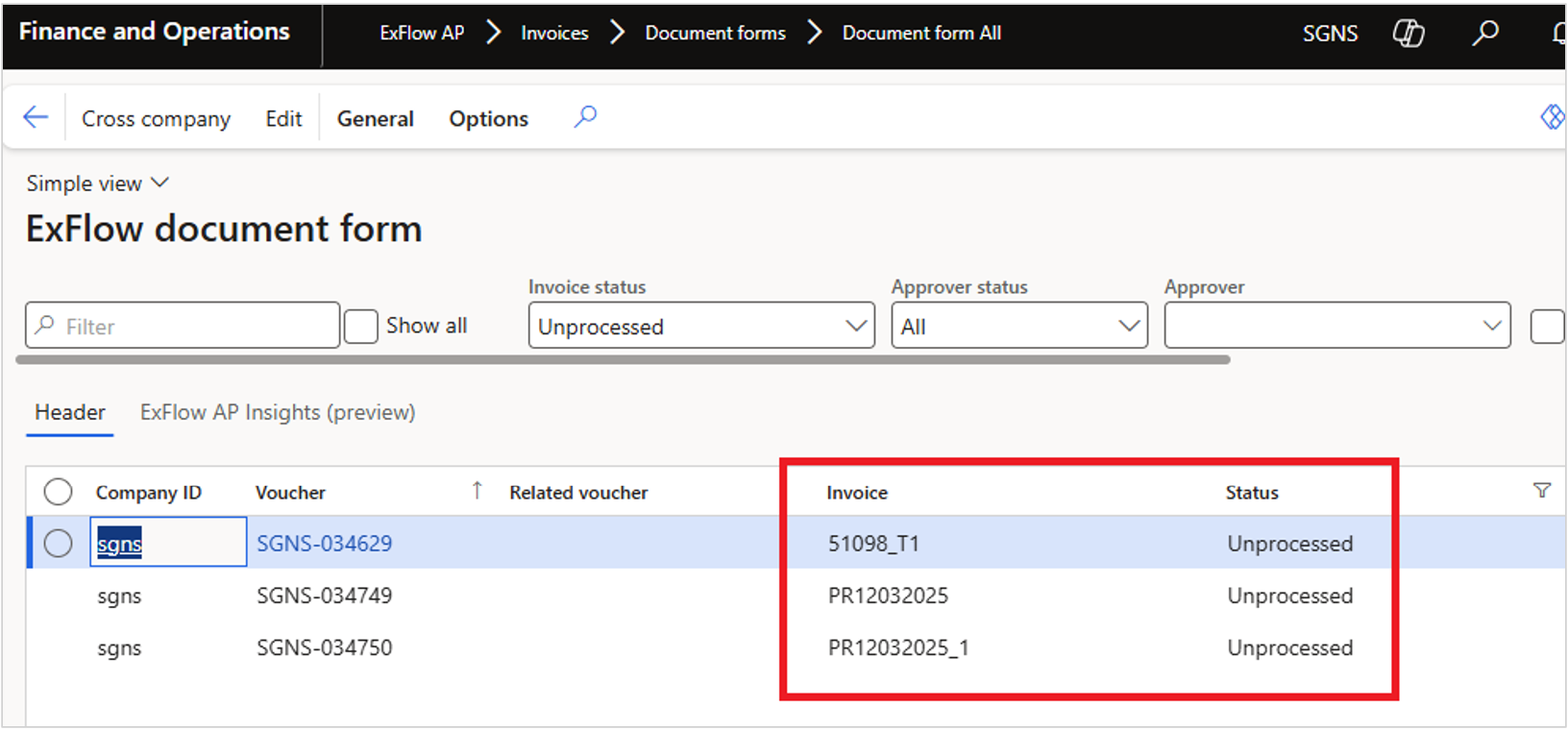
- After mass approval. The invoice statuses changes to “Unprocessed”.
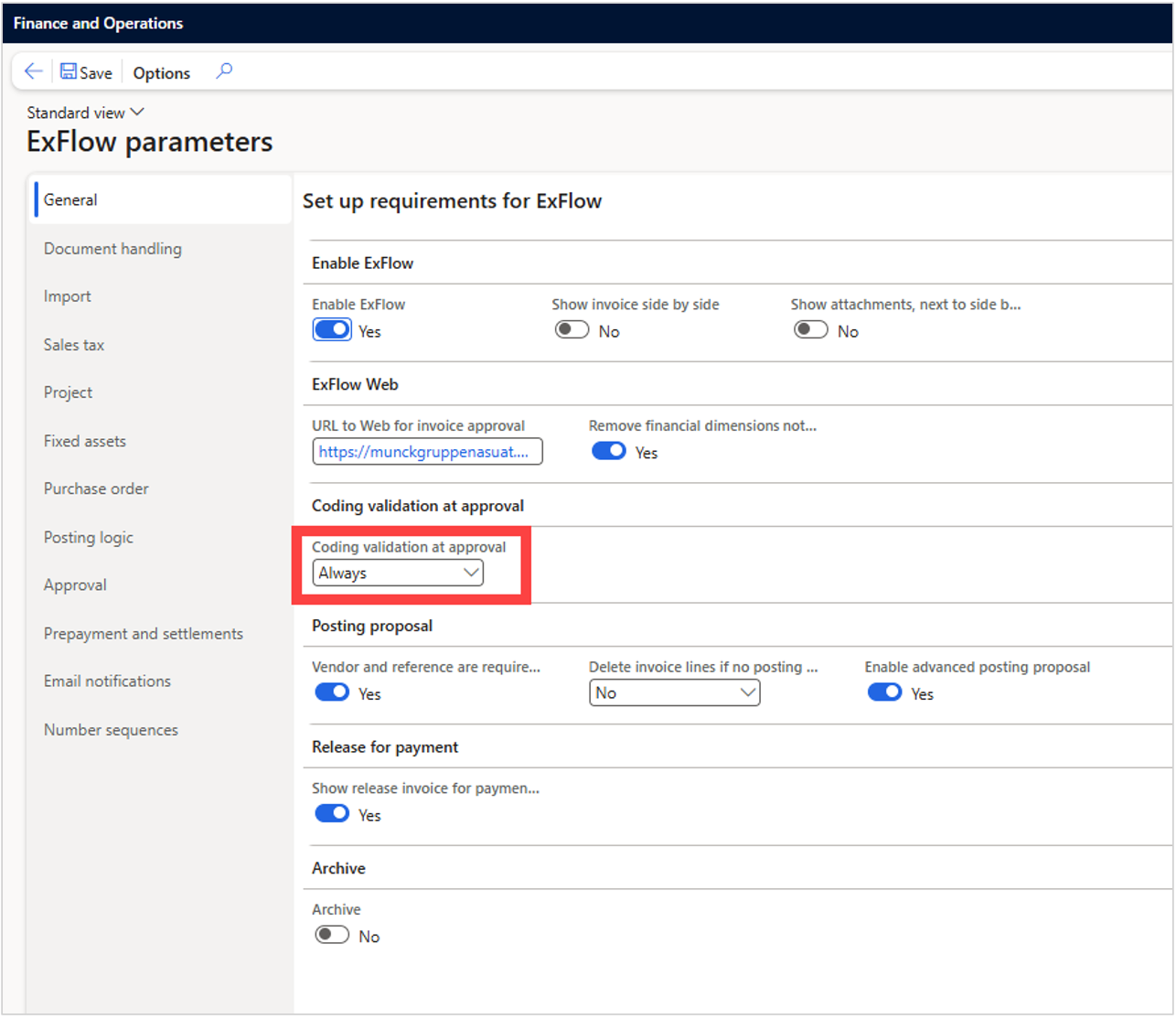
ExFlow Parameters
For Mass Approval Coding validation at approval set to "Always" is required.
ExFlow periodic job
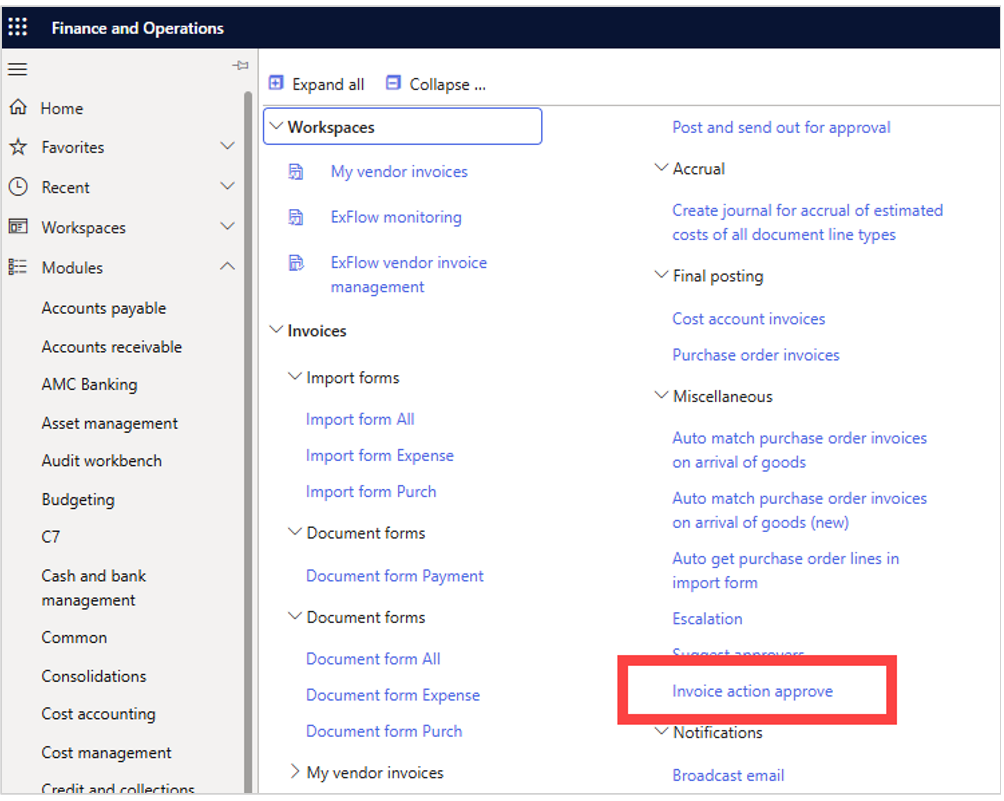
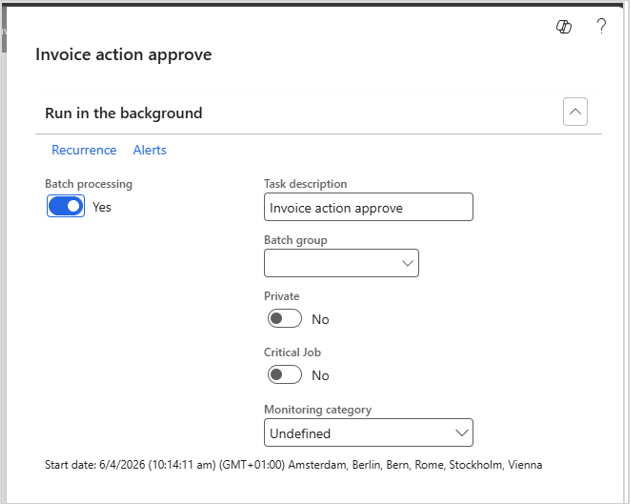
ExFlow AP -> Periodic Jobs -> Miscellaneous -> Invoice action approve
- Set batch job to run frequently
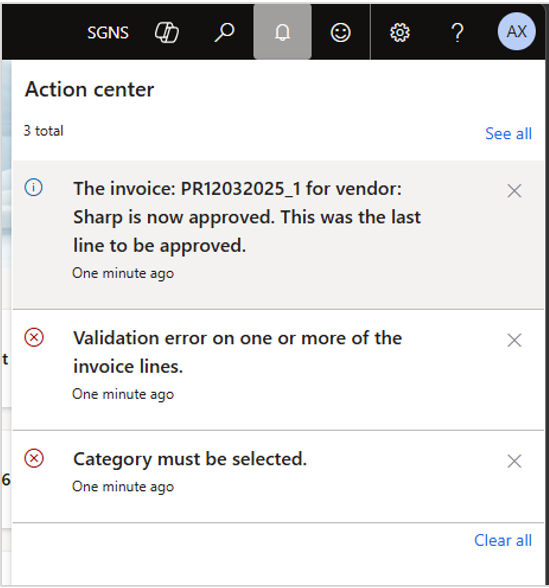
Under notification, the batch result shows if the invoices are approved or if the invoice had some errors.
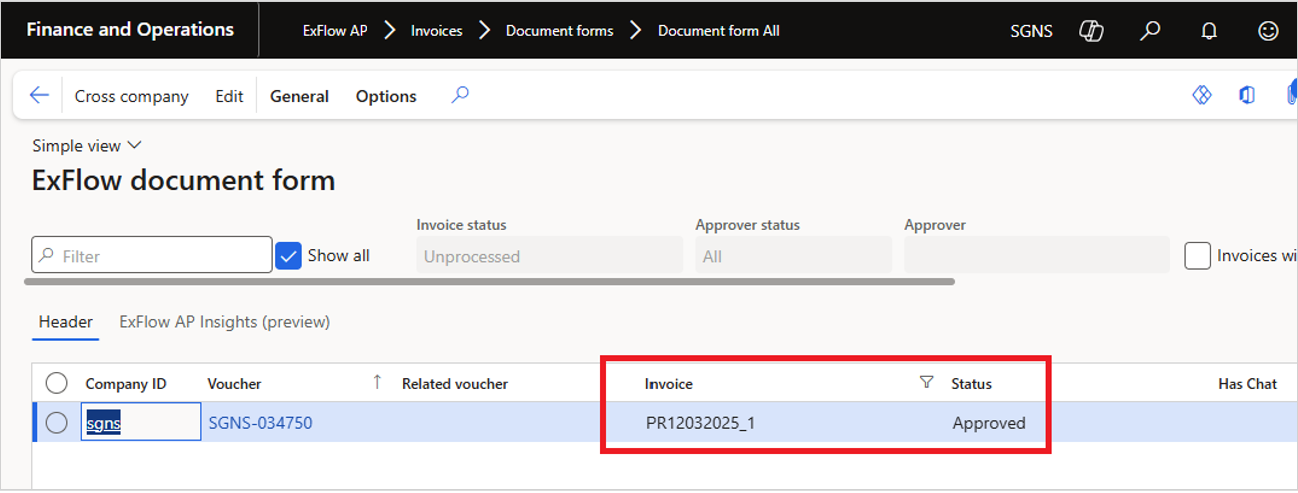
- If the invoice passes ExFlow validations, its status automatically changes to “Approved”.
- If an invoice fails validation during the batch run, it is automatically returned to the approver’s inbox.