Fast approval framework
Purpose
Fast approval is a framework developed to improve performance and reliability when handling large or complex invoices in Microsoft Dynamics 365 Finance and Operations (D365FO) within the ExFlow web environment.
Certain operations in ExFlow require significant processing time, especially when:
- Invoices contain many lines
- Workflows are large or complex
- Extensive validation is required
- The system performs communication between the web application and D365FO
These scenarios may lead to long response times or web timeouts.
Fast approval resolves this by executing heavy operations asynchronously through batch jobs in D365FO instead of processing them synchronously through the web.
Problem statement
Previously, validation and workflow execution were handled synchronously between the web application and D365FO.
Typical issues included:
- Long response times
- Web request timeouts
- Reduced user experience when processing large invoices
- Performance issues during features such as PO Reconnect
A partial solution previously implemented separated:
- Data validation (synchronous)
- Approver suggestions/workflow execution (asynchronous)
However, this solution was limited and did not address the general performance challenges.
Solution overview
The Fast approval framework introduces asynchronous execution for heavy operations between the web application and D365FO.
Key principles;
- Large operations run asynchronous batch jobs in D365FO
- The web interface returns immediately
- Invoice processing continues in the background
- Errors are logged and returned to users for review
Initially, Fast approval will be used for the following operations:
| Operation | Execution Type |
|---|---|
| Line Validate | Synchronous |
| Validate | Asynchronous |
| Save | Asynchronous |
Unsupported Combination
The following features cannot be enabled together:
- Summarize
- Separate suggest approvers from validate
- Fast approval
Other prerequisites
In order to have the Fast approver functionality to work you need to have the standard D365FO Batch Management running.

Benefits of Fast approval
Performance Improvements
- Eliminates web request timeouts
- Reduces long synchronous calls
- Improves user experience
Scalability
- Handles large invoices with many lines
- Supports complex workflows
Reliability
- Batch processing ensures stable execution
- Detailed error logging improves troubleshooting
Monitoring
- Full visibility through the ExFlow Monitoring Workspace
Setup for Fast approval
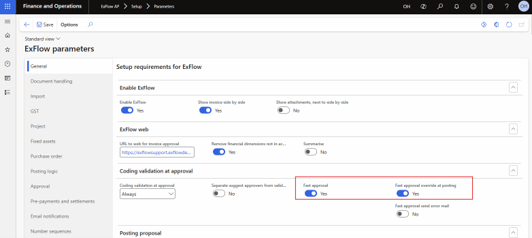
ExFlow AP -> Setup -> Parameters -> General tab
Override at posting
A configuration parameter can be set up in the parameter form ensuring that the manually set flag always will be kept when posting the invoice from import form to document form.
Fast approval override at posting
This ensures that if a user manually sets Fast approval, the setting will not be overwritten during posting.
- Navigate to ExFlow parameters -> Tab; General
- Section; Coding validation at approval
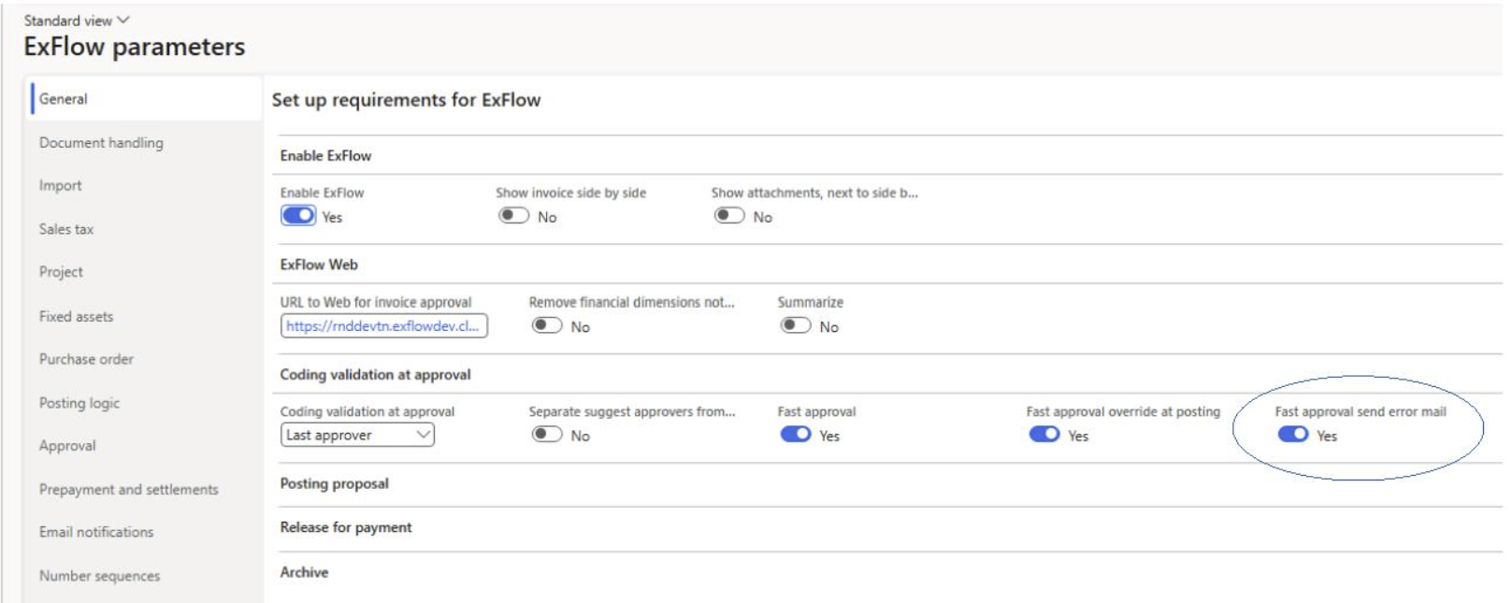
- Enable below two (2) parameters for the fast approval functionality.
Setup for automatic posting
ExFlow AP -> Setup -> Resources -> Setup for automatic postings
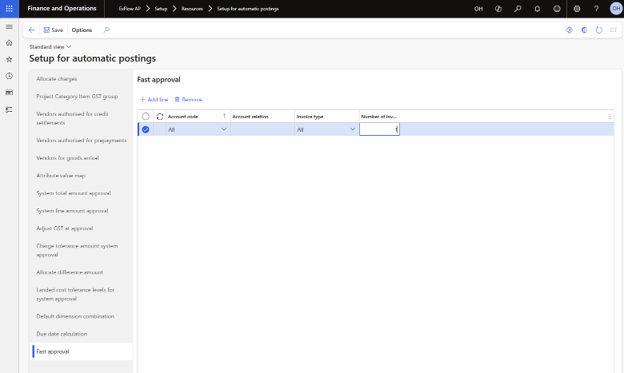
The Fast approval flag can be set automatically by using the rule-based configuration in the Automatic Setup form.
Example rules may include:
- Type of invoice (Expense invoices, Purchase order invoices or all)
- Number of invoice lines
- Vendor or vendor groups or all
A line has been setup in the fast approval setup shown below checking for invoices with 1 line.
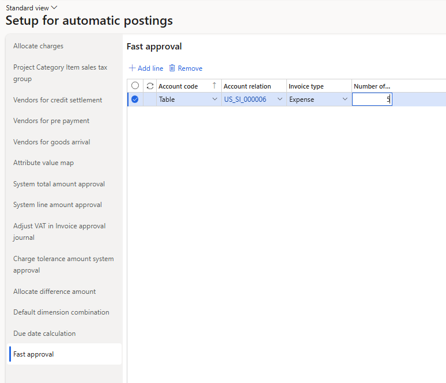
A line has been setup in the fast approval setup shown below checking for expense invoices from vendor US_SI_000006 with 5 lines.
Set Fast approval flag manually on the invoice
The Fast approval flag can also be set manually.
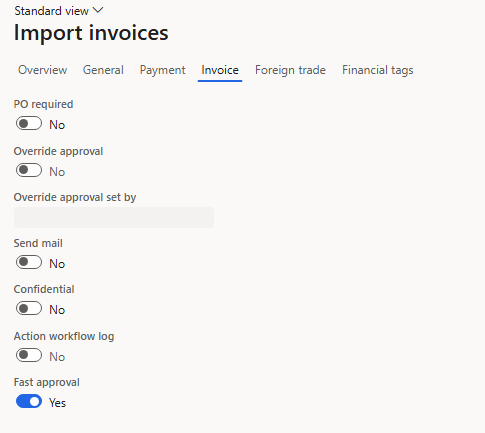
A new slider for Fast approval exists on the import and document table:
This flag determines whether the invoice is processed asynchronously.
Users can manually enable Fast approval on a document.
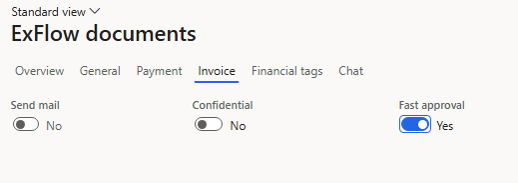
The flag can also be set manually in import form.
Fast approval process
Step 1 - Web request
When a user processes an invoice in the web application:
- The system checks the Fast approval flag on the document.
Two possible flows occur:
- Standard Flow
Web → wsCheckPostDocument → D365FO
- Fast approval Flow
Web → wsCheckPostDocumentFast → Batch job in D365FO
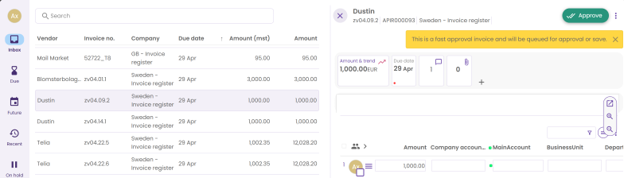
Step 2 – Immediate Web Response
When wsCheckPostDocumentFast is called:
- The web behaves as if validation succeeded
- The processing job is transferred to a D365FO batch job
Step 3 – Document Locking
Once the async process begins:
- The document is locked
- Other users cannot modify it
- The document status changes to:Unprocessed
Step 4 – Background Processing
The D365FO batch job performs:
- Full invoice validation
- Business logic execution
- Workflow processing
- Approval chain calculation
Step 5 – Result Handling
Two outcomes are possible.
Successful Validation
- Business logic runs
- Lines are approved
- Document status changes to: Approved or Active
Validation Errors
If errors occur:
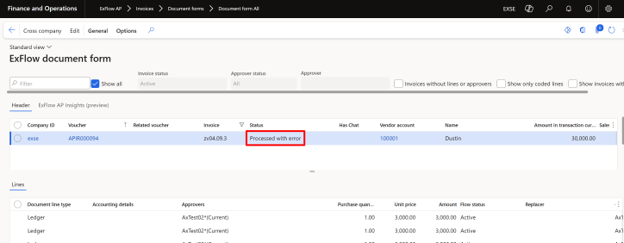
- Document status changes to:Processed with error
- Error messages are saved in the Fast approval error log
- In WEB: Invoices that has approval errors will be shown in the list with a red indicator and yellow banner and the text: This approval invoice and was queued for approval or saving but did not bypass validation. For details on the failed lines, hover on the red dot.
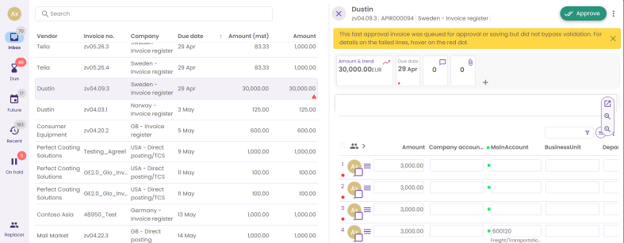
The invoice status will have the status failed for such invoices.
- The approver will continue working with the invoice in the same state that it was before it was sent in for Approval.
- The approver now have the choice to correct the invoice and Approve again or Cancel the invoice and start all over.
Monitoring workspace
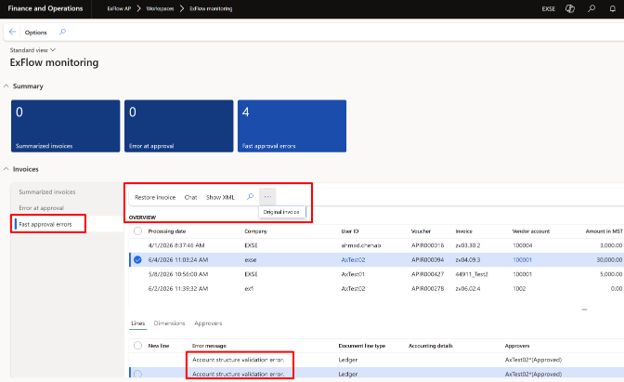
The invoices with errors, Fast approval errors, can be viewed in the ExFlow Monitoring Workspace. On the line level the invoice is shown with the data that the approver sent in from the web and where the validation failed.
The actual error is shown with the error message from the web and the AP clerk can either let the approver correct the error in the web when the invoice shows up again for approval or the AP clerk can:
- Restore the invoice (that means get the invoice back to its original status)
- Chat (send a chat message about the invoice to the approver)
- Show XML (gives a total picture of the XML that was sent in from the web)
- Original invoice (jump directly to the Document form)
The AP clerk can also use the ExFlow Monitoring Workspace to keep track of invoices that are stuck with validation errors. If no action is done by the AP clerk the invoice will show up again in the web where the approver can adjust the invoice.
Handling Unprocessed invoices
If something goes wrong (like ”runtime” errors), invoices can be left hanging in Unprocessed status.
The AP clerk can then open Document form for this type of invoice, filter on Unprocessed in the Invoice status field and then open the Document.
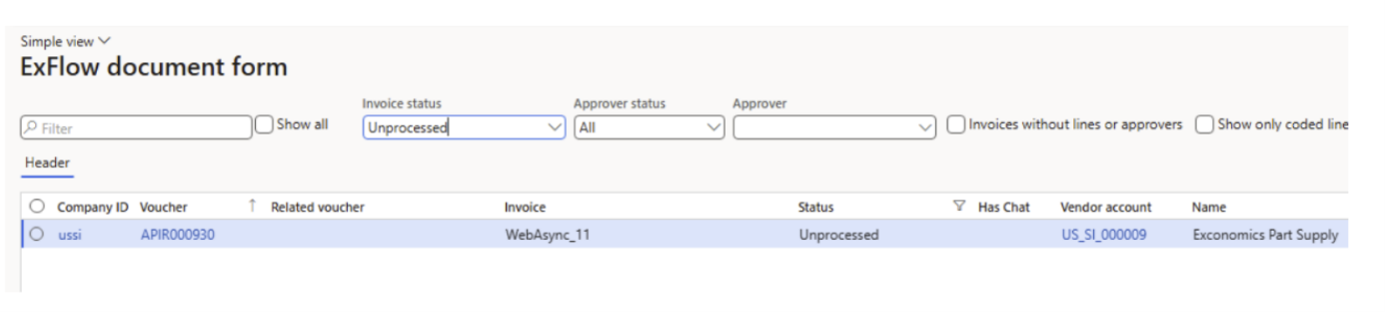
A new button is shown:
By using the Restore invoice the user can restore the invoice to status Active. The invoice will then be exactly as before, meaning it will be sent out for approval.
Please note! that invoices will be set to Unprocessed when using Fast Approval from the web and normally (without runtime errors) the invoice status will change either to Approved/Active if validation is OK or status Processed with errors if the validation is not OK.

Mail
If the flag for Fast approval send error email is set to true, the system will generate information about invoices that have validation errors. The information will be sent out together with the standard approval mail.
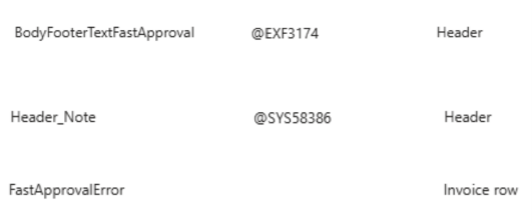
This requires the mail design to have a new XSLT that contains a reference to the three new definitions BodyFooterTextFastApproval, HeaderNote and FastApprovalError. All of these definitions needs to be set up in the ExFlow Definition form.
After the change in the XSLT the approver mail should look something like this:
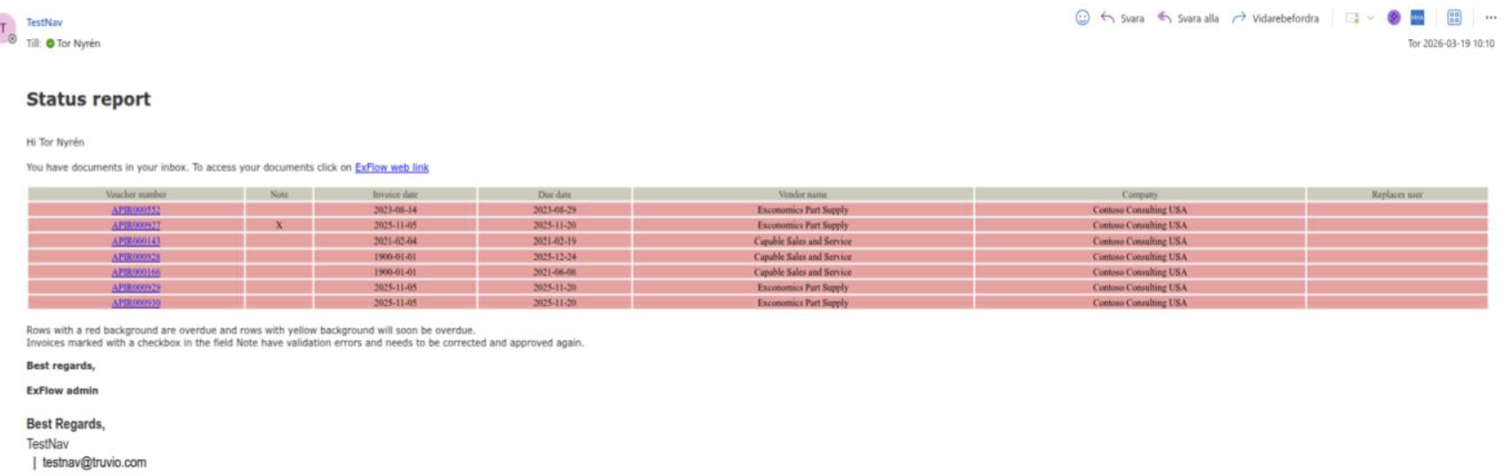
In order to distinguish the “normal” invoices to approve from the invoices that contains validation errors a new field.
Note! is displaying those kind of invoices with a checkbox.
An extra footer text has been added and is displaying an explanation to the approver of the reason why he needs to correct and approve the invoice again.