Search Documents
Go to: ExFlow History --> ExFlow Search Documents
ExFlow Search can be used for searching documents for different criteria. By choosing different filters, both Posted documents and Active can be found. Default Company will be the current "Company". It is also possible to set filters on multiple companies.
Search Documents Filter Menu
| Filter Menu | |
|---|---|
| Company | Lookup to Companies page. |
| Approver | Lookup to Ex Users page. Multi-select supported. |
| Document Type | Options: Invoice, Credit, Order, Requisition, Posted Invoice, Posted Credit Memo. |
| Document Status | Options: Inactive, Active, Approved. |
| Search Source | Search in area options; All, Import Journal, Approval Status, Approval Status History. |
| Open | Specifies whether to filter on open or closed documents, as shown in the Vendor Ledger Entries. Only applicable for posted documents. |
| Vendor | Lookup to Vendor List page. Multi-select supported. Accepts filter on Name or No. field. |
| Document No. | Filter by the ExFlow document number. |
| Vendor Invoice No. | Filter by the vendor's invoice number. |
| Order No. | Filter by the connected order number. |
| Prepayment Order No. | Filter by the prepayment order number. |
| Currency Code | Lookup to Currencies page. |
| Reference | Lookup to Ex Related Reference Tree View. Optionally filtered by the selected vendor. |
| Posting Date – From | Date range start for posting date. |
| Posting Date – To | Date range end for posting date. |
| Document Date – From | Date range start for document date. |
| Document Date – To | Date range end for document date. |
| Due Date – From | Date range start for due date. |
| Due Date – To | Date range end for due date. |
| Amount – From | Minimum amount for amount range filter. |
| Amount – To | Maximum amount for amount range filter. |
| Search Columns | Opens Ex Search Dimensions page for the selected company. Allows filtering by dimension values and additional columns (e.g., APPROVALRULE, ORDERNO). Requires exactly one company to be selected. |
Search Results
Action menu
| Action menu | |
|---|---|
| Apply Filter | Executes the search with the specified filter criteria across selected companies and populates the results. |
| Remove Filters | Clears all filter fields and resets the page to its initial state with the filter area visible. |
| Show/Hide Filters | Toggles the visibility of the filter area. |
| Card | Opens the standard Business Central card (e.g., Purchase Invoice) for the selected document. Shortcut: Shift+F7. |
| ExFlow Card | Opens the ExFlow document card (Ex Document Head, Ex Posted Document Head, or Ex Purchase Doc.) for the selected document. |
| Show Document Image | Displays the document image for the selected document. Supports multi-select to download several images. Shortcut: Ctrl+I. |
Applied Filter Result
| Filter Result | |
|---|---|
| Company | Displays the company name the document belongs to. |
| Document No. | Displays the ExFlow document number. |
| Document Type | Displays the type of document (Invoice, Credit Memo, Order, etc.). |
| Posting Date | Displays the posting date of the document. |
| Vendor No. | Displays the vendor number associated with the document. |
| Remaining Amount | Displays the remaining amount on the document. Hidden by default. |
| Vendor Name | Displays the name of the vendor. |
| Gross Amount | Displays the gross amount of the document. |
| Invoice No. | Displays the vendor's invoice number. |
| Create Date | Displays the date the document was created. |
| Import Date | Displays the date the document was imported. |
| Due Date | Displays the due date of the document. |
| Document Date | Displays the document date. |
| Reference | Displays the reference code of the document. |
| Reference (Import) | Displays the import reference of the document. |
| Import Document No. | Displays the import document number. |
| Currency Code | Displays the currency code of the document. |
| Connected Order No. | Displays the order number connected to the document. Calculated from the source record. |
| Prepayment Order No. | Displays the prepayment order number. |
| Remaining Amount | Displays the remaining amount, if the posted documents are paid or not. Read more about this here |
| Open | Specifies whether to filter on open or closed documents, as shown in the Vendor Ledger Entries, that tells if an invoice or payment is fully settled. Only applicable for posted purchase invoices and credit memos. |
| Confidential Document | Indicates whether the document is confidential. Hidden by default. |
Search Documents Workflow
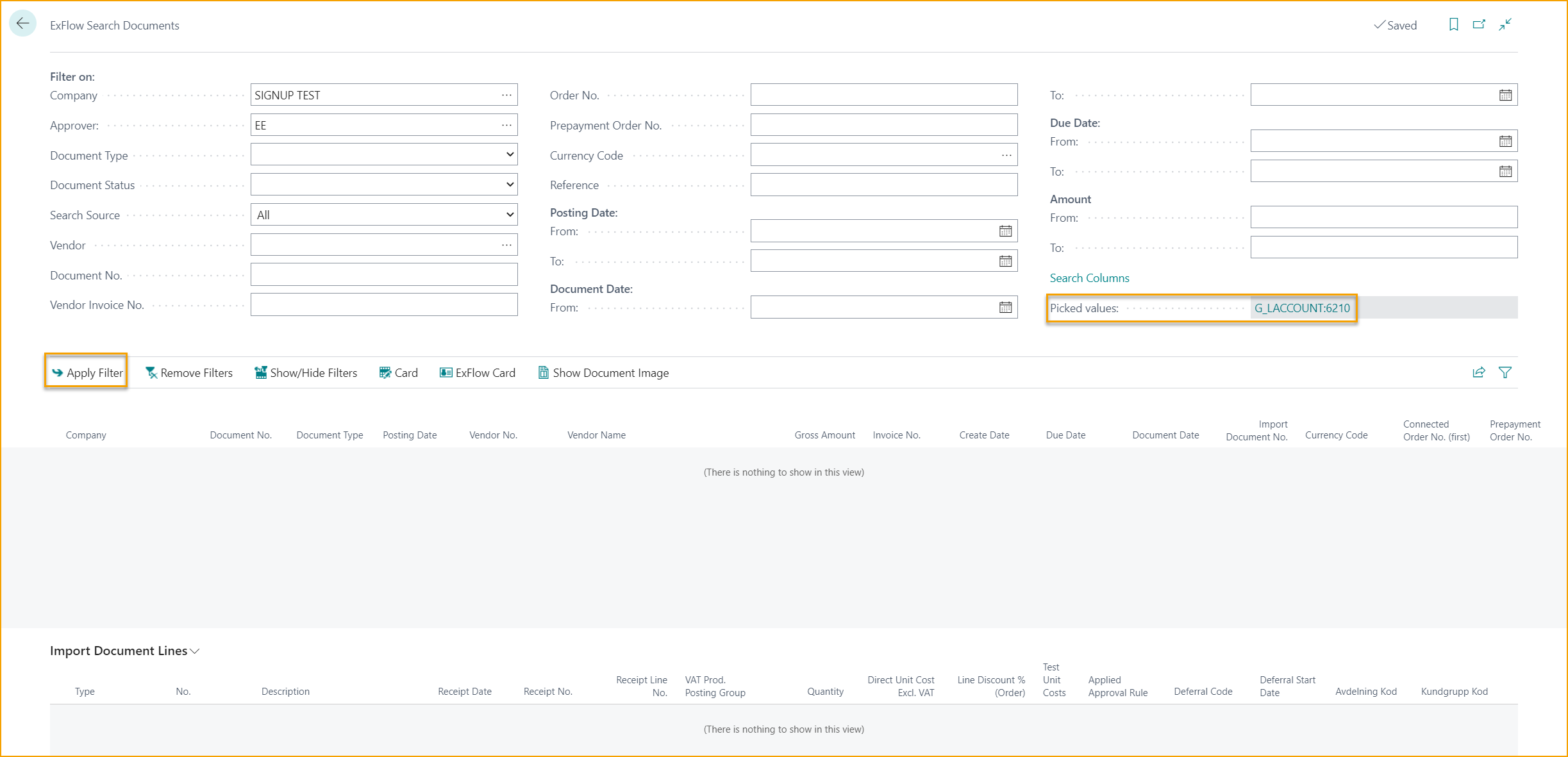
To be able to search, apply at least two filters. When required filter is entered, push "Apply Filter" to show the result.
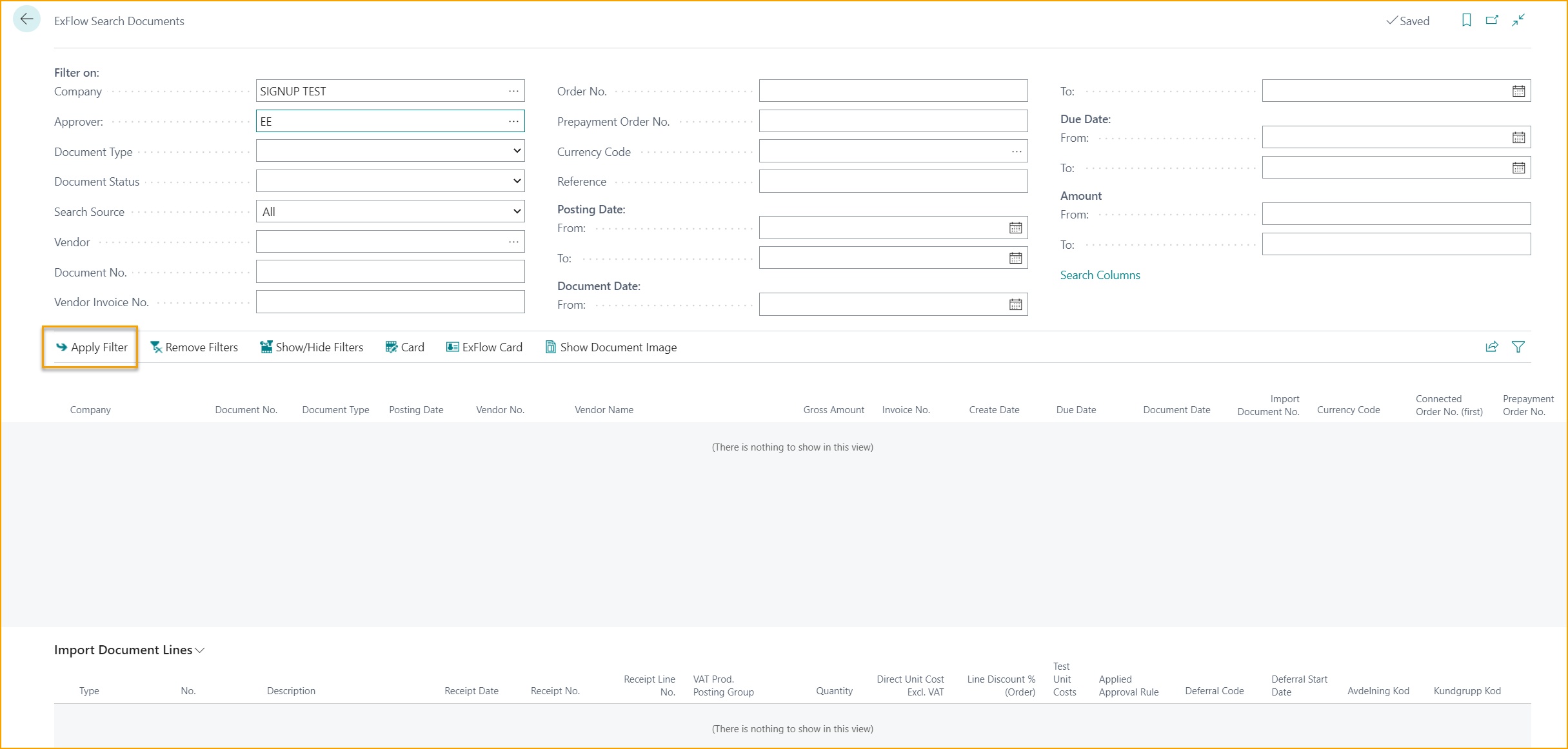
The result will show all documents with approver EE:
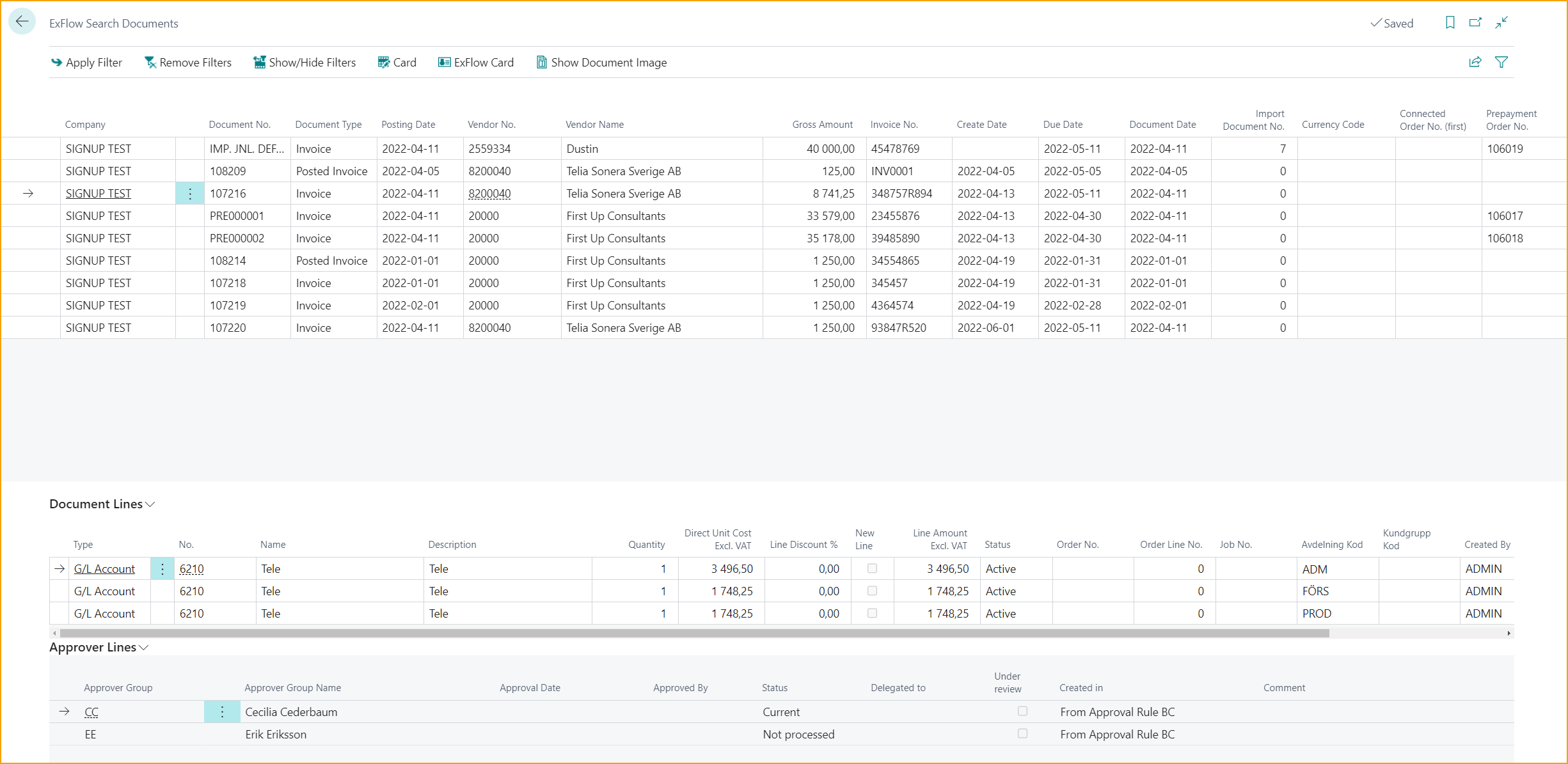
Use "Remove Filters" to clear the page or "Show/Hide Filters" to apply another filter.
Open Card or ExFlow Card to see more details about the document. Click on "Show Document Image" to display the Document Image.
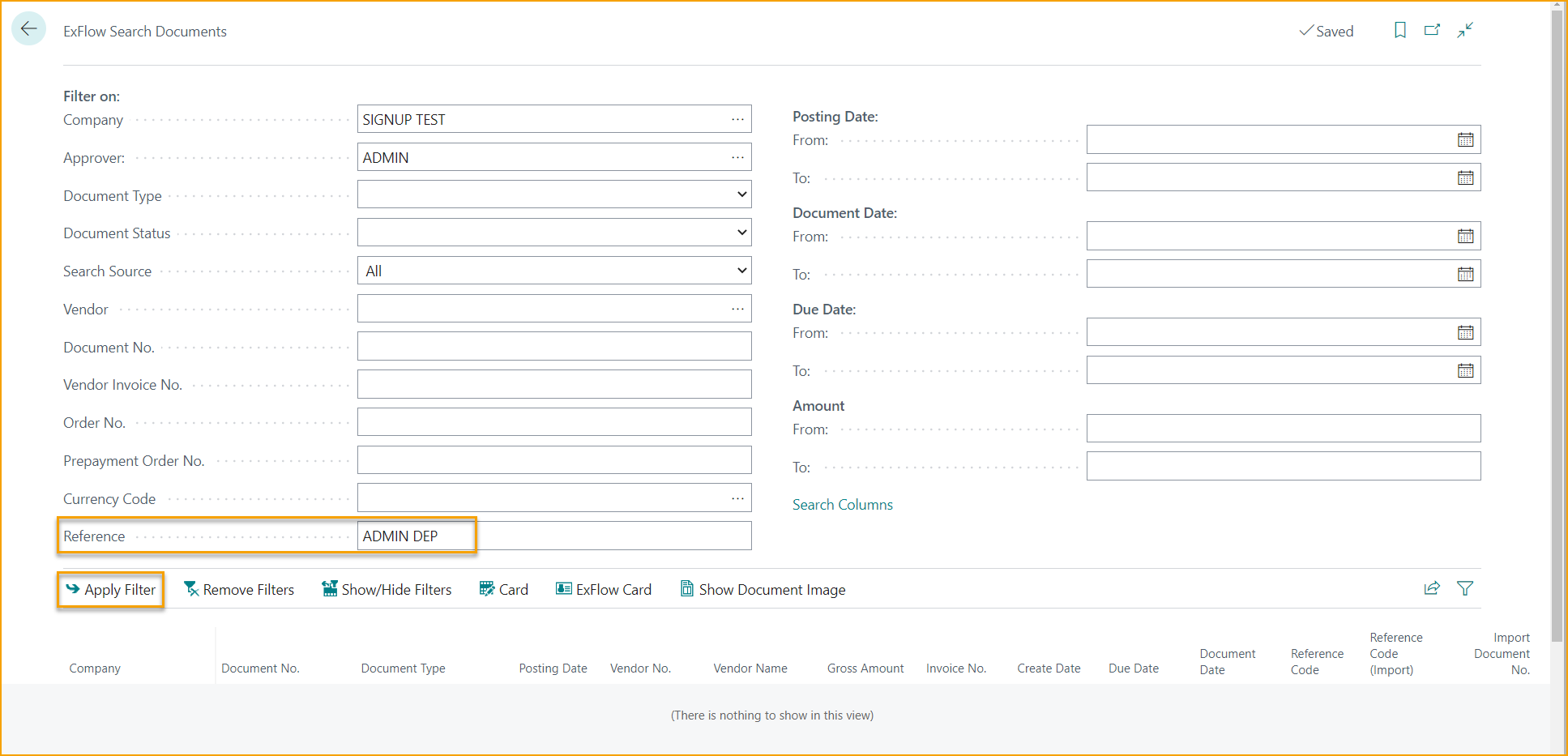
There is also a possibility to search for a ExFlow Reference Code in ExFlow Search Documents. Enter the Reference Code in the "Reference" field and then click on "Apply Filter" to show the search result.
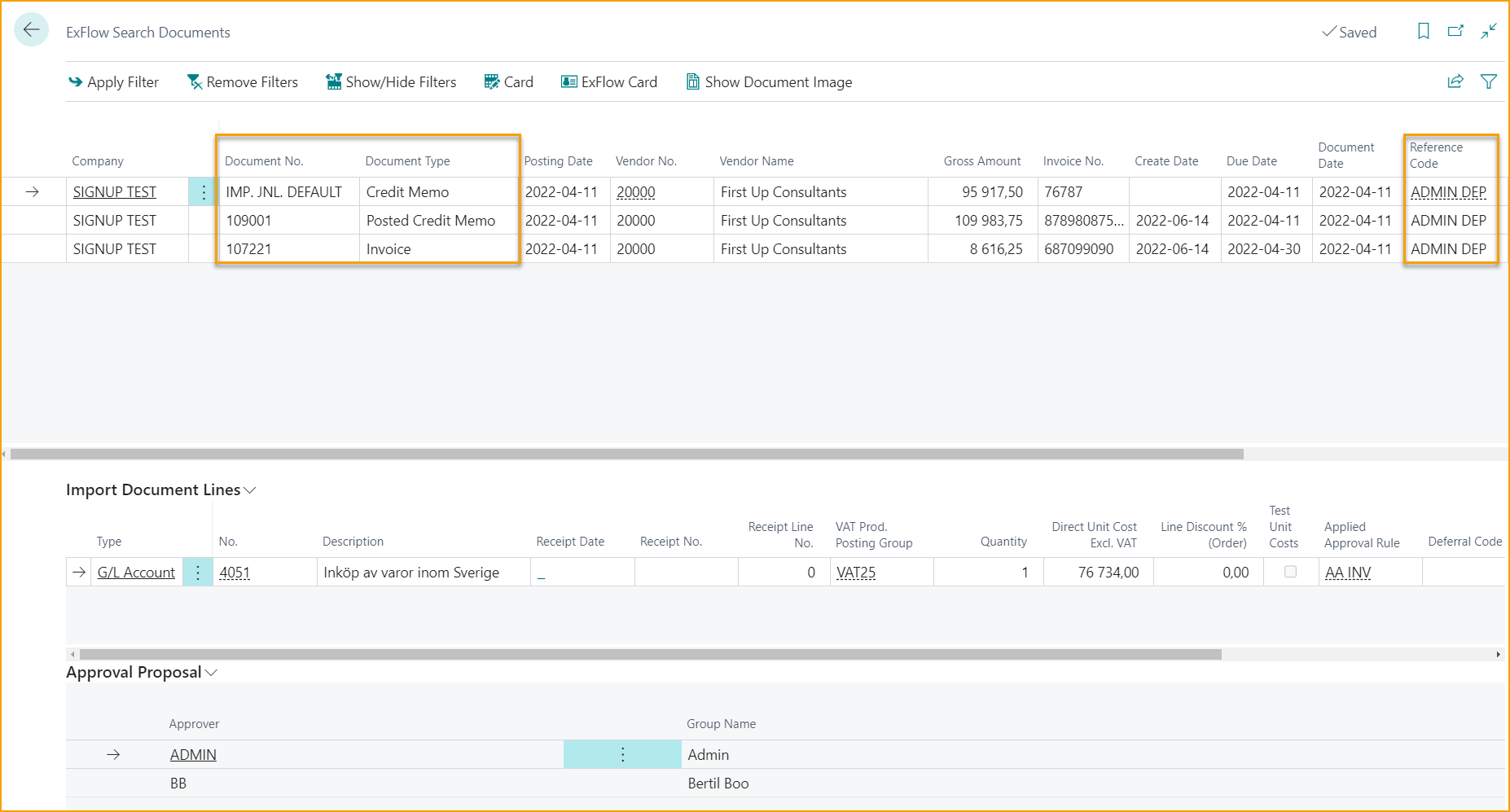
The result list will show all documents with the connected Reference, in all places like Import Journal, Approval Status and posted documents in Approval Status History.
Read more under section Reference Codes to learn more about how to create and use ExFlow References.
Option "Search Columns"
Press Search Columns to add more search values on document lines.
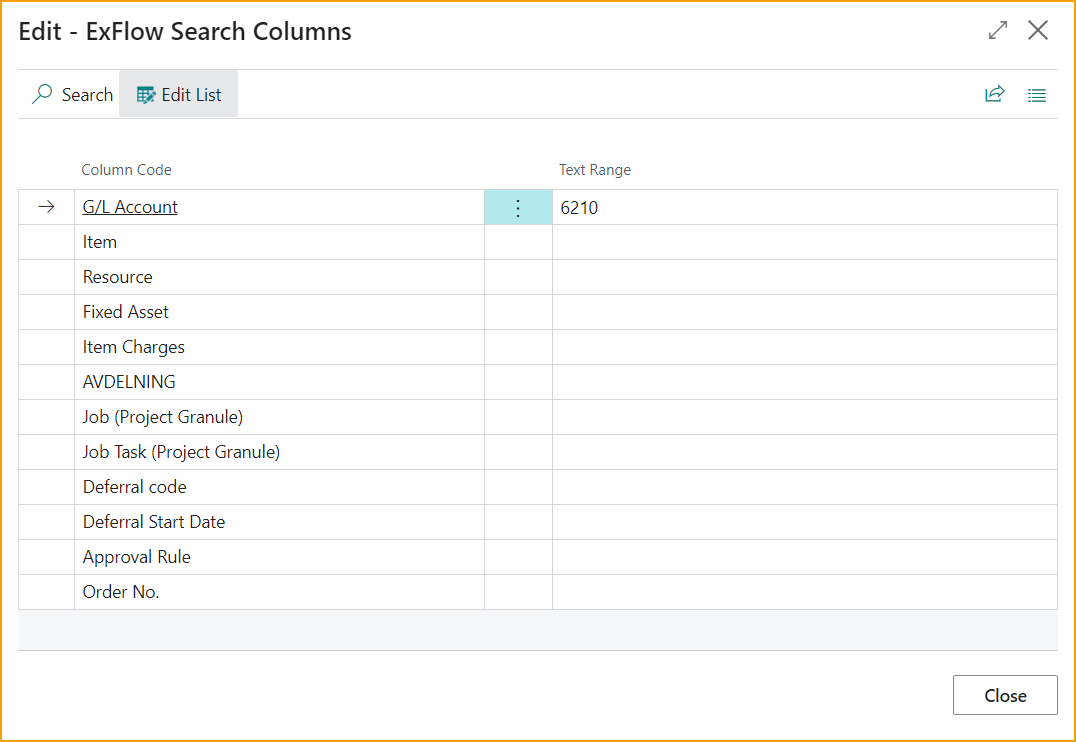
Chosen filter is set to G/L Account 6210 and approver EE:
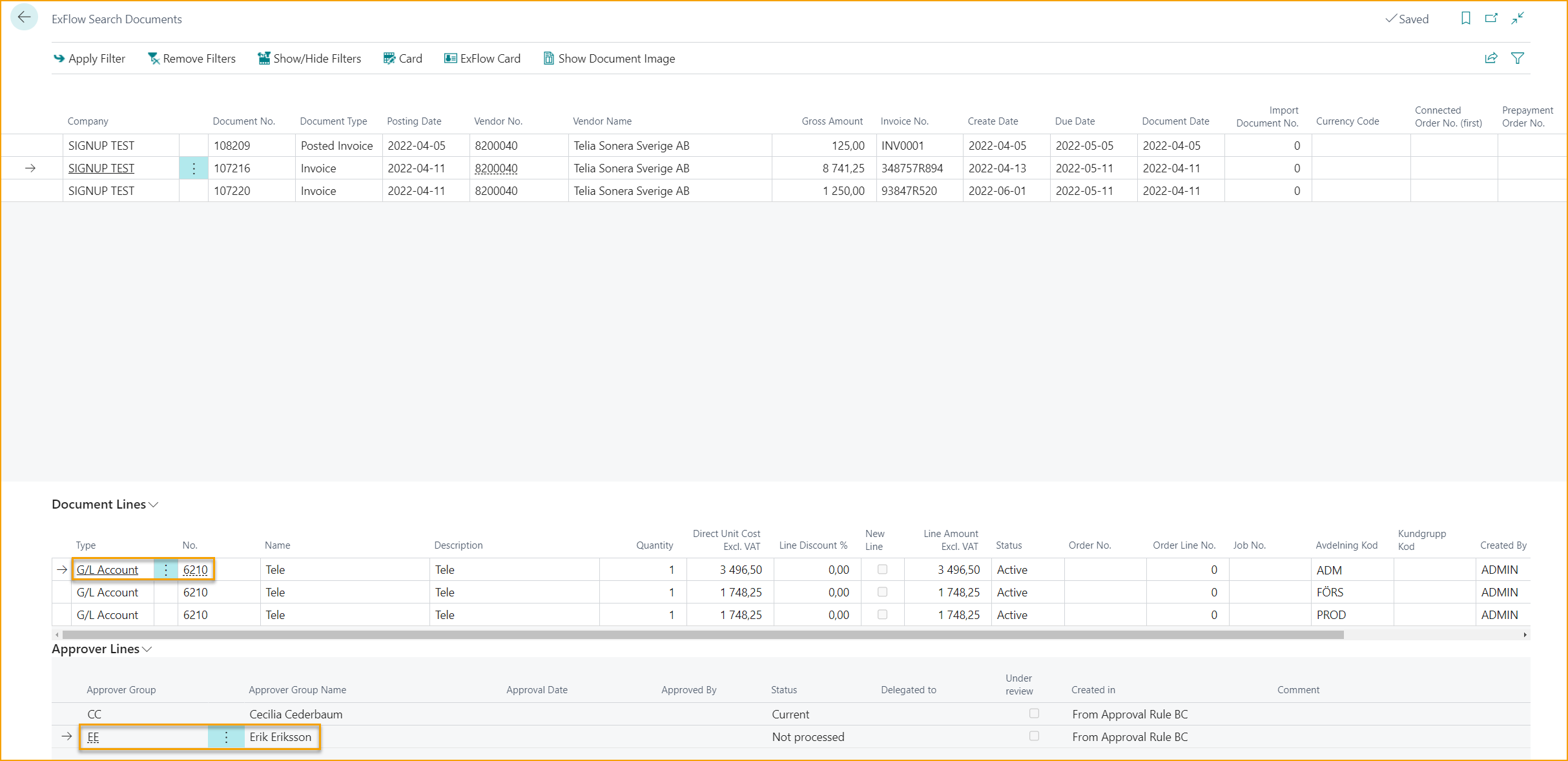
The result will show all documents with this combination within the chosen company.
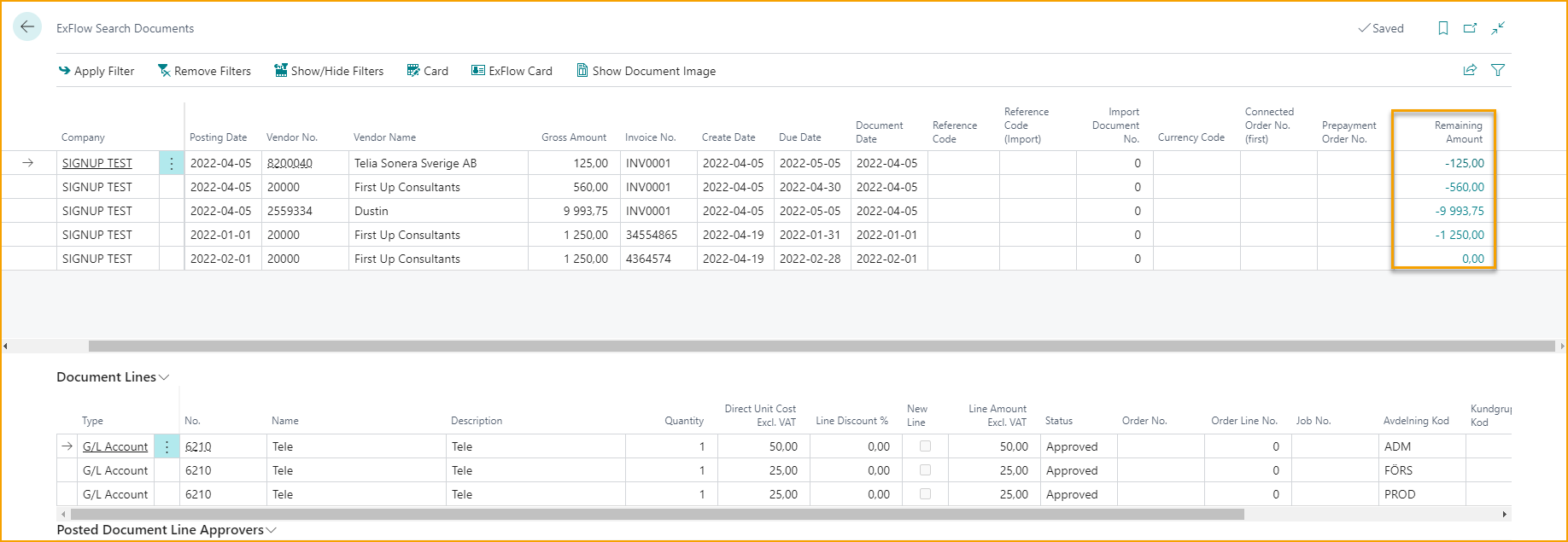
See Remaining Amount in ExFlow Search Documents
When the search results are filtered, it is also possible to see if the posted documents are paid or not. This can be done by adding "Remaining Amount" column via "Personalize" to the filtered-out results.
"Remaining Amount" is also visible in Approval Status History
The Open field can be used to filter on open or closed documents, as shown in the Vendor Ledger Entries. Only applicable for posted documents.